In this post a PowerShell script is used to create users in Active Directory. Users and their parameters are added to a CSV file. Then a PowerShell script is created that can add the users to Active Directory. And finally, the script is run in PowerShell ISE.
This post is part six of a home lab that explains how to use Windows Server and Active Directory.
Posts in Window Server and Active Directory Home Lab
- Home Lab Introduction: Windows Server and Active Directory
- Install Windows Server using VMware Workstation
- Configure Windows Server
- DHCP Server Installation and Configuration
- Create Organizational Units in Active Directory
- Create Users in Active Directory using PowerShell
- Join a Windows 11 Computer to a Domain
- Create Groups in Active Directory
- Create Group Policy Objects in Active Directory
Table of Contents This Post
PowerShell is an automation and configuration management framework created by Microsoft. In Windows OS, PowerShell consists of a command-line shell and a scripting language that is built on .NET.
PowerShell was originally designed solely for Windows administration. Later an alternative version of PowerShell was created (titled PowerShell Core) that runs on Windows, Linux, and macOS. In this lab, we will use the Windows OS version of Powershell.
User Parameters
Before creating the CSV file, let’s look at the common parameter values that can be assigned to a user in AD.
In the “Active Directory Users and Computers” (ADUC) GUI tool, click on Users. Then right click on one of the built-in users in Windows Server, such Administrator, and choose Properties. The parameter values that can be assigned to a user are categorized by the various tabs in the Properties window.
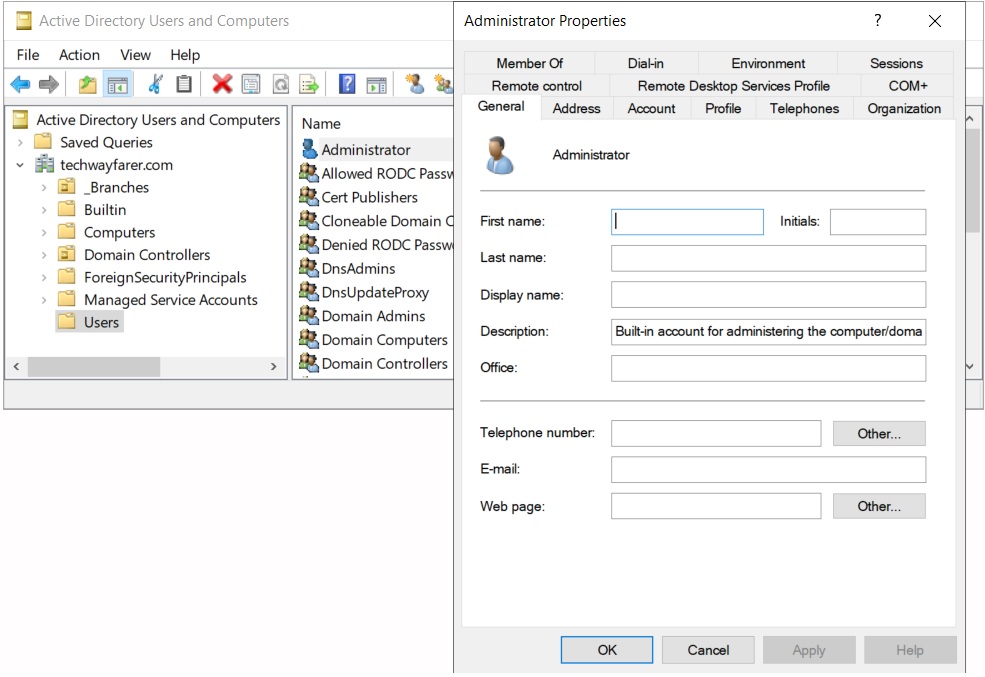
Below is a list of the common user parameters found in the Microsoft documentation. The New-ADUser cmdlet will be explained later.
New-ADUser
    [-AccountExpirationDate <DateTime>]
    [-AccountNotDelegated <Boolean>]
    [-AccountPassword <SecureString>]
    [-AllowReversiblePasswordEncryption <Boolean>]
    [-AuthenticationPolicy <ADAuthenticationPolicy>]
    [-AuthenticationPolicySilo <ADAuthenticationPolicySilo>]
    [-AuthType <ADAuthType>]
    [-CannotChangePassword <Boolean>]
    [-Certificates <X509Certificate[]>]
    [-ChangePasswordAtLogon <Boolean>]
    [-City <String>]
    [-Company <String>]
    [-CompoundIdentitySupported <Boolean>]
    [-Country <String>]
    [-Credential <PSCredential>]
    [-Department <String>]
    [-Description <String>]
    [-DisplayName <String>]
    [-Division <String>]
    [-EmailAddress <String>]
    [-EmployeeID <String>]
    [-EmployeeNumber <String>]
    [-Enabled <Boolean>]
    [-Fax <String>]
    [-GivenName <String>]
    [-HomeDirectory <String>]
    [-HomeDrive <String>]
    [-HomePage <String>]
    [-HomePhone <String>]
    [-Initials <String>]
    [-Instance <ADUser>]
    [-KerberosEncryptionType <ADKerberosEncryptionType>]
    [-LogonWorkstations <String>]
    [-Manager <ADUser>]
    [-MobilePhone <String>]
    [-Name] <String>
    [-Office <String>]
    [-OfficePhone <String>]
    [-Organization <String>]
    [-OtherAttributes <Hashtable>]
    [-OtherName <String>]
    [-PassThru]
    [-PasswordNeverExpires <Boolean>]
    [-PasswordNotRequired <Boolean>]
    [-Path <String>]
    [-POBox <String>]
    [-PostalCode <String>]
    [-PrincipalsAllowedToDelegateToAccount <ADPrincipal[]>]
    [-ProfilePath <String>]
    [-SamAccountName <String>]
    [-ScriptPath <String>]
    [-Server <String>]
    [-ServicePrincipalNames <String[]>]
    [-SmartcardLogonRequired <Boolean>]
    [-State <String>]
    [-StreetAddress <String>]
    [-Surname <String>]
    [-Title <String>]
    [-TrustedForDelegation <Boolean>]
    [-Type <String>]
    [-UserPrincipalName <String>]
    [-WhatIf]
    [-Confirm]
    [<CommonParameters>]
We will only use a small subset of the possible user parameters for this lab.
- Name
- GivenName
- Surname
- SamAccountName
- Path
The SamAccountName parameter has to be specified in order to create a user.
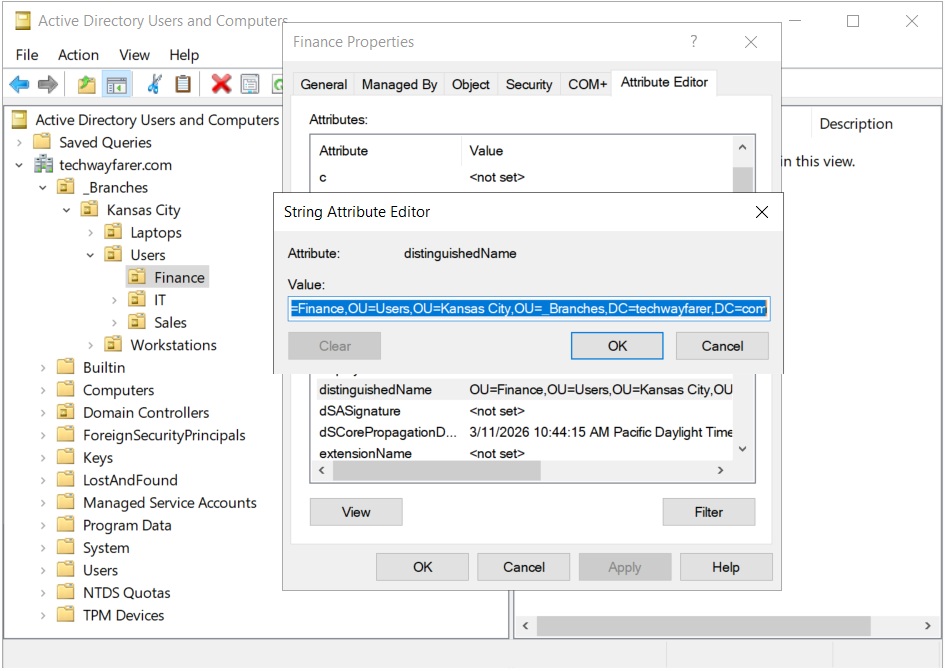
The Path parameter specifies the location where the user will be stored in AD. The correct path for a user can be copied from ADUC. In the top menu click View > Advanced Features. Then right click on the destination OU for a user (e.g., Finance) and choose Properties. In the Properties window open the Attribute Editor, then open the distinguishedName (DN) attribute, and copy the value. All users stored in the same OU (or Container) share the same DN.
Create CSV File
Excel can be used to create a list of users, and their parameters, that will be added to the domain.
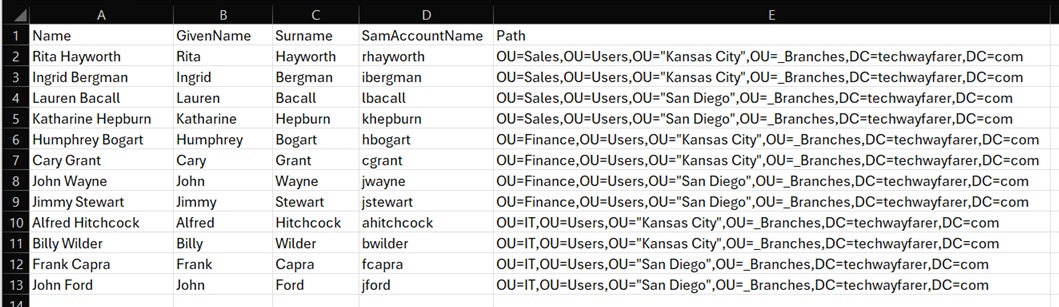
The field names in the first row of the Excel file and match the parameter names found in the Microsoft documentation.
The Excel file is saved in the CSV format in order to be used in a PowerShell script.
Create and Run PowerShell Script
We will use two commands (or cmdlets) in Powershell to add the users to the Windows domain in bulk.
- Import-Csv
- New-ADUser
Import-Csv allows us to import many users and their parameters, stored in a CSV file, into a PowerShell script.
The New-ADUser cmdlet adds each user to the domain. The Description section of the New-ADUser documentation provides a brief overview of the method we will use to add users to our domain in bulk.
“Method 3: Use the Import-Csv cmdlet with the New-ADUser cmdlet to create multiple Active Directory user objects. To do this, use the Import-Csv cmdlet to create the custom objects from a comma-separated value (CSV) file that contains a list of object properties. Then pass these objects through the pipeline to the New-ADUser cmdlet to create the user objects.”
We will use Windows PowerShell ISE to run the cmdlets that add the users to our domain. To open the ISE click on the Windows icon and then Windows PowerShell > Windows PowerShell ISE.
In Powershell ISE create a new file by clicking File > New in the top menu.
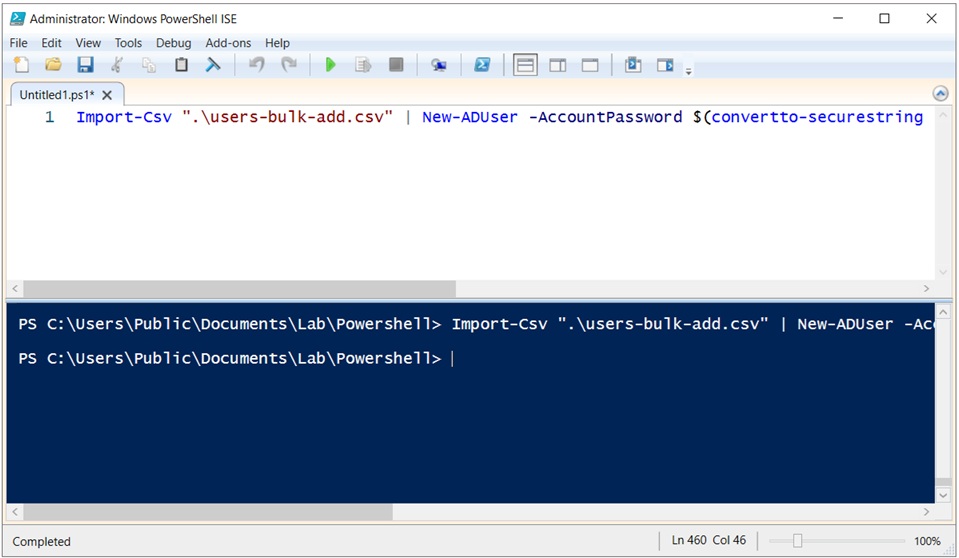
Copy the following command into the top half of the ISE window where the script is run:
Import-Csv ".\users-bulk-add.csv" | New-ADUser -AccountPassword $(convertto-securestring "P@55w0rd" -AsPlainText -Force) -ChangePasswordAtLogon $true -Enabled $trueHere is an overview of the command:
- The Import-Csv cmdlet accesses the user data stored in the CSV file.
- The name of the CSV file is users-bulk-add.csv. It is stored in the current directory that is displayed in the bottom window (e.g., C:\Users\Public\Documents\Lab>)
- The pipe | command sends user data to the New-ADUser cmdlet.
- The AccountPassword parameter assigns an initial password of P@55w0rd to each user and allows the password to be displayed as plain text. In the real world the initial passwords would be created by a random password generator and would not be displayed in plain text.
- The ChangePasswordAtLogon parameter forces the user to change his password the first time he logs onto the domain, which is sound security practice as only the user should know his password.
- The Enabled parameter makes sure the user’s profile is active on the domain.
Before running the script use the cd command, in the bottom half of the ISE window, to open the folder where the CSV file is stored. For instance, the CSV file for this lab has been saved in the following directory.
PS C:\Users\Public\Documents\Lab\PowerShellTo run the script, press F5 or the Run Script button (green arrow) in the top menu. If you have multiple lines in the script window, and only want to run one line, you can press F8 or the Run Selection button.
If the script runs successfully, no error messages will appear in the bottom half of the ISE window.
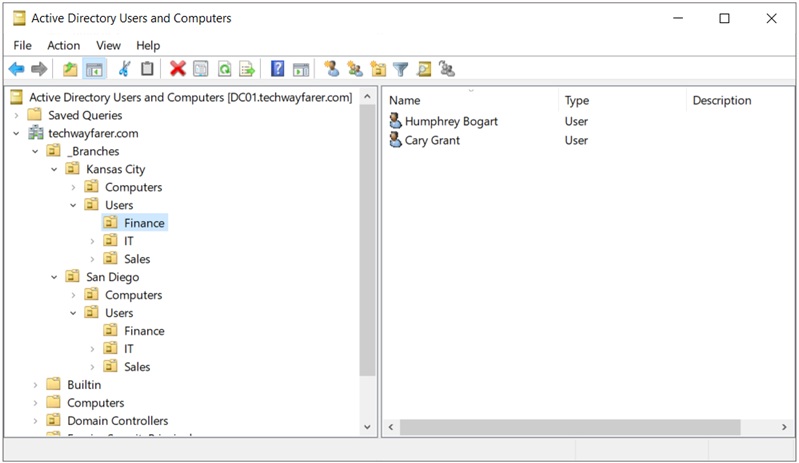
To verify the users were added to AD, open the ADUC tool, click on each folder, and press the refresh button in the top menu.
Conclusion
We are done creating users in a Windows domain using Powershell.
In the next post a Windows 11 computer is joined to a domain.
Next Post >> Join a Windows 11 Computer to a Domain