In this post, we will install and configure a DHCP (Dynamic Host Configuration Protocol) server.
This post is part four of a home lab series that explains how to use Windows Server and Active Directory. In earlier portions of this lab a Windows Server was installed, configured, and promoted to a domain controller (DC).
Posts in Window Server and Active Directory Home Lab
- Home Lab Introduction: Windows Server and Active Directory
- Install Windows Server using VMware Workstation
- Configure Windows Server
- DHCP Server Installation and Configuration
- Create Organizational Units in Active Directory
- Create Users in Active Directory using PowerShell
- Join a Windows 11 Computer to a Domain
- Create Groups in Active Directory
- Create Group Policy Objects in Active Directory
In this part of the lab DHCP service is added to the DC, so a client device logged onto the domain will automatically receive an IP address.
The DHCP server will be configured as if it is operating in a real business. We will create multiple scopes, define exclusions, set DHCP options, adjust lease times, and create reservations — all using the DHCP management console.
Table of Contents This Post
Benefits of DHCP
DHCP automatically (or dynamically) assigns IP addresses and network settings to devices that connect to a Windows network. Hundreds or thousands of devices on the same network can all be configured without manual intervention.
Without DHCP manual configuration is required for each device that connects to a network. Manual configuration is difficult to manage in larger organizations. Typos and other misconfiguration errors can prevent devices from joining a network or create conflicts when multiple devices are assigned the same IP address.
Proper DHCP settings are integral to the proper functioning of business networks. Incorrect DHCP settings create connectivity issues that can be difficult to troubleshoot and resolve.
DHCP service can be provided by a router or by a DHCP server. Small businesses often use a router that makes DHCP easier to setup and manage. And the basic DHCP functionality provided by a router is enough for most small businesses.
Larger organizations utilizing a Windows Active Directory (AD) often use a DHCP server. It provides more advanced features such as IP address reservations and integration with other Windows services. The tradeoff is that DHCP servers are more complex and can require detailed configuration. In this lab, DHCP will be setup using a Windows server.
Settings Provided by DHCP
DHCP provides several settings that allow devices to properly communicate on a network:
- IP Address – the unique identifier for each device on the network.
- Subnet Mask – identifies the portions of the IP address that represent the network and the host (device connecting to the network). Using the subnet mask, traffic sent to a local network device is directed to a switch. And traffic sent to an external device that is not on the same local area network (LAN) is directed to a router.
- Default Gateway – the router’s IP address. A router allows a device to communicate with external devices that are not part of the LAN.
- DNS Servers – the addresses of DNS servers that translate human readable addresses (e.g., techwayfarer.com) into IP addresses.
- DNS Suffix – the domain name suffix applied to short hostnames. DHCP announces the DNS suffix. Then a device on the network can be found using the unqualified name (server1) instead of the fully qualified domain name (server1.techwayfarer.com).
Static vs Dynamic IP Addressing
Windows networks use a combination of static and dynamic IP addressing.
Static IP addresses are often used for:
- Servers
- Printers and other shared devices
- Routers and switches
- Security devices
Dynamic IP addresses are often used for:
- User computers and phones
- Guest devices
- IoT devices
Install DHCP
To install DHCP open Server Manger, and in the top menu choose Manage > Add Roles and Features. The “Add Roles and Features Wizard” will open.
In the “Before You Begin” tab click Next.
In the “Installation Type” tab choose “Role-based or feature-based installation” and click Next.
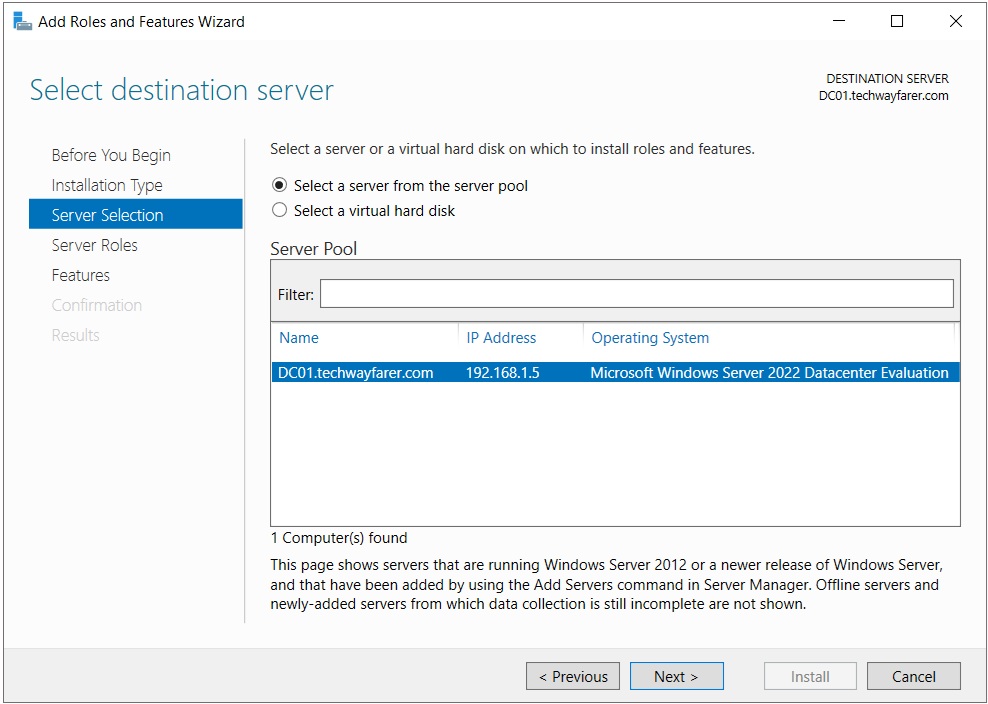
In the “Server Selection” tab make sure the correct server is chosen from the server pool. Note that the server’s name (DC01.techwayfarer.com) indicates that the server is part of the domain we created in an earlier portion of the lab. Click Next.
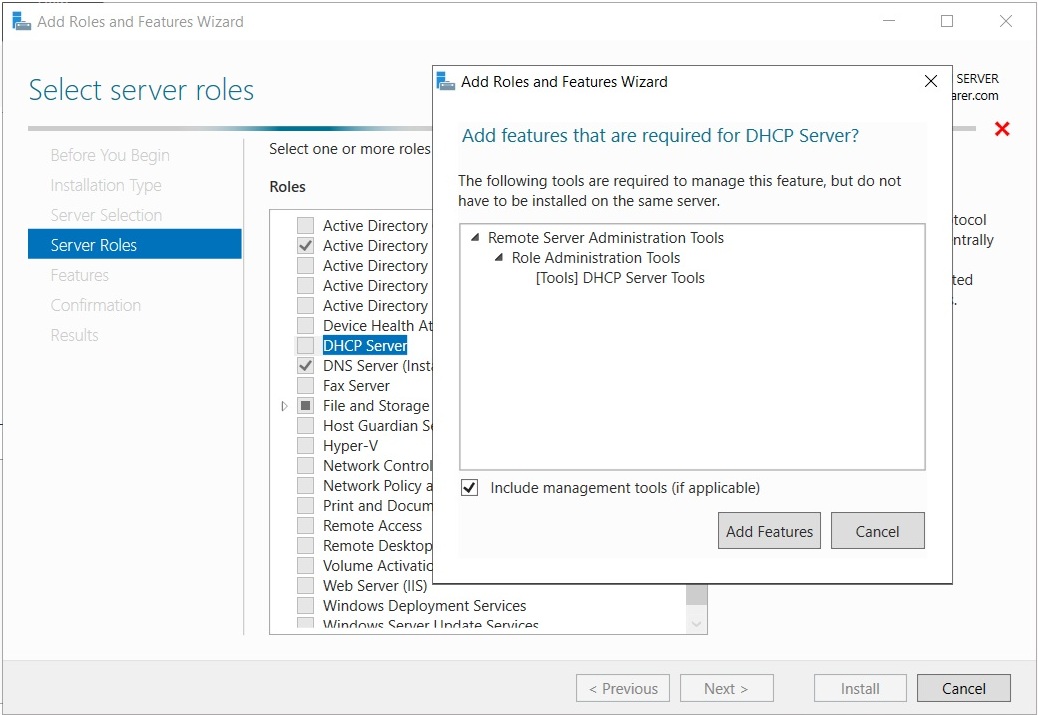
In the “Server Roles” tab choose “DHCP Service”, and the “Add Roles and Features Wizard” will appear. Click “Add Features” and then Next.
In the Features tab choose Next.
A DHCP Server tab will appear since we have chosen to install DHCP. Click Next.
In the Confirmation tab click Install.
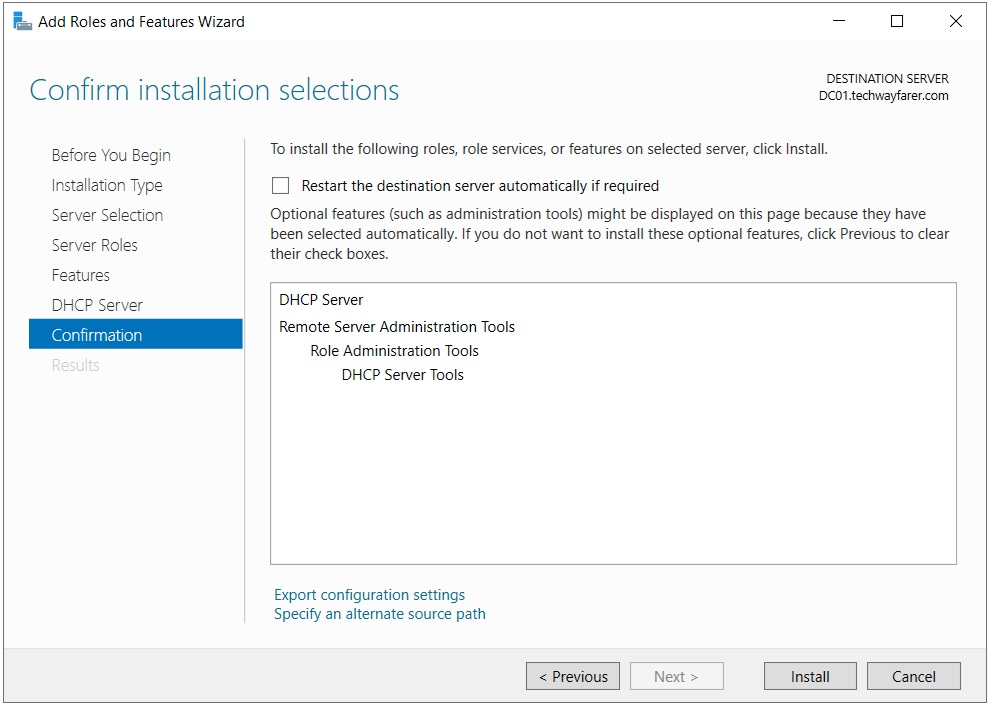
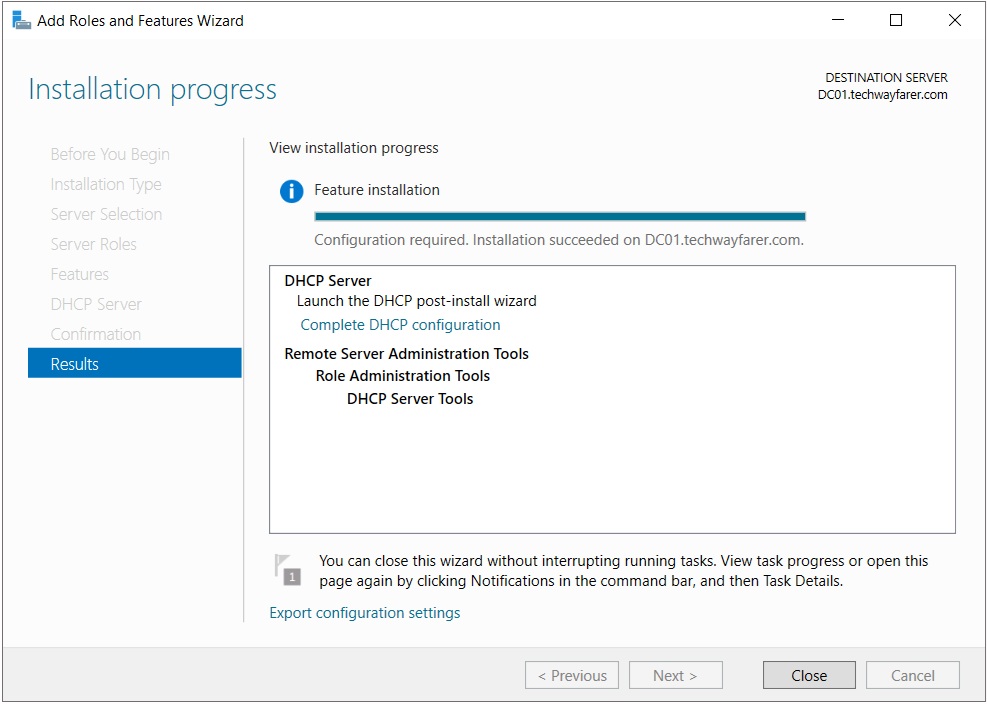
When the DHCP service is installed click Close and restart the server.
Authorize DHCP Server
A DHCP server that is authorized can issue IP settings to client devices on the network. The newly installed DHCP server in our lab is currently unauthorized. The next step is to authorize it.
By default Windows computers will accept DHCP settings from any DHCP device. As a security precaution devices on a Windows network can be configured, using group policies, not to accept IP settings from an unauthorized DHCP server. Then rogue DHCP servers (e.g., unapproved routers) that are connected to the network cannot interfere with the correct assignment of IP settings to client devices. For this lab, we aren’t concerned with rogue DHCP servers.
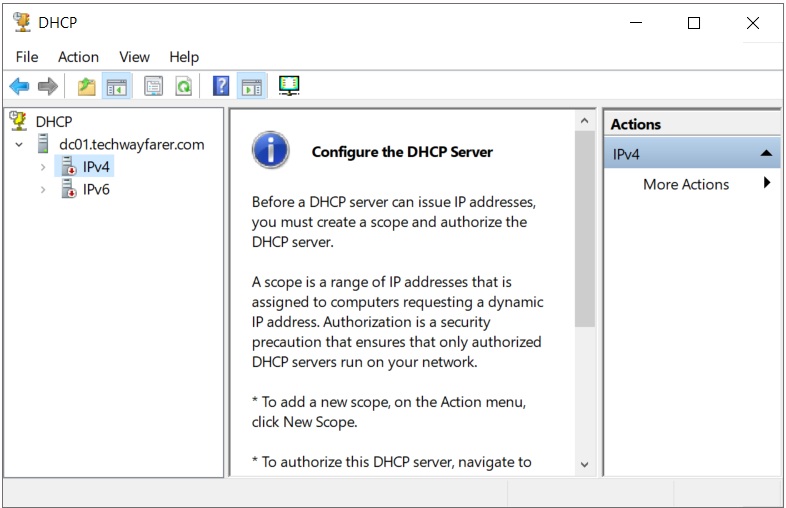
To open the DHCP settings on the server open the Server Manager window, click the Tools menu, and choose DHCP. The DHCP configuration window will appear.
In the left windowpane click the name of the server. The IPv4 and IPv6 submenus will show a red cross indicating that DHCP has not been authorized.
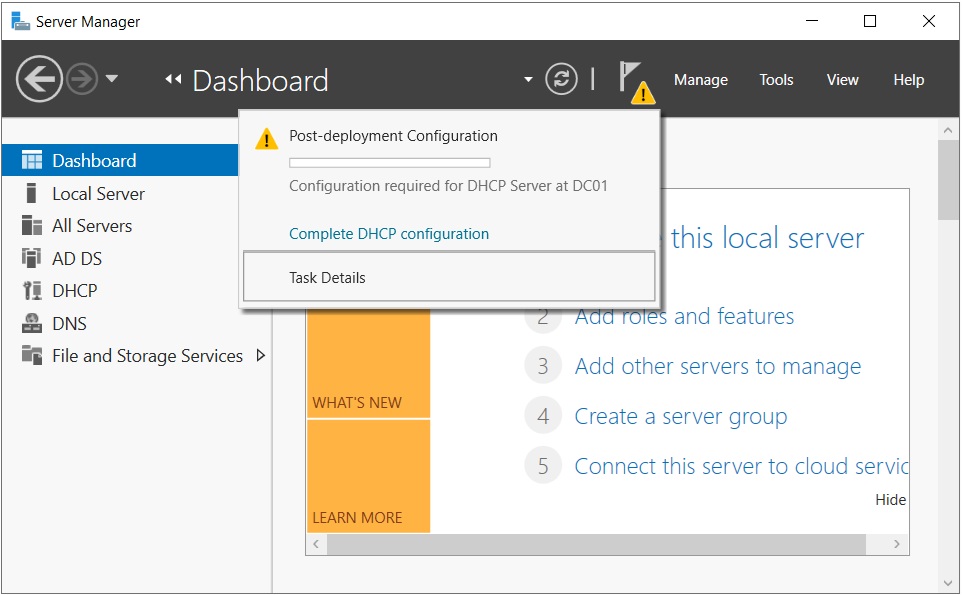
To authorize the DHCP server open Server Manager and click the yellow warning icon in the top menu. Then click the link “Complete DHCP configuration.”
The “DHCP Post-Install configuration wizard” will open.
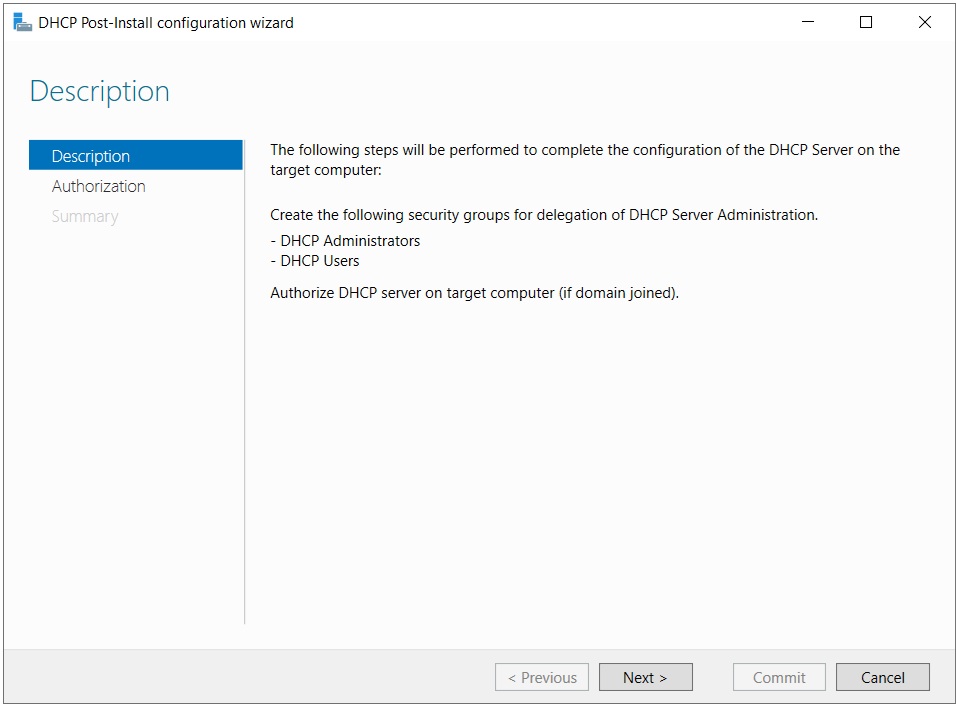
The Description tab explains that two security groups will be added to Active Directory to assist in the administration of DHCP on the Windows network: DHCP Administrators and DHCP Users. Click Next.
The Authorization tab allows you to enter the appropriate credentials to authorize the DHCP server.
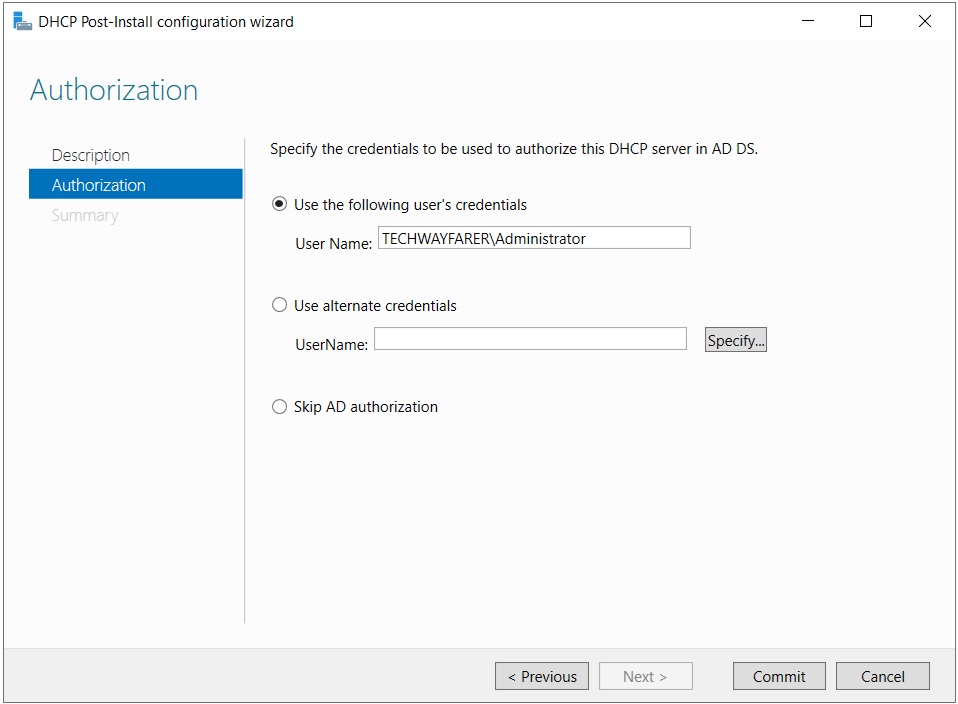
If you are in the root domain of a forest, then you only need to be a domain administrator to authorize a DHCP server. If you are in any other domain (such as a child domain) you need to be an enterprise administrator to authorize the DHCP server. We are currently logged into the root domain as the enterprise administrator. Click Commit.
The Summary tab will verify that the security groups were added and the DHCP server is authorized. Click Close.
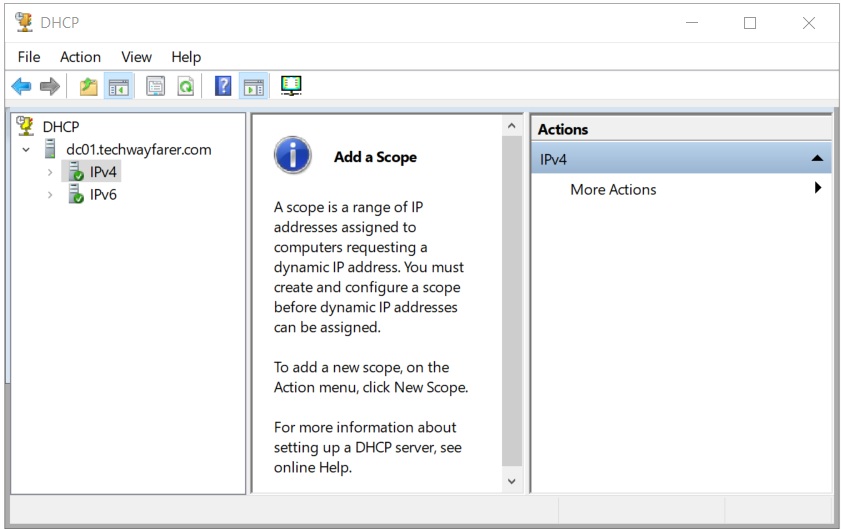
The DHCP configuration window now has green checkmarks next to IPv4 and IPv6 indicating that the DHCP server is authorized.
Create DHCP Scopes
A DHCP scope is a range of IP addresses that can be assigned to client devices on the network by the DHCP server. The DHCP server will not provide IP settings to client devices until a DHCP scope is created.
In this section, we will configure DHCP to simulate a real business. We will create multiple DHCP scopes and then specify any exclusions, reservations, and lease times.
Our example business has three subnets that provide network and internet access for different types of users and devices.
- Users LAN: 192.168.1.0/24
- Voice Devices: 192.168.2.0/24
- Guest Wi-Fi: 192.168.3.0/24
In our example business, layer 3 switches will route DHCP requests from each subnet to the DCHP server.
Users LAN DHCP Scope
The first scope we will create (Users LAN) is for client devices that log onto the Windows domain.
To set a DHCP scope open the Server Manager window, click the Tools menu, and choose DHCP. The DHCP configuration widow will open.
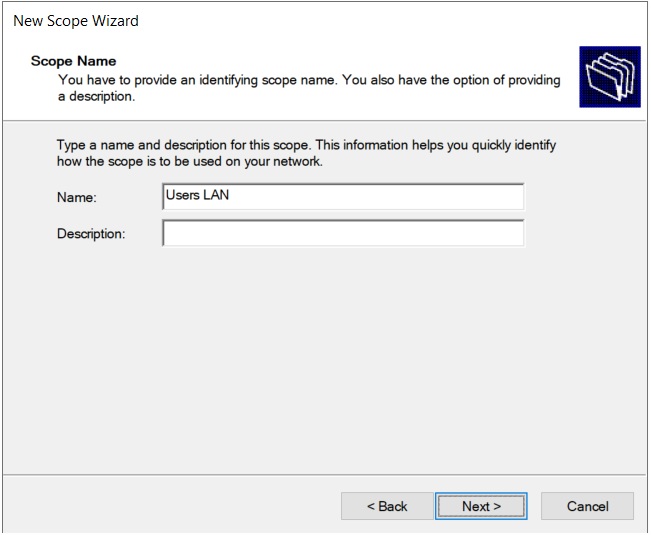
Right click IPv4 and choose New Scope. The New Scope Wizard window will open, where you enter a name and optional description for the IP address range. Then click Next.
In the IP Address Range window, enter the values for the IP range. In an earlier post, we chose the range of IP addresses assigned to client devices in this lab: 192.168.1.175 to 192.168.1.254.
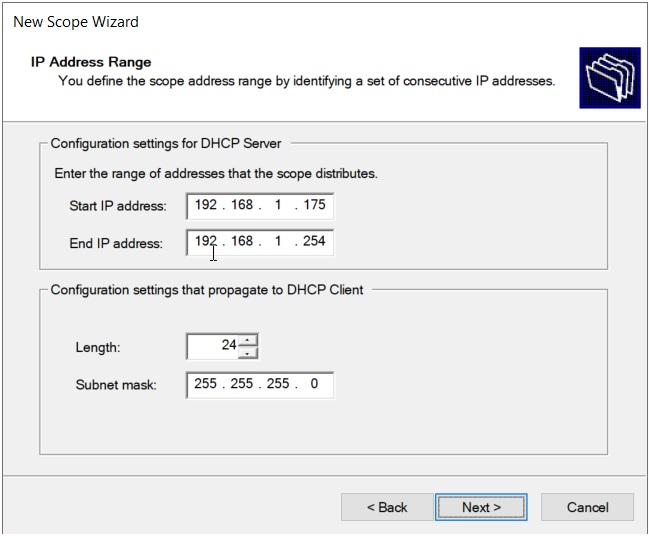
The prior post explains that the range for client devices is smaller than normal because the DHCP server is sharing the full scope of 192.168.1.0 to .255 with the home router’s DHCP service. In a real business the range for client devices would be larger, such as 192.168.1.10 to .250.
Verify that the Subnet mask is correct and click Next.
In the “Add Exclusions and Delay” screen enter any IP addresses within your IP range that you don’t want assigned automatically to client devices. For instance, a printer may be assigned the same reserved IP address each time it logs onto the network. And a server may be assigned a static IP address. You don’t want a reserved or static IP address to be assigned to another client device using DHCP.
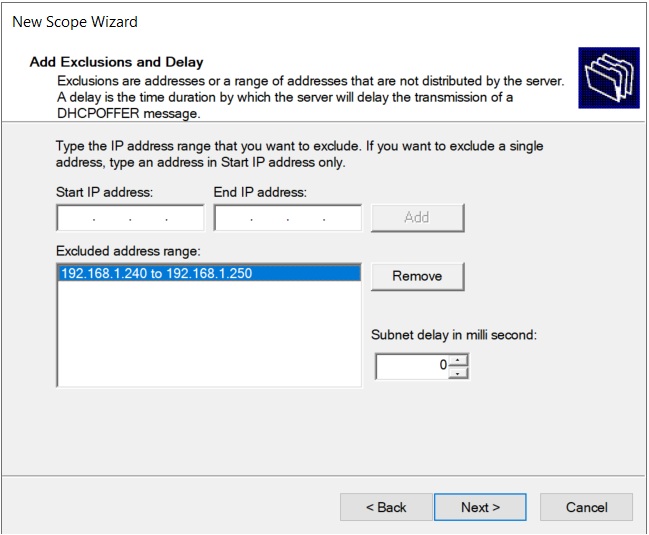
We will provide a small range for assigning reserved and static IP addresses: 192.168.240 to .250. Enter the starting and ending IP addresses and click Add. Then click Next.
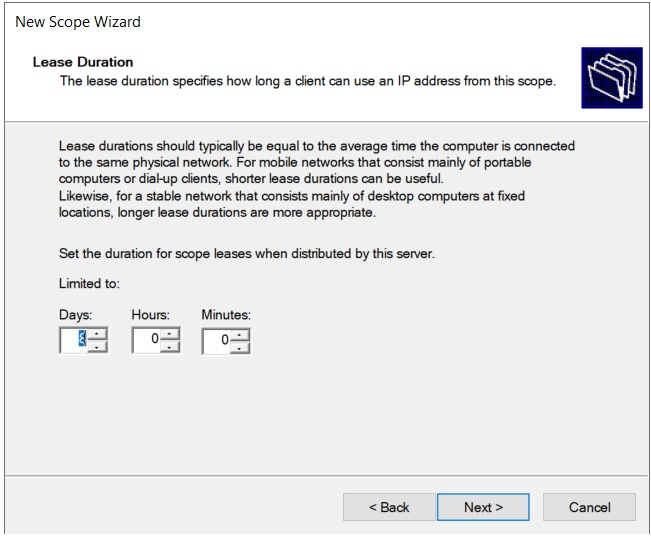
The Lease Duration window allows us to specify an expiration period for an IP address assigned to a client device.
A client device will renew its lease duration each time it comes online. If a client device stays online continuously, it will attempt to renew the lease at the 50 percent point in its lease duration period (e.g., after four days if using an eight-day lease duration). If unsuccessful at the 50 percent point, it will attempt to renew the lease again at 87 percent of the lease duration period.
If the lease duration period expires without the DHCP server responding, the client will assign itself an APIPA address in the range of 169.254.0.1 to 169.254.255.254. APIPA (Automatic Private IP Addressing) allows a device to maintain local network communication even when DHCP is unavailable.
For this lab the default lease limit of 8 days is acceptable for the Users LAN. Click Next.
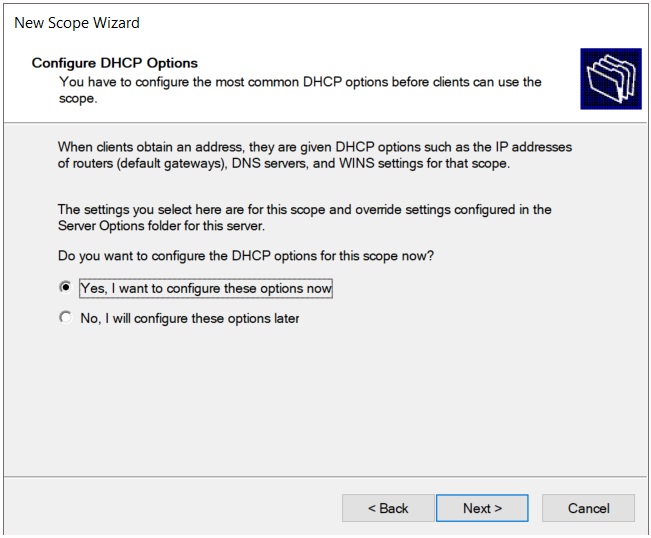
In the Configure DHCP Options window make sure Yes is selected and click Next.
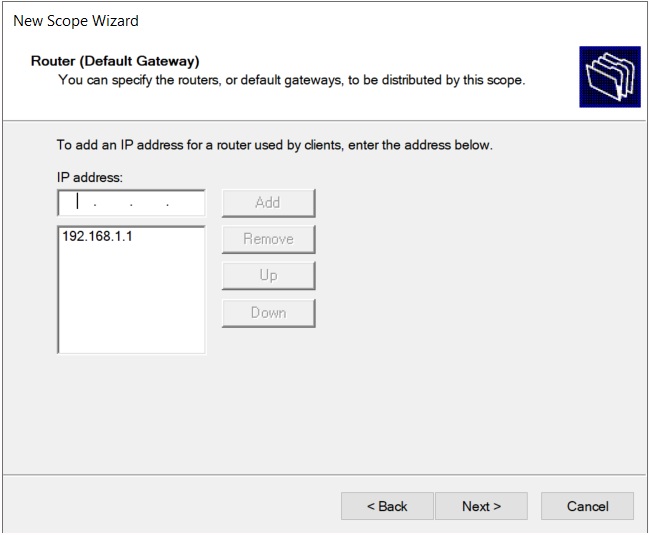
In the “Router (Default Gateway)” window enter the IP address of the gateway for the Users LAN and click Add. In an earlier post, we decided that the default gateway for users on the Windows domain will be the physical home router, which uses 192.168.1.1. Click Next.
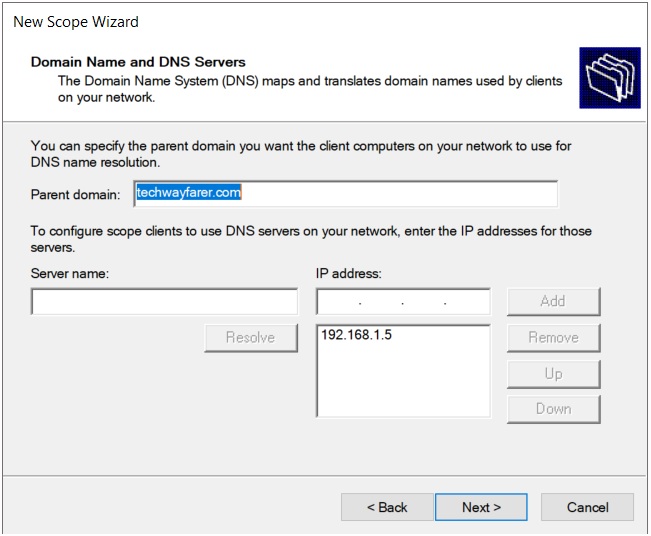
In the “Domain Name and DNS Servers” window, verify the correct values are entered for the Parent domain and the DNS IP address. The values are automatically entered because the domain name and DNS server were configured earlier in the lab. Click Next.
The next window titled “WINS Servers” relates to an older technology used with NetBIOS names. For this lab, you can leave the fields blank and click Next.
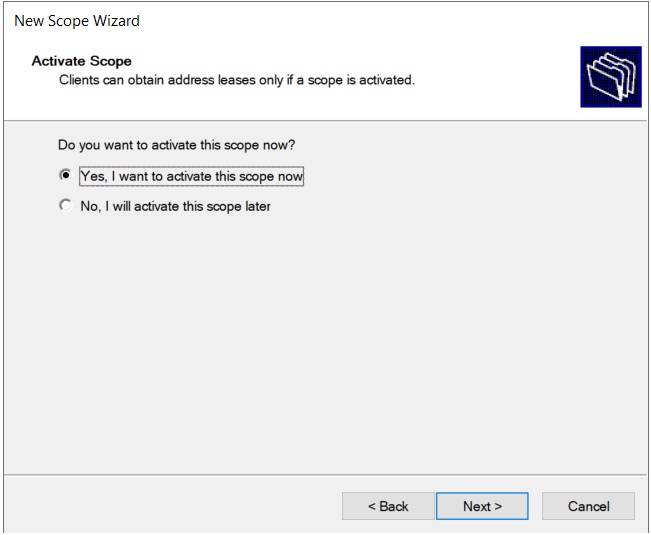
In the Activate Scope window verify that Yes is chosen to activate the scope immediately and click Next.
In the next window titled “Completing the New Scope Wizard” click Finish.
In the DHCP window, if you open the IPv4 folder the details of the Scope are visible.
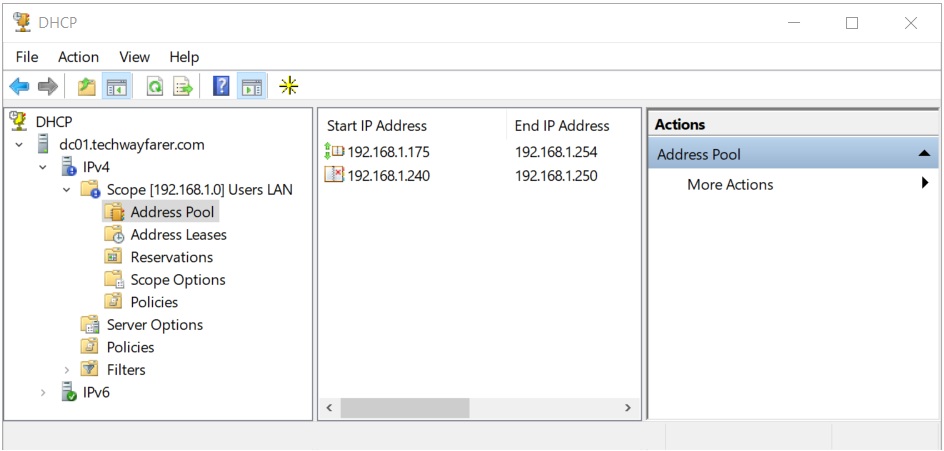
Clicking on the Address Pool folder shows the starting and ending IP addresses for both the assigned IP range (192.168.1.175 to .254) and the exclusions (192.168.1.240 to .250).
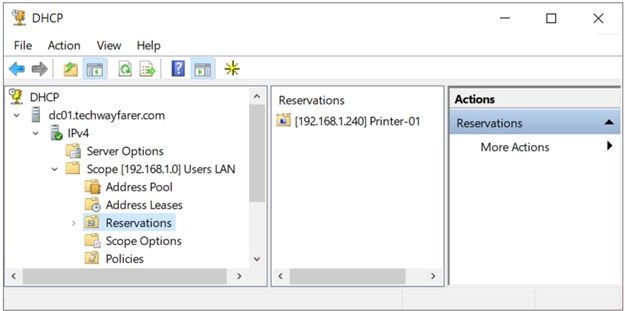
We will also create a reservation for a printer on the LAN. Reservations allow you to consistently assign the same IP address to a device (by using its MAC address) without needing to assign it a static IP address.
In the DHCP window right click Reservations and choose “New Reservation.” Enter a name, IP address, and MAC address for the printer. Verify that the printer’s IP address is within the excluded address range created earlier for the User LAN scope. Click Add.
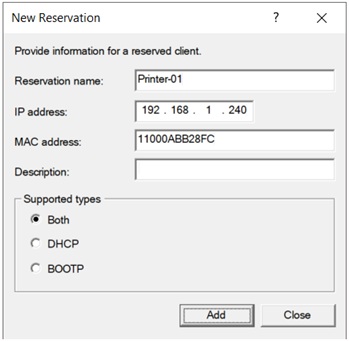
The new reservation will appear in the Reservations OU under the Users LAN scope.
Voice Devices DHCP Scope
Create another IPv4 scope for the voice devices. Follow the same steps used earlier for creating the Users LAN DHCP Scope.
Earlier in this post, we decided that voice devices will use the 192.168.2.0/24 subnet. We will use the following settings for voice devices DHCP scope:
- Name: Voice Devices
- Start IP: 192.168.2.10
- End IP: 192.168.2.250
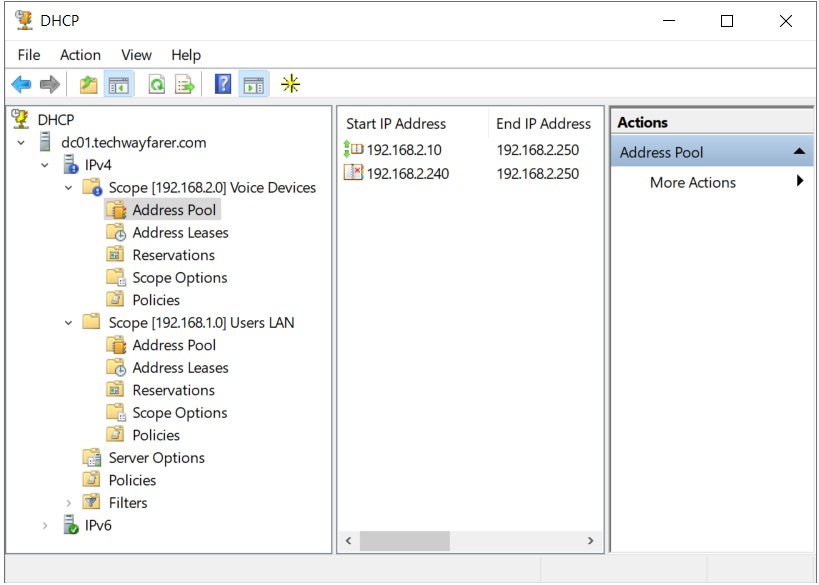
- Exclusion IP range: 192.168.2.240 to .250. The exclusion range is used for reserved and statically assigned voice infrastructure such as voice gateways and call managers.
- Lease duration: 1 day
- Router (Default Gateway): 192.168.2.254. In our lab, we don’t actually have a default gateway for the voice devices subnet. It is common to assign an IP address of 192.168.x.254 to the gateway that might be a firewall or virtual connection endpoint (VCE).
- Domain Name: techwayfarer.com
- DNS Server address: 192.168.1.5
When you have completed setting up the Voice Devices DHCP scope, the settings can be viewed in the DHCP window. The Address Pool shows the assigned IP range and the exceptions range.
Guest Wi-Fi DHCP Scope
Create another IPv4 scope for the guest wi-fi devices. Follow the same steps used earlier for creating the Users LAN DHCP Scope.
Earlier in this post, we decided that guest wi-fi devices will use the 192.168.3.0/24 subnet. We will use the following settings for the guest wi-fi devices DHCP scope:
- Name: Guest Wi-Fi
- Start IP: 192.168.3.10
- End IP: 192.168.3.250
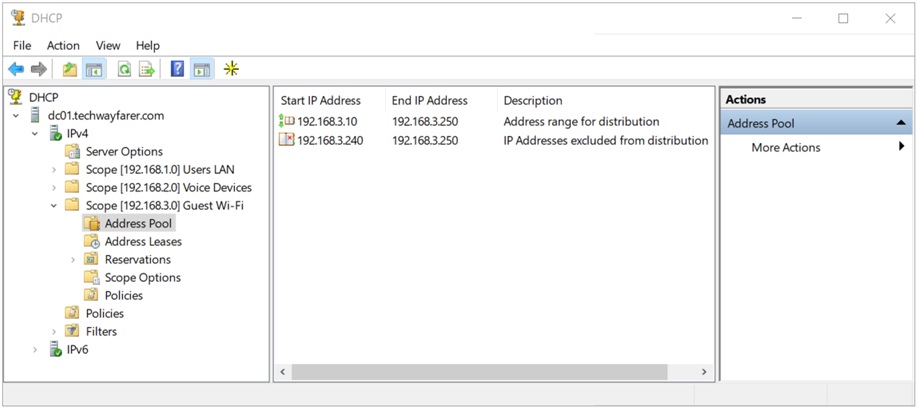
- Exclusion IP range: 192.168.3.240 to .250
- Lease duration: 2 hours
- Router (Default Gateway): 192.168.3.254. In our lab we don’t actually have a default gateway for the Guest Wi-Fi. It is common to assign an IP address of 192.168.x.254 to the gateway.
- Domain Name: techwayfarer.com
- DNS Server address: 192.168.1.5
When you have completed setting up the Guest Wi-Fi DHCP scope, the settings can be viewed in the DHCP window. The Address Pool shows the assigned IP range and the exceptions range.
Conclusion
We are done configuring the DHCP server. Here are some key points to remember when configuring DHCP:
- Layer 3 switches allow subnets to receive IP configuration settings from a DHCP server.
- Exclusions to an IP scope protect the address of shared infrastructure devices. Exclusions to an IP scope should lie within the assigned scope.
- Reserved IP addresses allow you to consistently assign the same IP to a device without manually configuring settings. Reservations should fall within excluded address range of the assigned scope.
- Lease durations should be set to reflect how often devices log on and off the network.
- After configuring a new scope verify that it is active.
In the next post we will create organizational units in Active Directory.
Next Post >> Create Organization Units in Active Directory.