In this post, we will configure Windows Server 2022 to act as a domain controller. You could use the steps described in this post to configure Windows Server 2025 instead.
This post is part three of a home lab that explains how to use Windows Server and Active Directory. In the previous post the Windows Server was installed as a virtual machine (VM) using VMware Workstation.
Posts in Active Directory Home Lab
- Home Lab Introduction: Windows Server and Active Directory
- Install Windows Server 2022 using VMware Workstation
- Configure Windows Server 2022
- DHCP Server Installation and Configuration
- Create Organizational Units in Active Directory
- Create Users in Active Directory using PowerShell
- Join a Windows 11 Computer to a Domain
- Create Groups in Active Directory
- Create Group Policy Objects in Active Directory
Table of Contents This Post
Windows Update
We will perform a Windows update to make sure the system is stable before configuring the OS and installing services.
At the Windows desktop enter “update” in the search bar. Choose the “Check for updates” option, and the Windows Update window will appear.
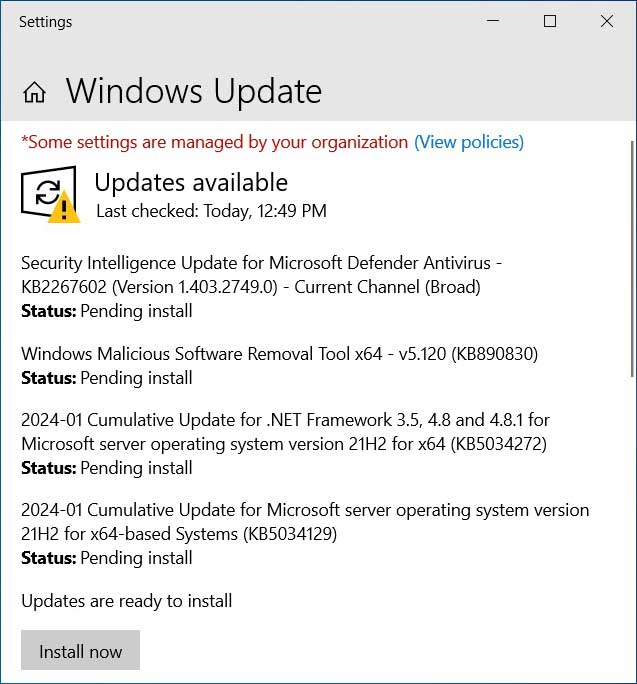
This is the first time a manual Windows update has been performed. Yet Windows has been automatically downloading updates in the background. Click “Install now” to begin the installation process.
When the installation is complete restart the OS. Then perform the update steps again to verify that all the needed updates have been installed.
Time Zone
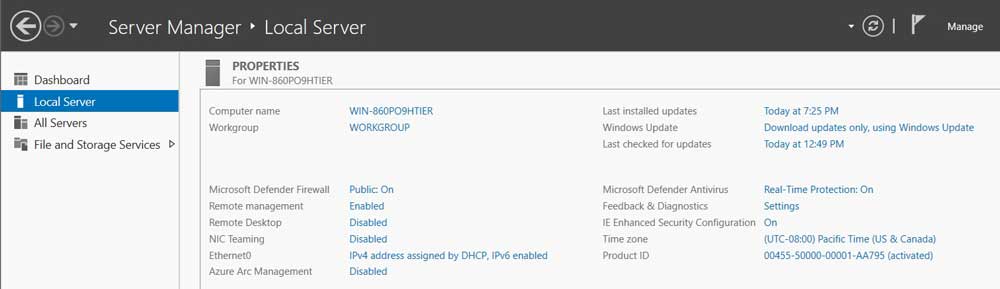
Verify the server OS is set to the correct time zone. Open the Server Manager app and look in the Local Server section. The current time zone setting is visible in the right column. We are in the PST time zone, so the time zone is accurate. If your time zone needs to be updated click the link next to Time Zone.
Enable Remote Desktop
Remote desktop will be enabled, so an administrator can log into the server from another computer on the network. Open the Server Manager window again and look in the Local Server section. Remote Desktop is currently set to Disabled. Click the hyperlink next to Remote Desktop and the Systems Properties window will open.
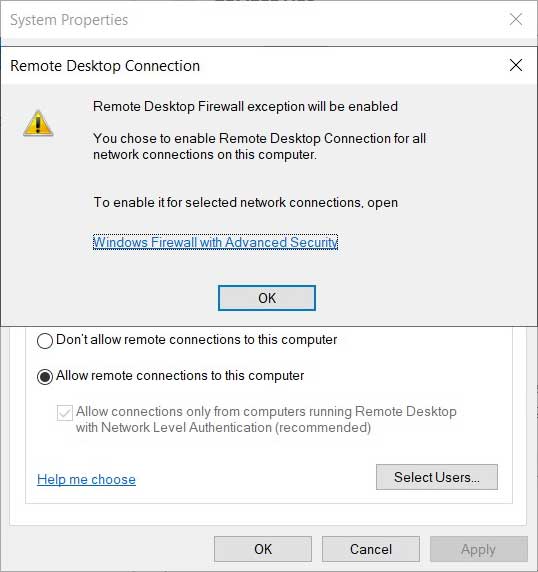
Initially “Don’t allow remote connections to this computer” will be selected. Choose the option “Allow remote connections to this computer” and the “Remote Desktop Connection” window will open. Click OK.
In the System Properties window click Select Users.
The Remote Desktop Users window will open. It states that any Administrator can connect remotely to the server. We have not yet created any other users, so leave the setting as it is for now.
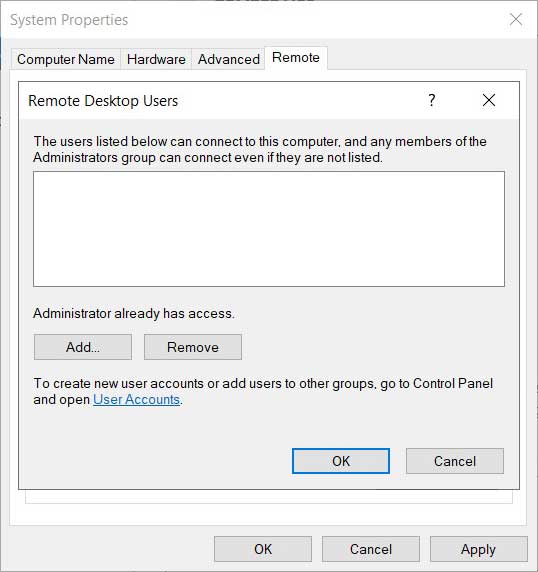
We are done with the remote desktop settings. Click OK in the “Remote Desktop Users” window. Then click Apply and then OK in the System Properties window.
Rename Server
We will change the name of the Windows Server to something more meaningful. Open the Server Manager window once again and open the Local Server section. Click the hyperlink next to Computer Name. A System Properties window will open with the Computer Name tab selected.
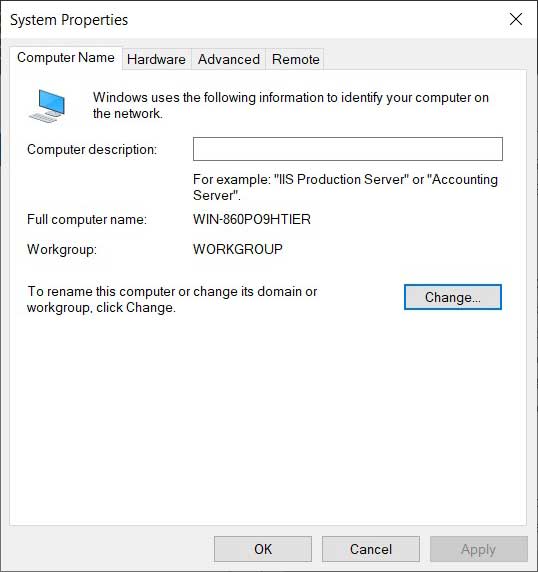
Click the Change button.
The “Computer Name/Domain Changes” window opens. In the Computer name field enter the new name for the server. For now we will leave the server in a Workgroup. The server will be upgraded to a domain controller (DC) later in the lab.
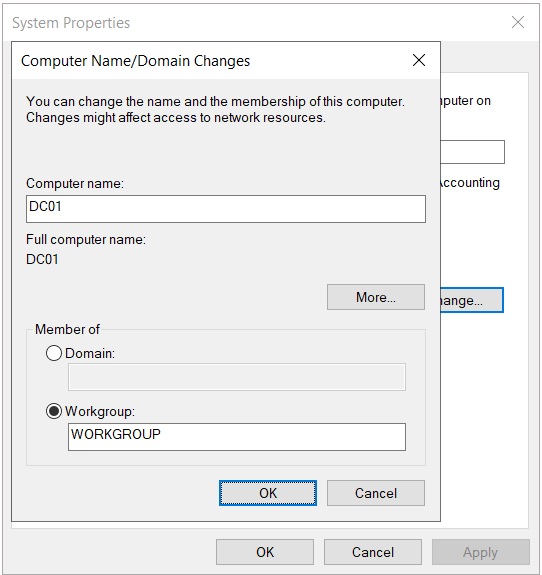
Click OK and another window will open reminding you that the server needs to be restarted for the name change to take effect. Click OK again. In the System Properties windows click the Close button.
Restart the server and verify all the changes you made were accepted by the server.
Configure Network Adapter
In this section the server’s IP address will be statically assigned. So the server can be upgraded to a DC and DNS server later in the lab.
Home Router Network
In the Server Manger > Local Server window, we see that Ethernet 0 is currently set to “IPv4 address assigned by DHCP, IPv6 enabled”, which indicates that the server is currently receiving a dynamic IP address from a DHCP server. When the Windows Server VM was created in an earlier post, we assigned it to the Bridged network adapter that allows the server to access the same network as the physical home router. The server is currently receiving its IP settings from the home router’s DHCP service.
Let us look at the current IPv4 settings for the server. In the search bar enter cmd to open the Administrator Command Prompt window. At the C prompt enter ipconfig /all to see all the IP settings for the server.
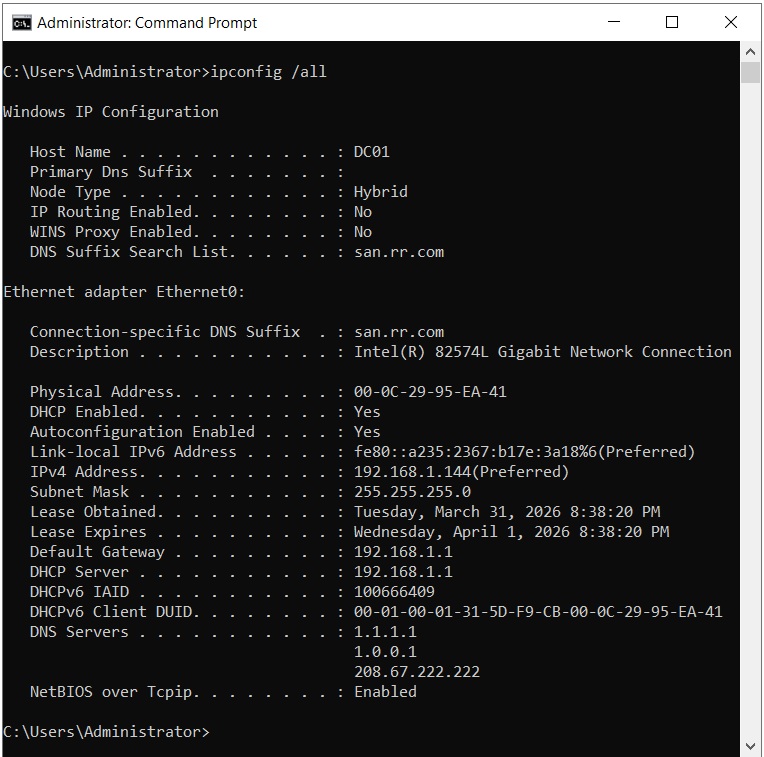
Below are the current IPv4 settings:
- The server’s dynamically assigned IP address is 192.168.1.144
- Subnet Mask is 255.255.255.0
- Default Gateway is 192.168.1.1
- DHCP Server is 192.168.1.1
- Primary DNS Server is 1.1.1.1 (Cloudflare)
Let’s review the internal network settings on the home router to learn why the server is receiving its current IP settings.
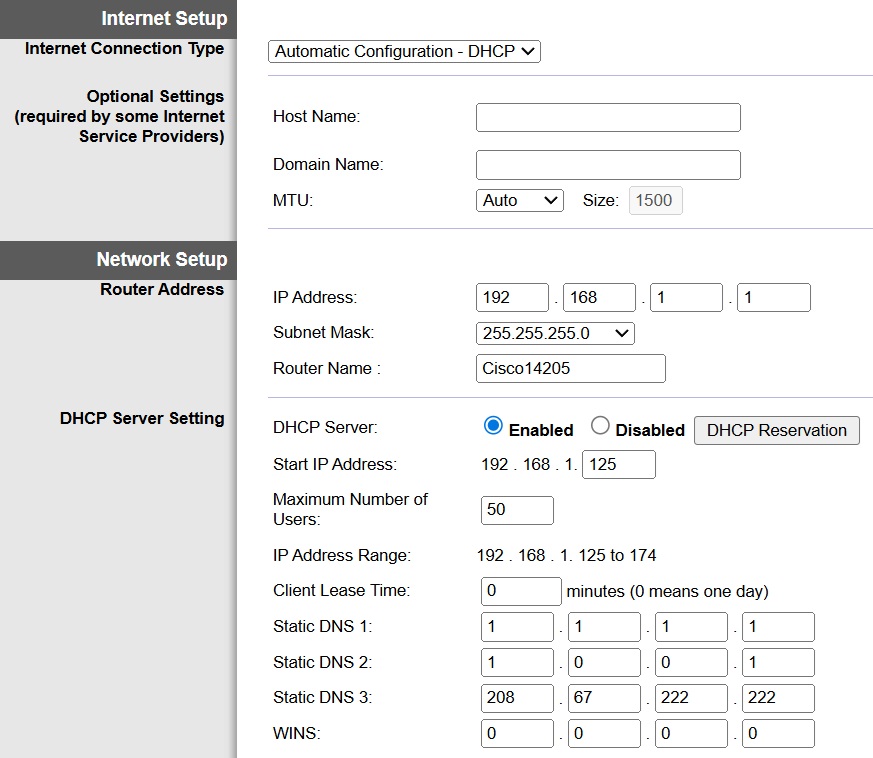
The home router’s internal IP address is 192.168.1.1. The home router is currently acting as both the DHCP server and Default Gateway for the Windows Server VM.
The DNS server addresses assigned to the server match those on the home router.
The home router is using DHCP to dynamically assign IP addresses to client devices on the home network in the range of 192.168.1.125 to 192.168.1.174. The server’s current IP address falls in that range.
Choose IP Addresses for Windows Domain
We will now figure out IP settings for the server.
For starters the server needs a static IP address instead of an address automatically assigned by the home router’s DHCP service. The static IP address should give the server access to the home router network while also allowing the server to act as a DC for the Windows domain created in our lab.
Since the server will provide DHCP service to the Windows domain, it will need access to a range of IP addresses that can be automatically assigned to client devices that log onto the Windows domain. This range should not conflict with the range of addresses being assigned by the DHCP service on the home router.
The home router’s subnet mask of 255.255.255.0 provides 256 IP addresses. The network address of 192.168.1.0 is reserved. The broadcast address of 192.168.1.255 is also reserved. The remaining addresses for use on the network are 192.168.1.1 to .254.
The home router is assigned the IP address of 192.168.1.1. The router’s DHCP service assigns IP addresses in the range of 192.168.1.125 to 192.168.1.174.
The following IP addresses are available for use on the Windows domain.
- 192.168.1.2 to 192.168.1.124
- 192.168.1.175 to 192.168.1.254
We will choose 192.168.1.5 for the Windows server’s static IP address.
The server will use the same subnet mask as the home router, which is 255.255.255.0.
The gateway for the Windows domain will be the home router. So the server’s default gateway will be 192.168.1.1.
The DHCP service on the DC will use the range 192.168.1.175 to 192.168.1.254 for automatically assigning IP addresses to client devices on the domain.
We are ready to modify the IP settings for the server. Open the Server Manager app again and look in the Local Server section. Click the text next to Ethernet0 to open the Network Connections window. Then right click Ethernet0 and choose Properties.
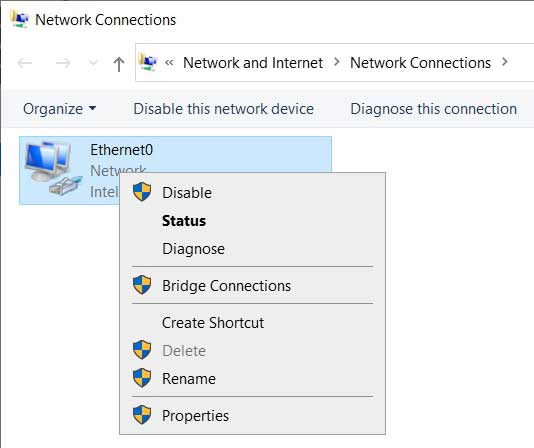
The Ethernet0 Properties window opens.
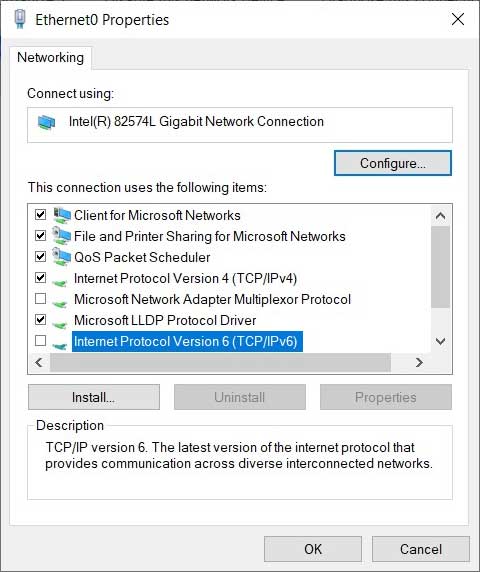
Turn off IPv6 for the server by clearing the check box next to “Internet Protocol Version 6 (TCP/IPv6).” We currently do not have a need for the IPv6 protocol.
Click “Internet Protocol Version 4 (TCP/IPv4)” and then the Properties button. The “Internet Protocol Version 4 (TCP/IPv4)” window opens.
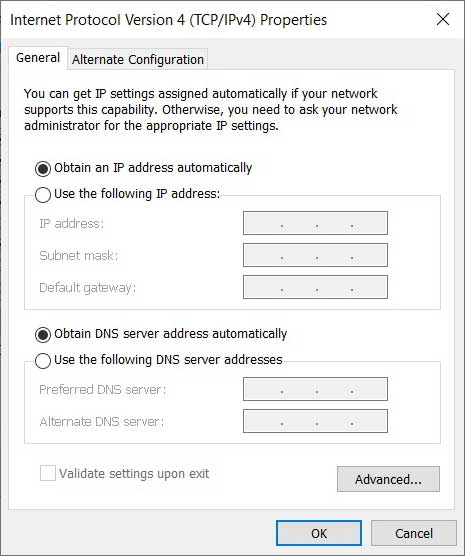
To manually assign the IP settings, click the radio button “Use the following IP address” and enter the values decided upon in an earlier step.
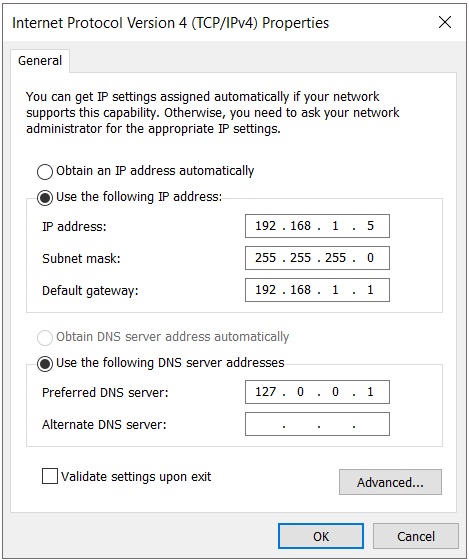
Since the Windows Server will become both a DC and DNS server, we want the Preferred DNS server field to point to the Window Server. Enter either the IP address of the server (192.168.1.5) or the loopback address (127.0.0.1).
Click OK to close the IPv4 Properties window. Then in the Ethernet0 Properties window click Close.
Open the Administrator Command Prompt window.
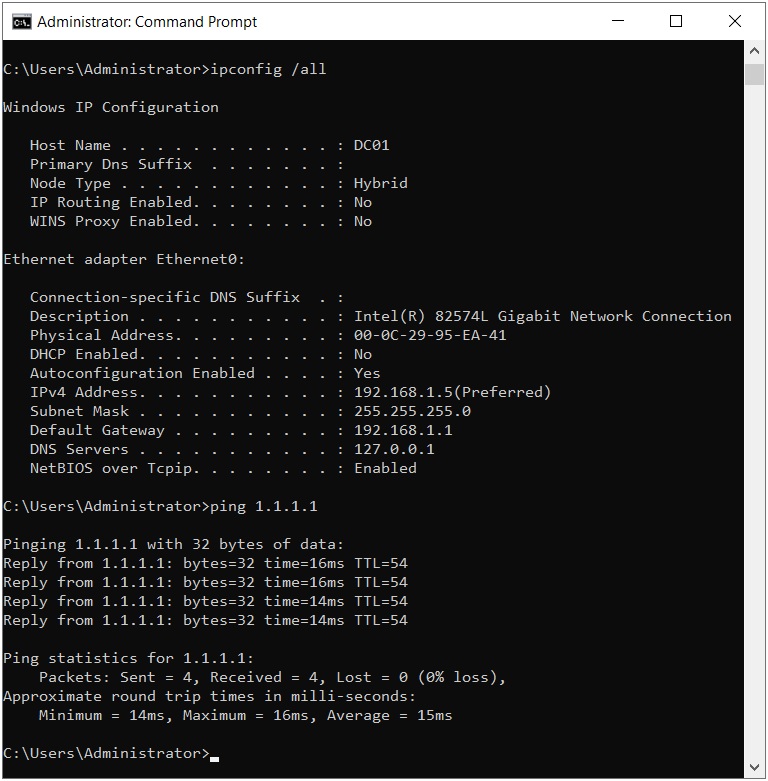
At the C prompt enter ipconfig /all to verify the changes made to the IP settings.
Then at the next C prompt enter ping 1.1.1.1 to verify that the server has internet access. Even though there is internet access, it may not be possible to visit a website in a browser until the DNS service is installed.
Verify Configuration
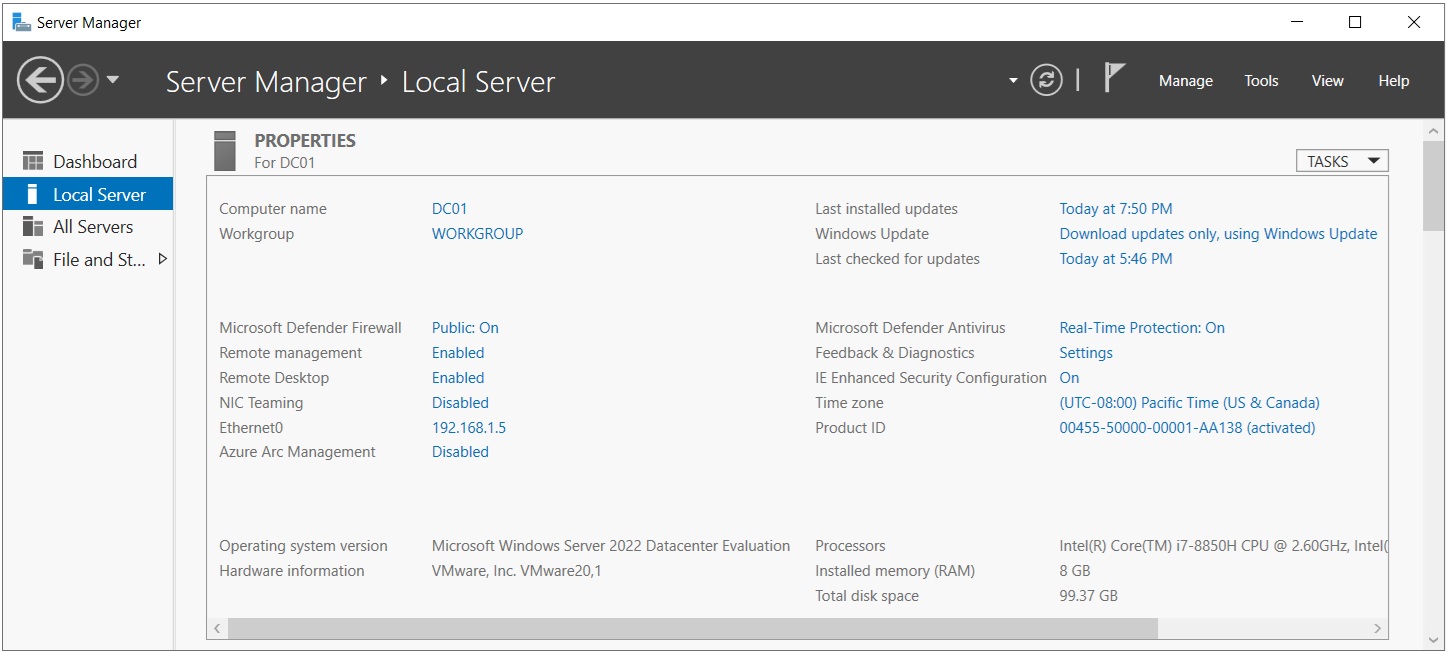
In the Server Manager > Local Server window the changes made to the server for Time zone, Remote Desktop, Computer name, and Ethernet0 are visible.
Install Active Directory Service
In this part of the lab Active Directory Domain Services is installed on the server, so that later the server can be promoted to a domain controller.
In Server Manger open the Dashboard tab and choose “Add roles and features” or in the top menu choose Manage > “Add roles and features.”
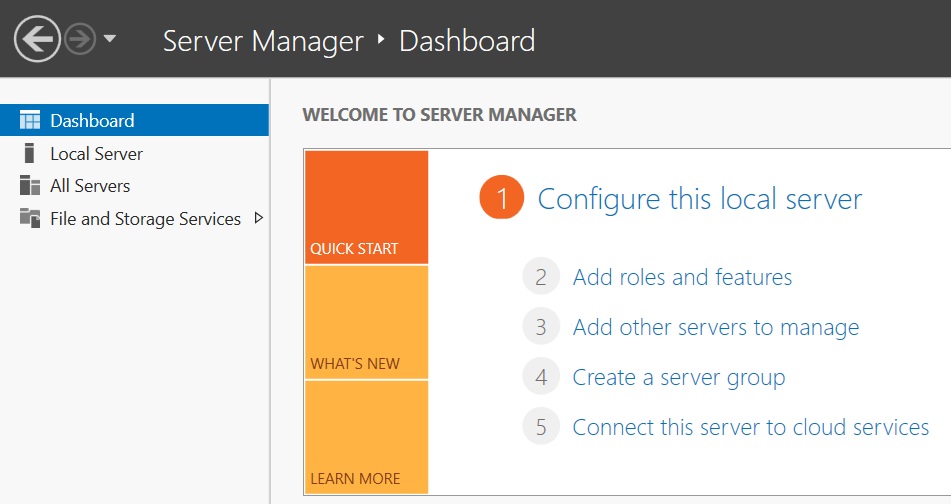
The “Add Roles and Features Wizard” will open.
In the “Before You Begin” tab click Next.
In the Installation Type tab choose “Role-based or feature-based installation” and click Next.
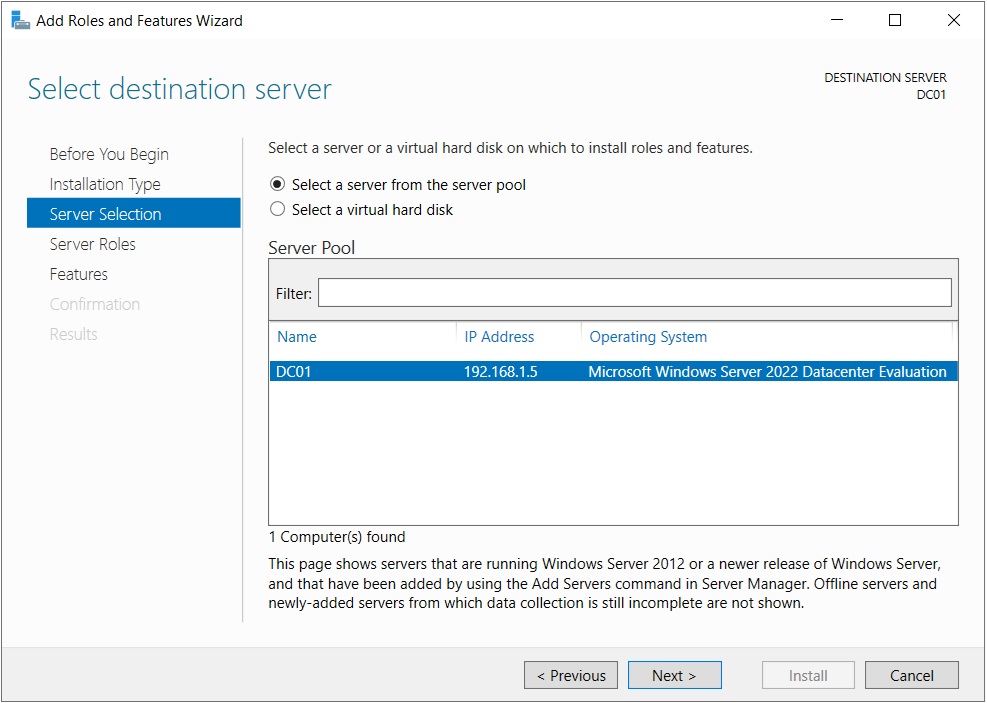
In the Server Selection tab make sure the server you created is chosen from the server pool and click Next.
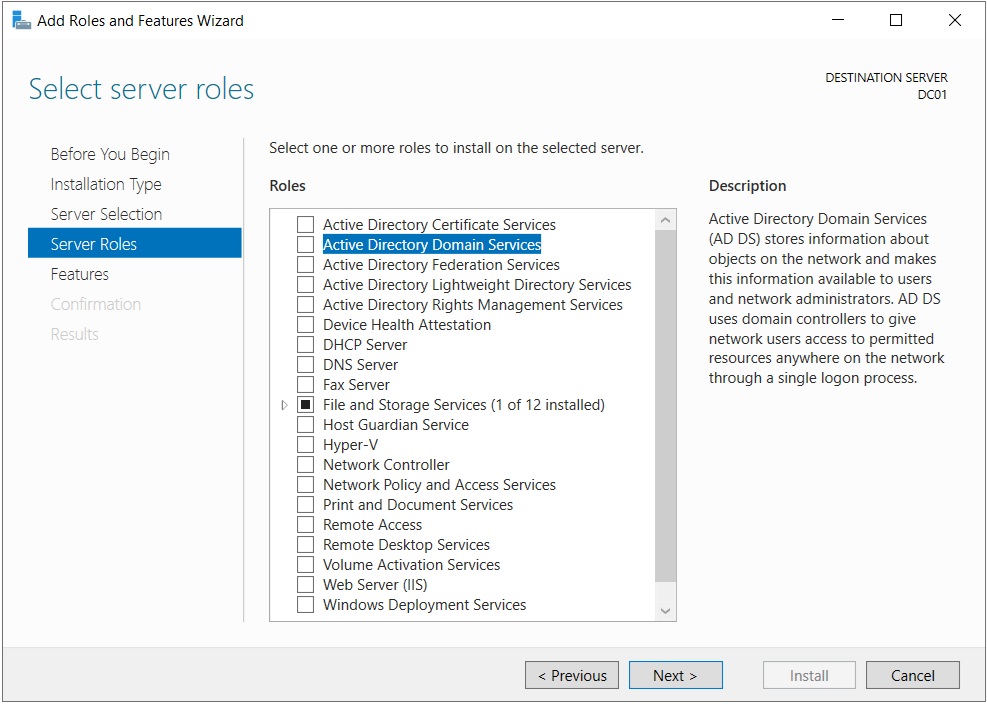
In the Server Roles tab choose “Active Directory Domain Services.”
In the “Add Roles and Features Wizard” window click Add Features.
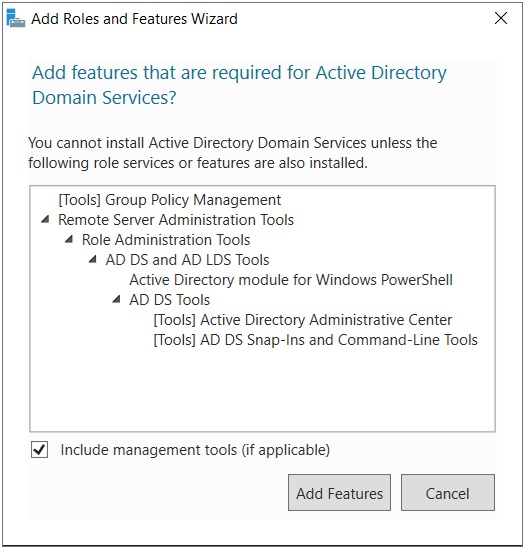
Back in the Server Roles tab click Next.
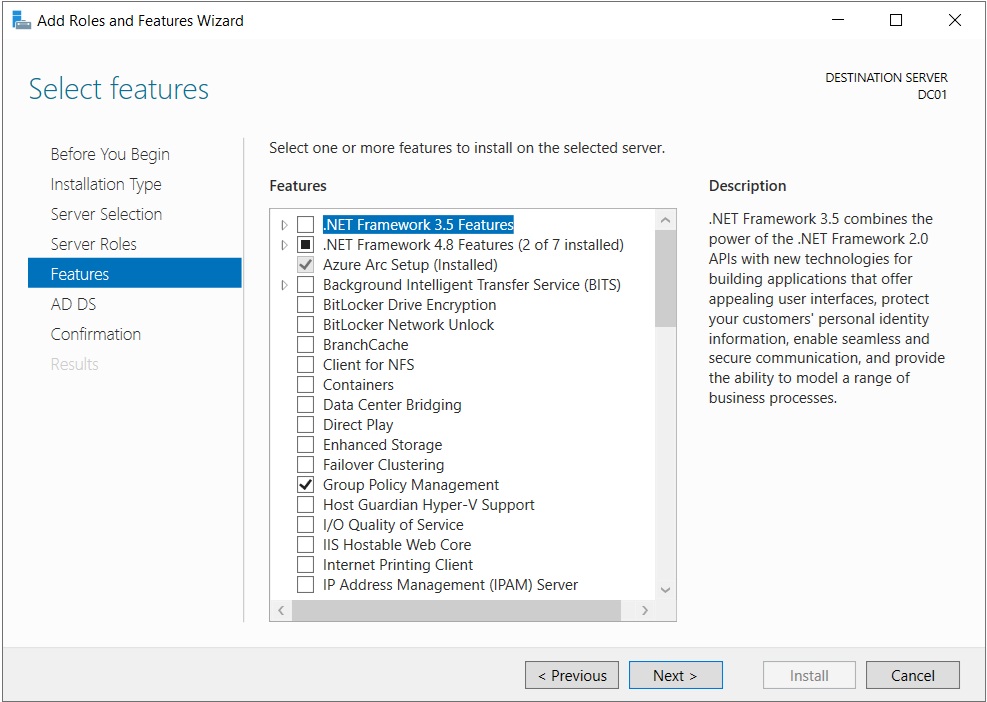
In the Features tab do not choose any other features and click Next.
The AD DS tab contains useful information about Active Directory.
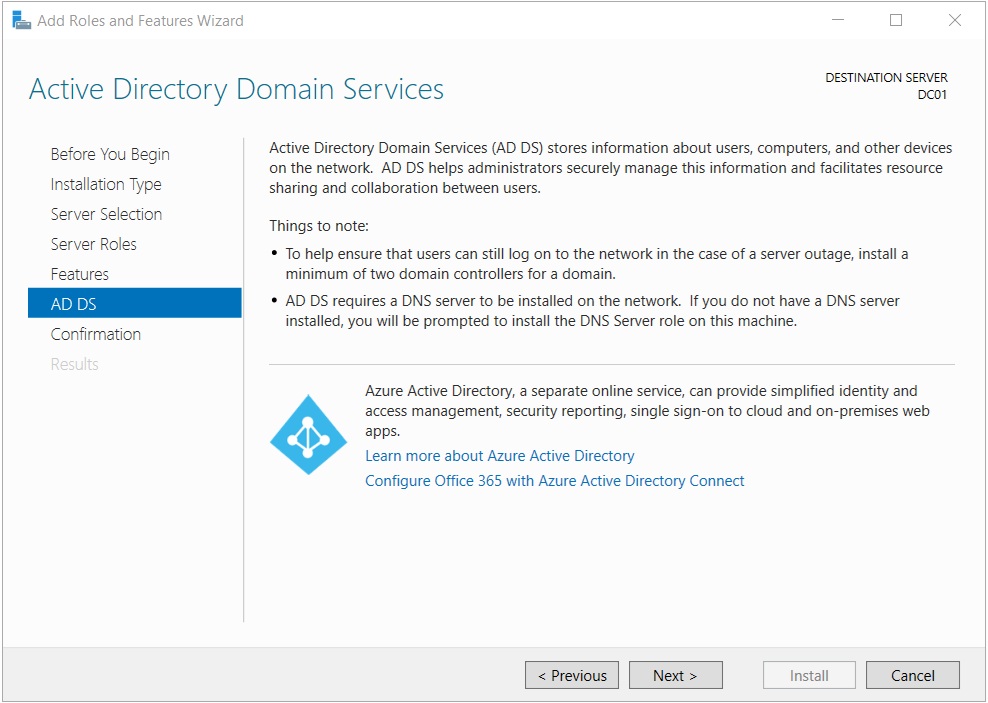
We are reminded that a DNS server is required on the network. Since this is the first server on the network, DNS will be installed.
We are also reminded that Azure Active Directory (renamed Microsoft Entra ID) is a way to provide Active Directory services in the cloud. This lab focuses on the on-premises version of Active Directory. Click Next.
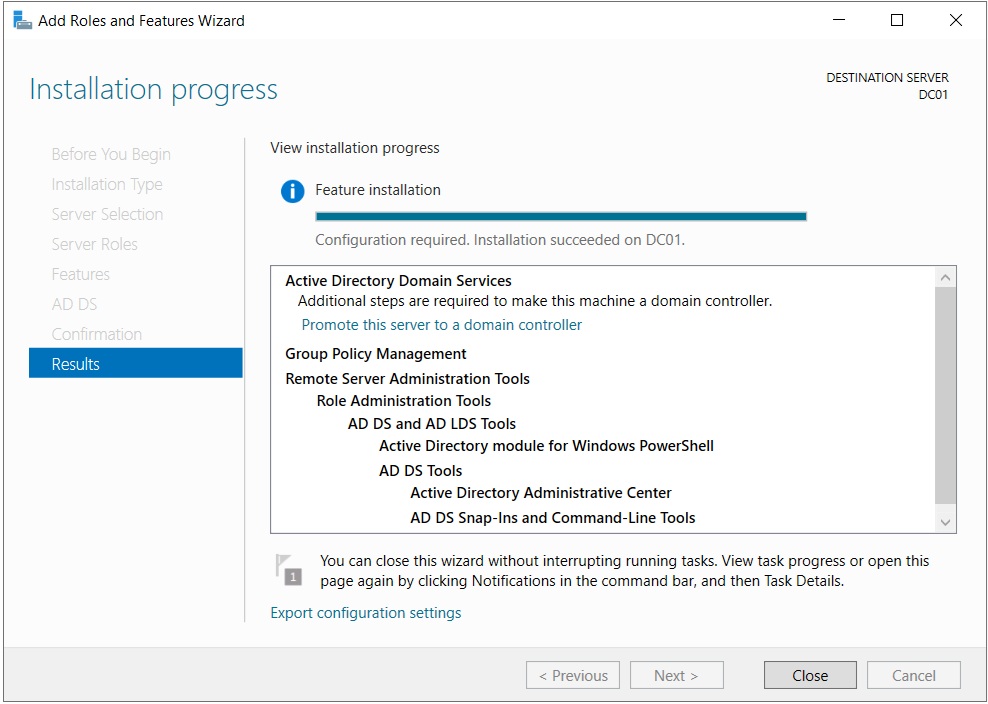
In the Confirmation tab click Install, and the Active Directory software will be installed on the server.
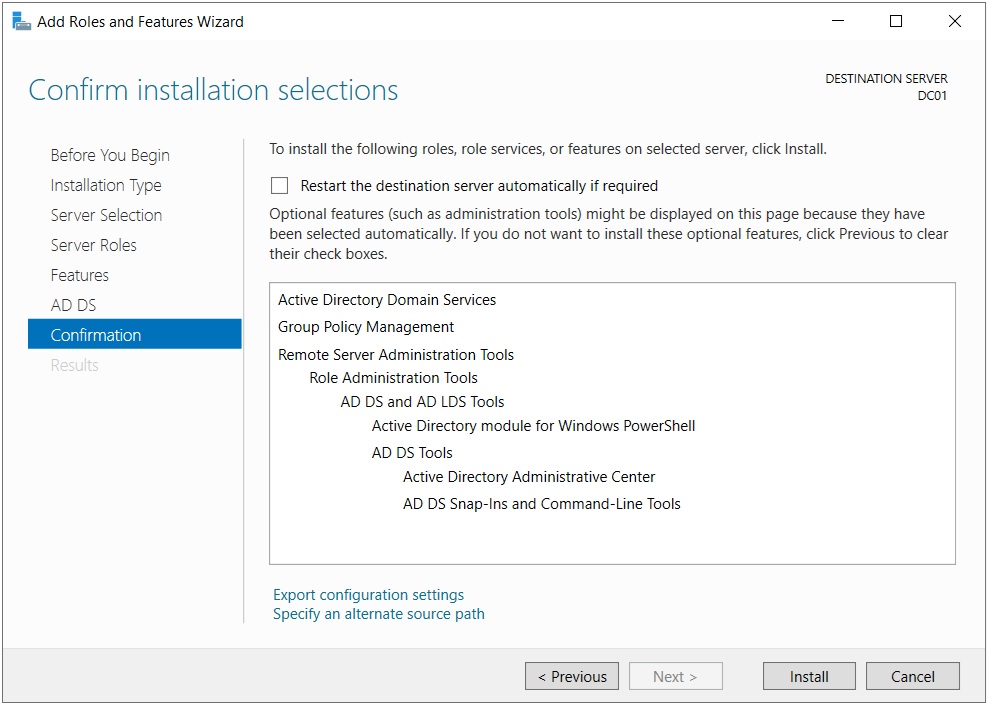
When the Active Directory software installation is complete click Close.
Domain Controller
At this point in the lab the Active Directory software is installed on the server, but the server is not yet a domain controller. In this section we will promote the server to a DC.
Overview of Domain Controllers, Domains, Trees, Forests
What follows is a brief summary of the relationships between domains, domain controllers, trees, and forests within a Windows network. Hopefully, it will help you better understand the process of promoting the server to a DC.
A DC is used to manage a domain and all of its resources. There are often multiple controllers in the same domain to balance the workload, provide failover redundancy, and reduce latency for clients logging onto the network.
A domain is associated with a tree and a forest. There can be one or many domains in a tree, and one or many trees in a forest.
In the lab so far, we have not created any domains, so we have no trees or forests. When we add the first domain (techwayfarer.com) it will reside within a tree that resides within a forest. The tree will contain one domain, and the forest will contain one tree.
The point of having trees and forests is to establish trust relationships between different domains. Then all the domains within the forest can share resources. For instance, the users in one domain can access files stored in another domain. And by using a global catalog, users in any domain can access the shared contact information of other users within the forest.
A tree is a group of domains that share a root (or top-level) domain name and have a trust relationship between the domains. A tree has one root domain. The child domains in the tree are subdomains of the top-level domain.
In our lab, techwayfarer.com will be the top-level domain in our first tree. In the future, we could add a child/subdomain to the same tree, such as kc.techwayfarer.com for the Kansas City site/branch office. Then we would have two domains in the tree. And the tree would be part of the one forest.
A forest is a group of trees that share a trust relationship. Each tree within a forest has a different root domain name. For example, after creating a tree for techwayfarer.com we may decide to add another tree to the forest such as twmsp.com. After establishing the trust relationship between the two root domains and two trees, resources can be shared between the two trees.
Create the Domain Controller
Begin by clicking on the notification icon in the top right corner of the Server Manager Dashboard.
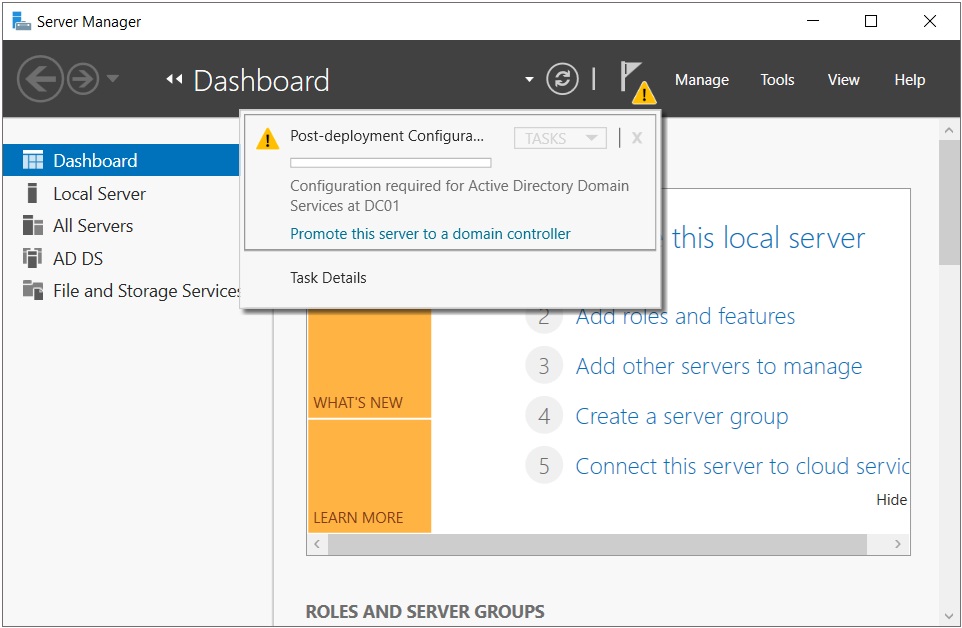
Click the link “Promote this server to a domain controller.” The “Active Directory Domain Services Configuration Wizard” window will open.
In the Deployment Configuration tab chose how to deploy the new DC. Since we have yet to create a domain or a forest, choose “Add a new forest” and enter the name of your new domain.
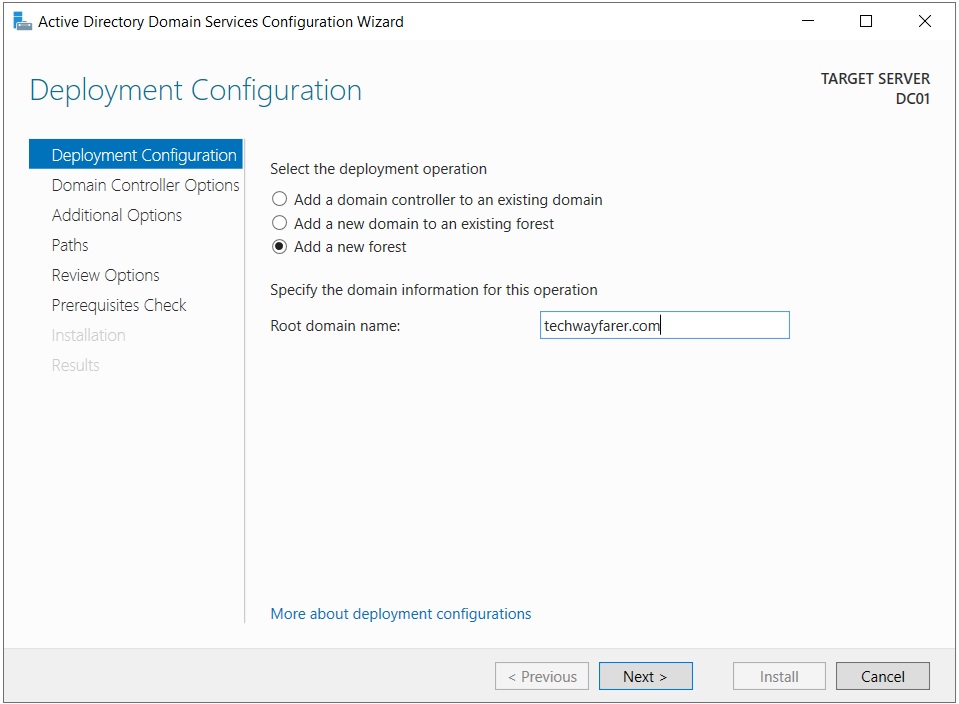
In the “Domain Controller Options” tab begin by choosing the functional level of the domain and forest. A new DC in a forest is constrained by older controllers already in the domain. Since this is a new domain, we can choose the latest functional level, which is Windows Server 2016.
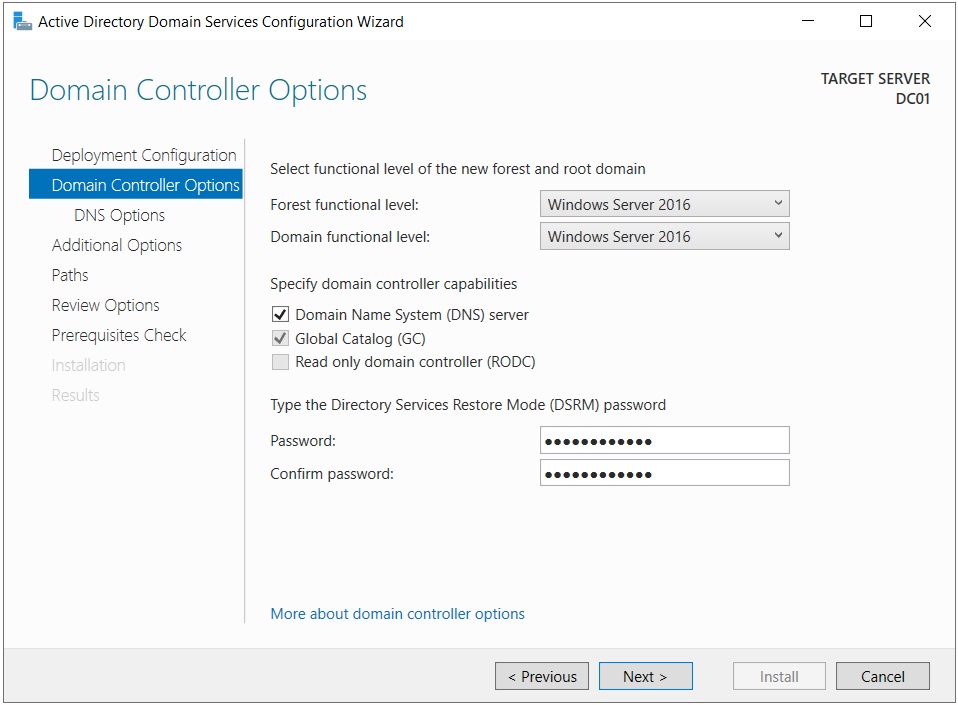
A domain needs a DNS server. So choose to add DNS server capability to our DC.
Choose to add a Global Catalog (GC) in case we decide to add other domains to the forest.
You will have to enter a DSRM password. DSRM provides the option of restoring Active Directory from backup. Then click next.
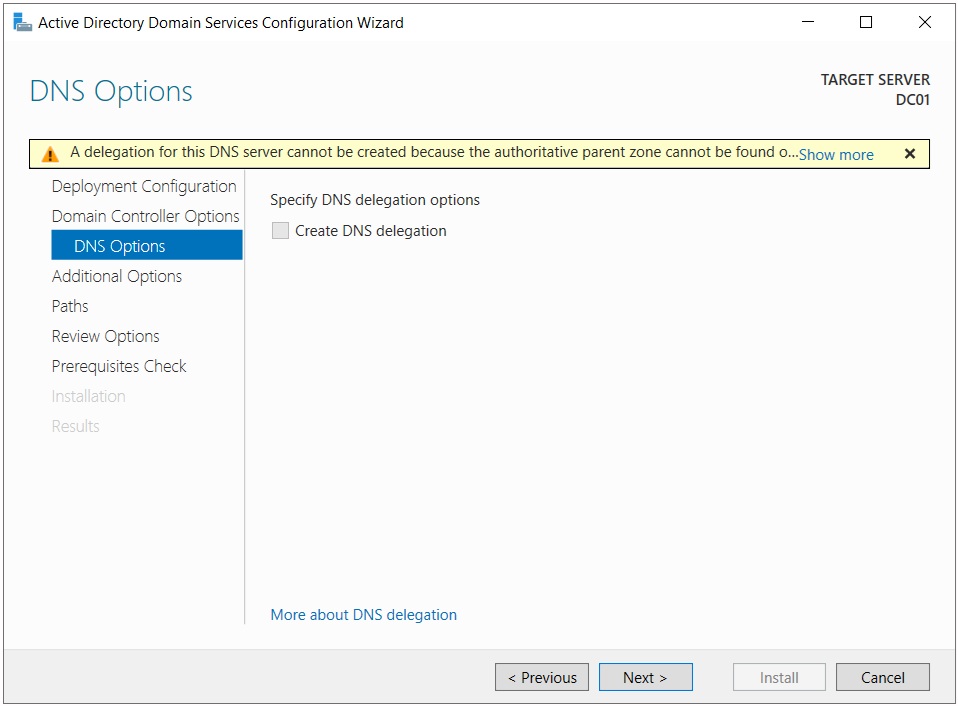
In the DNS Options tab a warning message appears because DNS is not yet installed on the server. Ignore the warning and click Next.
In the Additional Options tab your domain name will autofill in the NetBIOS domain name field.
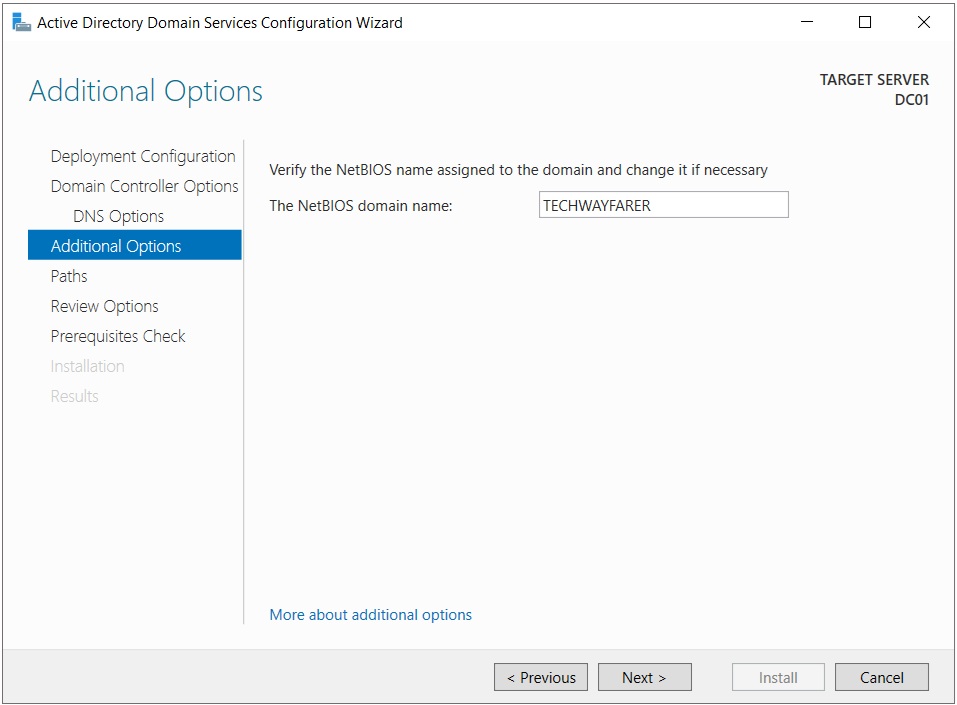
NetBIOS is an older technology used to allow older devices to connect to the domain. We won’t need NetBIOS in our lab. In the real world it is a good idea to disable NetBIOS for security purposes. Click Next.
In the Paths tab, you are asked to enter the storage location for the database and logs.
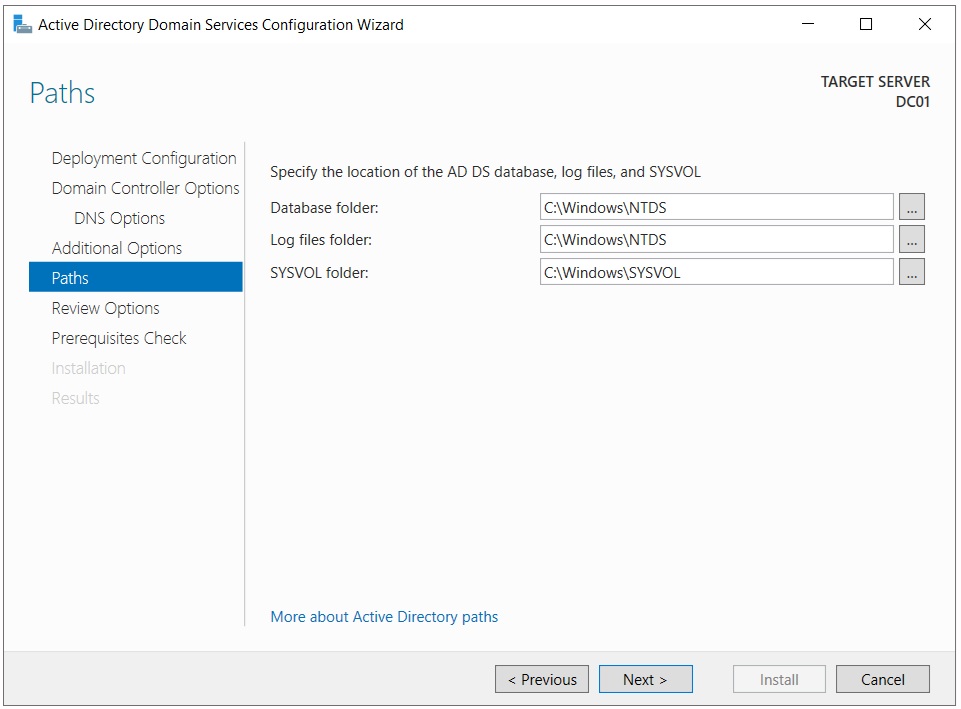
The AD database is stored in a file named NTDS.dit that resides in the NTDS folder. The logs for all activity on the AD are stored in the log files folder. Group policy information and login scripts are stored in the SYSVOL folder.
Better performance is achieved on the DC when the database and logs are stored on separate hard drives. For this lab, you can accept the default options and click Next.
The Review Options tab provides a summary of your configuration choices for the DC.
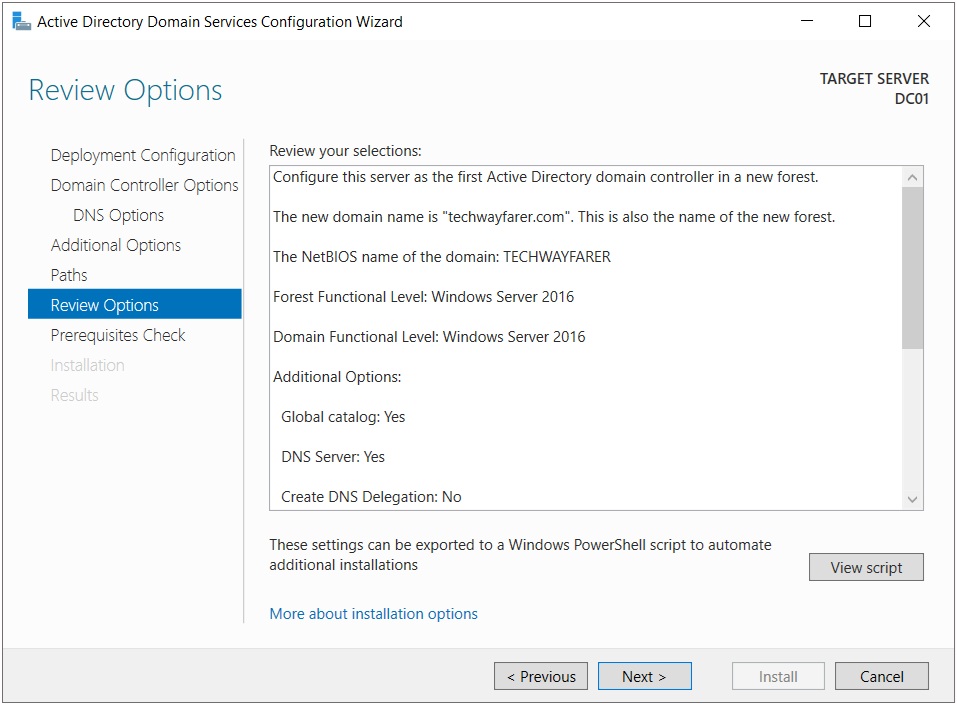
The DC will be created using a Powershell script. Click the View script button, and the script will open in Notepad.
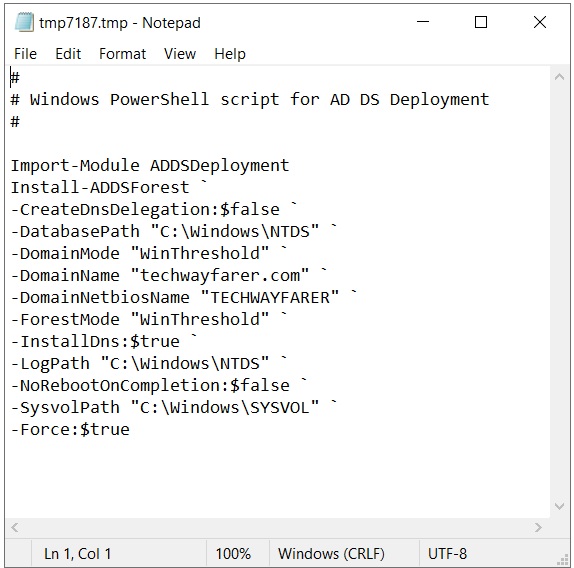
You could use a similar script to automate the creation of more domain controllers. Close the file.
In the Review Options tab click Next.
The Prerequisites Check window should indicate that you have passed and can begin installation.
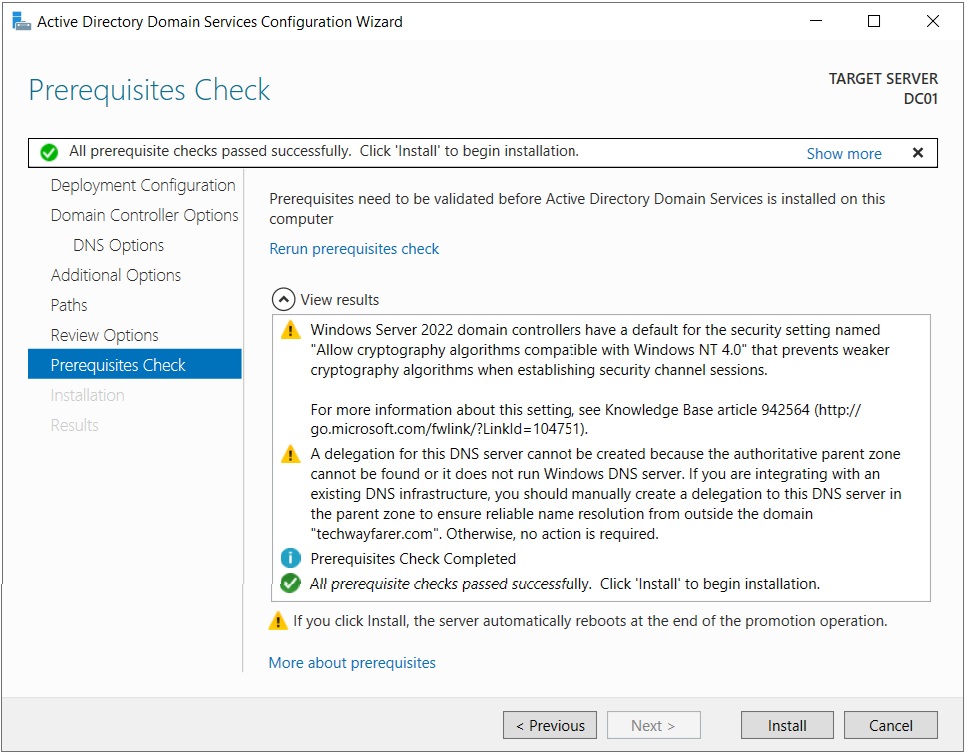
The first warning message related to cryptology is not important for our lab. The second warning message about DNS delegation was shown in an earlier screen. We are about to install DNS and make the warning irrelevant.
Click Install to create the DC.
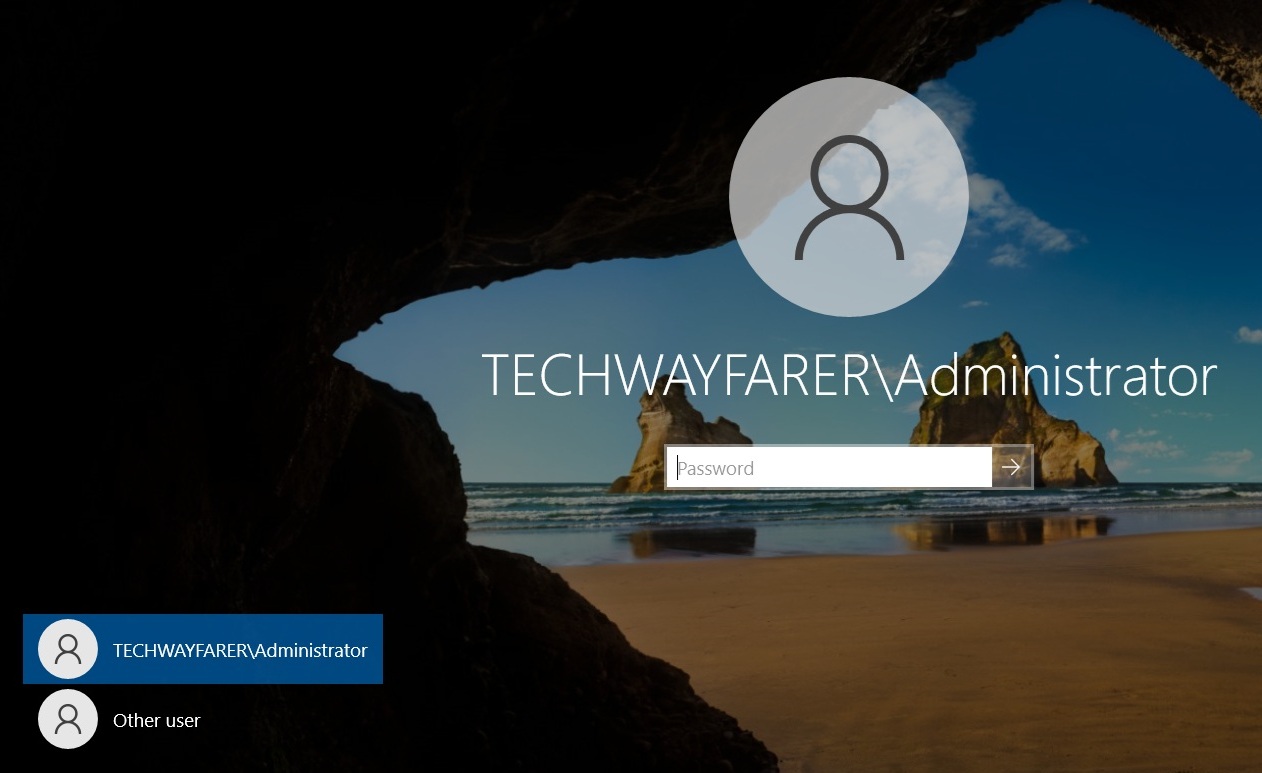
When the installation is finished the VM will reboot. The login screen will change to reflect that the Windows Server is now part of a domain (e.g., TECHWAYFARER\Administrator).
When Windows Server was installed earlier in the lab, a local administrator account was created. When the server is promoted to a DC, an enterprise administrator account is created for the Windows domain that uses the same password as the local administrator. You can login to the domain using your previously created password.
Conclusion
We are done configuring the Windows Server.
In the next post we will install DHCP on the server.
Next Post >> DHCP Server Installation and Configuration.