In this post, we will create Group Policy Objects (GPOs) in Active Directory (AD). This post is part nine of a home lab that explains how to use Windows Server and Active Directory.
Posts in Window Server and Active Directory Home Lab
- Home Lab Introduction: Windows Server and Active Directory
- Install Windows Server using VMware Workstation
- Configure Windows Server
- DHCP Server Installation and Configuration
- Create Organizational Units in Active Directory
- Create Users in Active Directory using PowerShell
- Join a Windows 11 Computer to a Domain
- Create Groups in Active Directory
- Create Group Policy Objects in Active Directory
Table of Contents This Post
What are Group Policy Objects?
Group Policy is a feature in Windows that allows administrators to centrally manage configuration settings for users, computers, and groups within Active Directory (AD). Group Policy allows Windows administrators to:
- simplify administrative tasks (e.g., software deployment)
- enforce security settings
- tailor policies to specific users, devices, and groups
- apply consistent settings across the organization (e.g., desktop settings)
A GPO is a collection of Group policy settings organized in a hierarchical structure with varying levels of scope and priority. GPOs can be stored locally and apply to only one computer. Or they can be stored in AD and apply to an entire domain.
Group Policies are separated into two main categories: users and computers. User Group Policies apply to a user regardless of the computer he uses. They can be applied when a user logs on or off a computer. There are around 311 user configuration templates in Active Directory. They can be used to control application assignments, logon and logoff scripts, folder redirection, and more.
Computer Group Policies apply to the computer regardless of who uses it. They can be applied during system startup or shutdown. There are around 312 computer configuration templates in Active Directory. They can be used to control security configurations, application settings, startup and shutdown scripts, system behavior, and more. Computer policies take precedence over user policies when conflicts arise.
Group Policies in AD operate in a client-server manner. GPOs are stored on a server and applied at the client level (computer or user). When a computer turns on/off or a user logs on/off, the Group Policy engine on the client side checks for applicable GPOs on the server and applies the settings.
GPOs and the Windows Registry
Windows Registry is an integral part of Windows that provides a centralized repository of configuration data. It is a hierarchical database that stores configuration settings for user preferences, hardware, applications, and the operating system.
The Registry consists of two main sections:
- HKEY_LOCAL_MACHINE (HKLM) stores system-wide settings.
- HKEY_CURRENT_USER (HKCU) stores user-specific settings.
The Registry Editor is an application that allows administrators to create, edit, view, or delete registry values within the Windows Registry database. The Registry Editor can be accessed at C:\Windows\regedit.exe.
The Registry Editor can be challenging to navigate and properly apply settings. Group Policy Management Console (GPMC) provides a more user-friendly interface for interacting with the Windows Registry.
GPOs can read from the Registry or write to it. When applying a GPO (at user login or computer startup) the Group Policy engine writes the policy settings to the Registry.
Group Policy settings are stored in AD and in the SYSVOL folder on Domain Controllers (DCs), so the settings can be replicated across the network.
When the Group Policy engine applies a GPO:
- The GPO is downloaded from the SYSVOL folder.
- The GPO is filtered based on its scope and any applicable filters.
- Settings are applied to a computer or user profile.
- Settings are written to the Windows Registry.
Policies vs Preferences
When applying a GPO to a user or computer, you can choose whether the GPO is a policy or a preference.
GPO Policies are enforced settings that the user cannot change. They are commonly used for security settings (e.g., passwords), system hardening, and compliance enforcement. When the GPO policy no longer applies, the changes made to the Windows registry are reversed.
GPO Preferences are configurable settings that the user can change. They are commonly used for drive mappings and user interface (UI) default settings. Preferences are useful when users need some control over the setting, yet the administrator wants to also maintain a baseline configuration. The changes a user makes to a GPO preference are reversed at the next refresh interval (e.g., 30 minutes), if the “Apply once” checkbox is disabled.
GPO preferences are stored in Windows registry under a lowercase “p” key. When the GPO is removed any changes made to the Windows registry remain.
GPO Scopes
The scope of a GPO is the range of users and computers that are affected by the GPO’s settings. A GPO can be applied (or linked) to different scopes (or levels) within an Active Directory structure:
- Local
- Site
- Domain
- Organization Unit (OU)
If multiple GPOs configure the same setting, then the higher priority GPO takes precedence. GPOs have greater priority the further they are down the list. GPOs applied at the OU level have the highest priority.
Local Scope
A Local Group Policy applies to a local computer. It is the only scope available if a computer is not connected to a domain. It is the least common scope. It is implemented using gpedit.msc or MMC snap-in for Group Policy.
The following sections explain how GPOs in Active Directory can be applied to Sites, Domains, or OUs.
Site Scope
A site level Group Policy applies to an AD site–a physical location like a branch office that uses one or more subnets. Site Group Policies are mainly used to manage the replication of information between Domain Controllers (DCs) located in different physical locations.
Domain Scope
A domain level Group Policy applies to all users and computers within an entire AD domain. A Default Domain Policy is created automatically in AD. In most organizations, GPOs are normally not linked to the domain level and are instead linked to the OU level.
Organizational Unit Scope
OUs are the most common level for applying GPOs. OU level GPOs provide for targeted group policies and the delegation of administrative duties.
An OU Scope is the lowest level at which a Group Policy can be applied. A Group Policy linked to an OU applies to all users and computers within the OU. It is not possible to apply Group Policy directly to users, computers, or groups.
A company’s OU structure is heavily influenced by Group Policy. A properly designed OU structure simplifies the application of Group Policies. For instance, GPOs are applied to higher-level OUs and then inherited by lower-level OUs to reduce duplicate configuration settings. Also, users and computers are placed in separate OUs to more easily assign Group Policies.
In an earlier post the OU structure for our example business was created in Active Directory Users and Computers (ADUC). The Nashville Sales users in the right windowpane are part of the following OU structure in the techwayfarer.com domain: Branches > Nashville > Users > Sales.
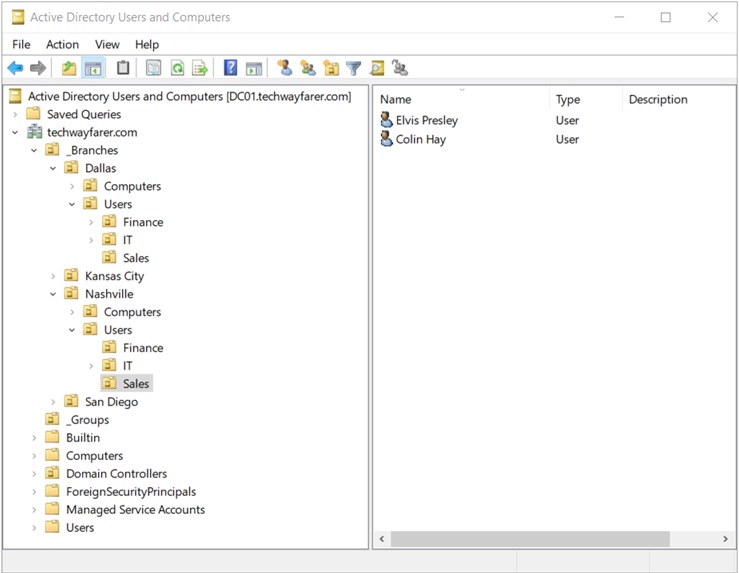
By default a GPO applies to all users or computers that are part of the scope. For instance, a GPO linked to the Nashville OU applies to all users or computers located within the Nashville branch location. In the following sections we will use examples to illustrate how to create GPOs and modify their scopes.
How to Create a GPO and Modify the Scope
This section explains how to create a GPO and modify its scope. We will create a GPO that disables access to the Windows Control Panel. Then we will illustrate various ways of altering how the policy settings are applied.
The following steps will be completed:
- Create a GPO and apply it to the domain level
- Create a conflicting GPO and apply it to the OU level
- Block inheritance at the OU level
- Enforce the domain level GPO
- Apply security filtering at the OU level
- Apply WMI filtering at the OU level
Domain Level GPO
In this section we will create a GPO and link it to the Domain. Below is the OU structure of our example business.
- techwayfarer.com domain
- Branches OU
- Dallas OU
- Kansas City OU
- Nashville OU
- San Diego OU
- Branches OU
If a GPO that disables access to the Control Panel is enabled at the domain level, then by default it is inherited by the Branches OU and all the individual branch location OUs.
- techwayfarer.com domain (enabled “GPO Disable Control Panel”)
- Branches OU (inherited)
- Dallas OU (inherited)
- Kansas City OU (inherited)
- Nashville OU (inherited)
- San Diego OU (inherited)
- Branches OU (inherited)
Let’s create a GPO that disables access to the Control Panel and link it to the domain.
Open GPMC on your DC. Open Server Manager, click on Tools, choose Group Policy Management.
In GPMC, right click on your domain name (e.g., techwayfarer.com) and choose “Create a GPO in this domain, and Link it here…”
In the window “New GPO” name the GPO (e.g., GPO Disable Control Panel) and click OK. The new GPO now appears under the domain. In the Scope tab we see that the GPO is linked to the domain, it applies to the Authenticated Users group, and no WMI Filtering is being used. We will discuss Authenticated Users and WMI Filtering in more detail later.
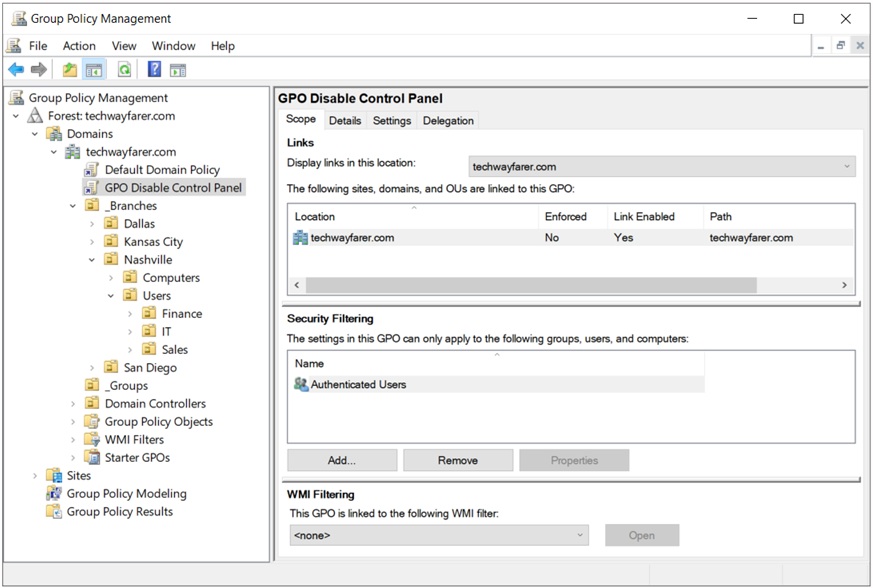
Right click on “GPO Disable Control Panel” and choose Edit. The Group Policy Management Editor opens.
There is an Administrative Template that disables Control Panel. It is located at: User Configuration > Policies > Administrative Templates > Control Panel > Prohibit access to Control Panel and PC settings.
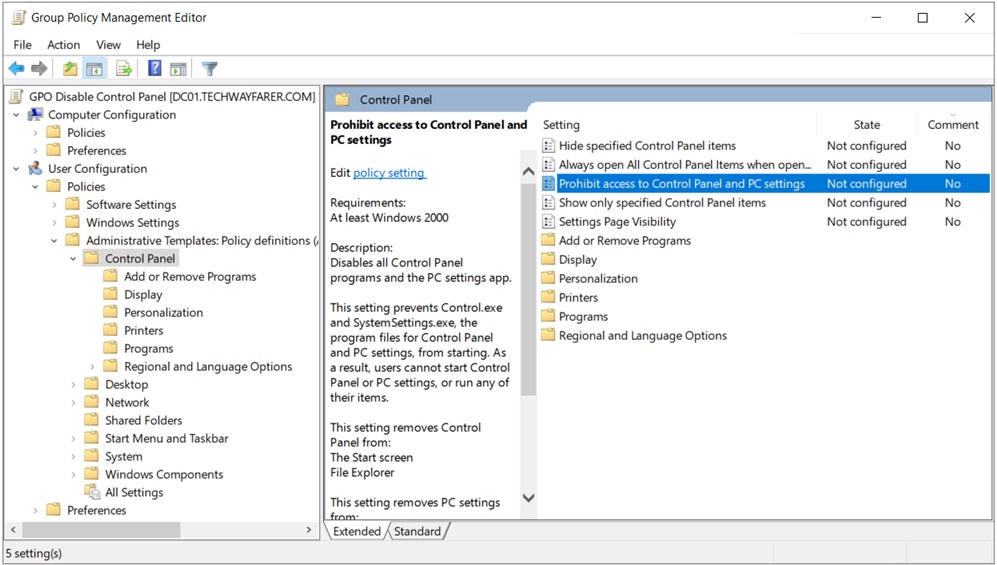
Right click on “Prohibit access to Control Panel and PC settings” and choose Edit.
In the pop-up window “Prohibit access to Control Panel and PC settings” choose Enabled and then OK.
Group Policy Management Editor now shows “Prohibit access to Control Panel and PC settings” is Enabled.
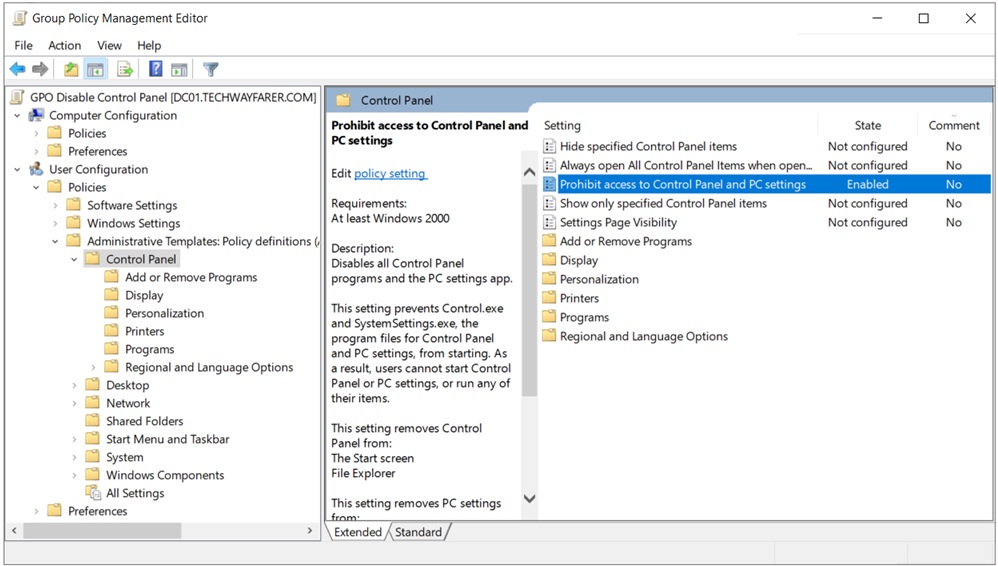
We will test that “GPO Disable Control Panel” is working.
In a prior post we created a Windows 11 virtual machine (VM) and joined it to a Windows domain (e.g., techwayfarer.com). Logon to the Windows 11 client computer with a domain user account (e.g., Colin Hay). See an earlier post for instructions on how to add users to Active Directory.
Then try to access Control Panel. You will probably find that you can access the Control Panel. By default, Windows refreshes Group Policy settings every 90 minutes with a random offset up to 30 minutes.
To implement changes to Group Policy immediately, on the client device open Command Prompt in Administrator mode. You will be prompted to enter Administrator credentials. Then enter the following in Command Prompt:
gpudate /forceAfter a few seconds you should receive a message in Command Prompt stating “Computer Policy update has completed successfully” and “User Policy update has completed successfully.”
Now when you try to open Control Panel a pop-up window titled Restrictions appears. It states “This operation has been cancelled due to restrictions in effect on this computer. Please contact your system administrator.”
OU Level GPO
GPOs are organized in a hierarchical manner. As explained earlier, in Active Directory GPOs linked to OUs have priority over GPOs linked to sites or domains. In this section we will verify the precedence of OU level GPOs over domain level GPOs.
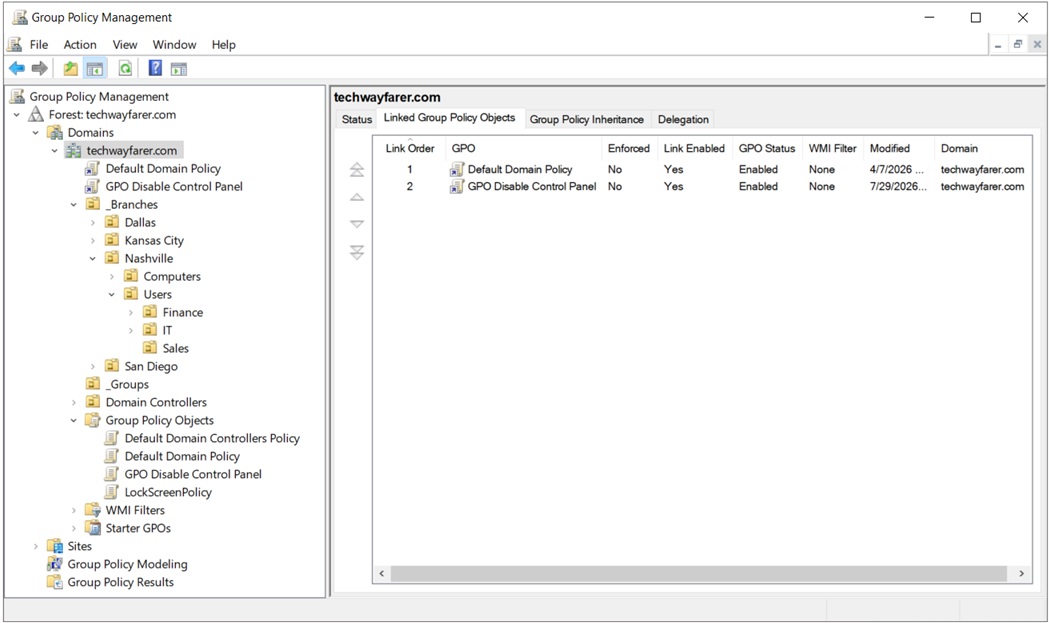
Open GPMC. Click on the domain (e.g. techwayfarer.com) in the left panel. The tab “Linked Group Policy Objects” in the right panel shows the GPOs applied at the domain level. The “Default Domain Policy” GPO is created by default when Active Directory is installed.
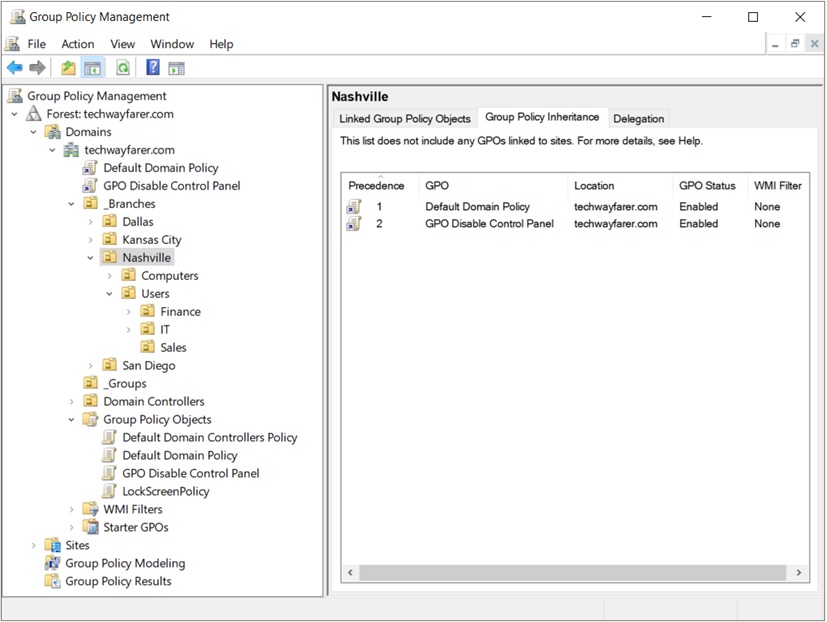
Click on the Nashville OU in the left panel. In the right panel “Linked Group Policy Objects” shows no GPOs linked to the Nashville OU. And the tab “Group Policy Inheritance” shows the GPOs applied at the domain level that affect users in the Nashville OU.
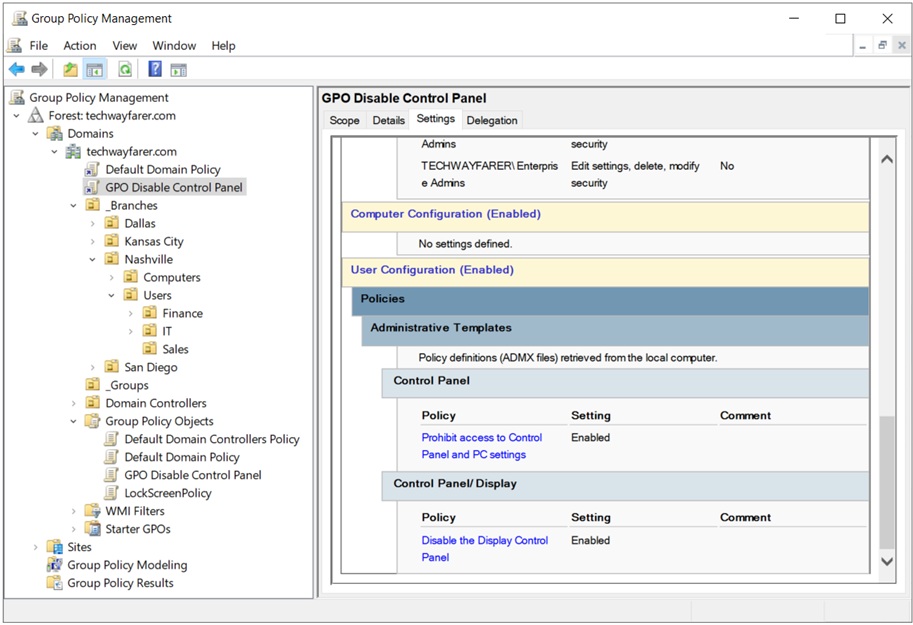
If you want to view the settings present in a GPO you are inheriting, in GPMC click on the GPO in the left panel and the Settings tab in the right panel. For “GPO Disable Control Panel” scrolling down in the Settings tab we see the two policy settings that prevent the Control Panel from being accessed.
- Prohibit access to Control Panel and PC settings
- Disable the Display Control Panel
We will now create a conflicting GPO that enables access to the Control Panel and link it to the Nashville OU.
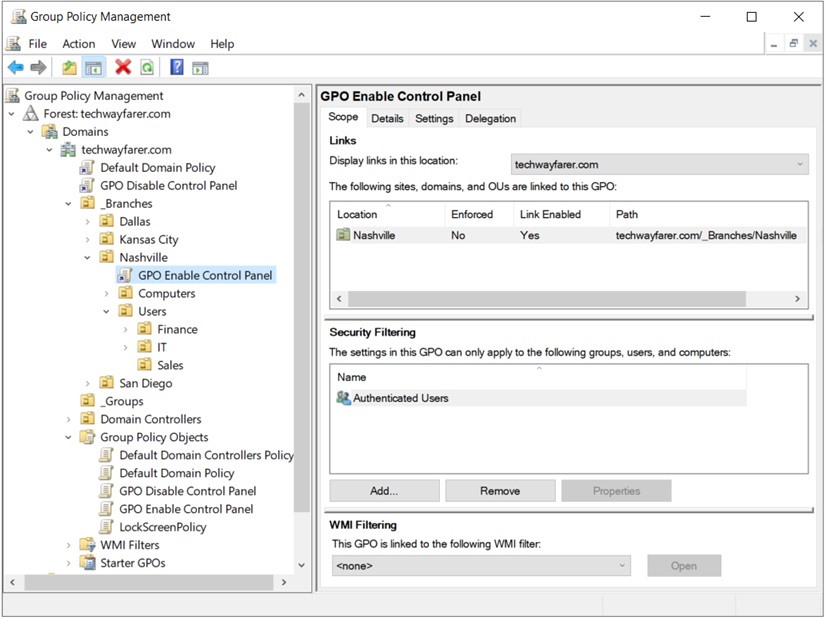
In GPMC, right click on the Nashville OU and choose “Create a GPO in this domain, and Link it here…”
In the window “New GPO” name the GPO (e.g., GPO Enable Control Panel) and click OK. The new GPO now appears under the Nashville OU. In the Scope tab we see that the GPO is linked to the Nashville OU, it applies to the Authenticated Users group, and no WMI Filtering is being used.
Right click on “GPO Enable Control Panel” and choose Edit. The Group Policy Management Editor opens.
We will access the same Administrative Template used earlier, in which access to the Control Panel was disabled for the domain. Yet we will use the template differently. For the domain we enabled the GPO. For the Nashville OU we will disable the GPO.
The GPO template is located in the Group Policy Management Editor at: User Configuration > Policies > Administrative Templates > Control Panel > Prohibit access to Control Panel and PC settings. Right click on “Prohibit access to Control Panel and PC settings” and choose Edit.
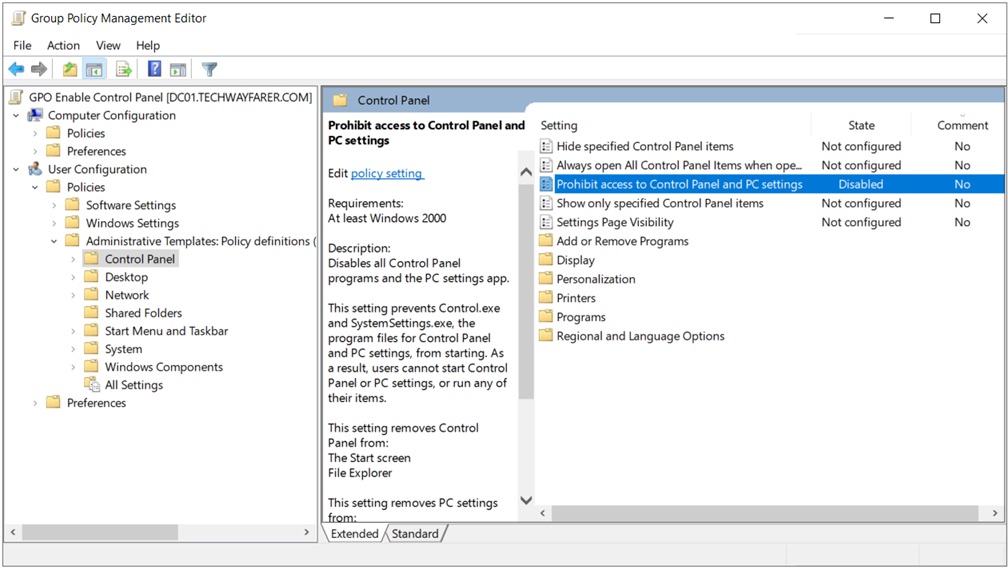
In the pop-up window “Prohibit access to Control Panel and PC settings” choose Disabled and then OK.
Group Policy Management Editor now shows “Prohibit access to Control Panel and PC settings” is Disabled for the GPO. Disabling a GPO that prohibits access to Control Panel results in the Control Panel being accessible.
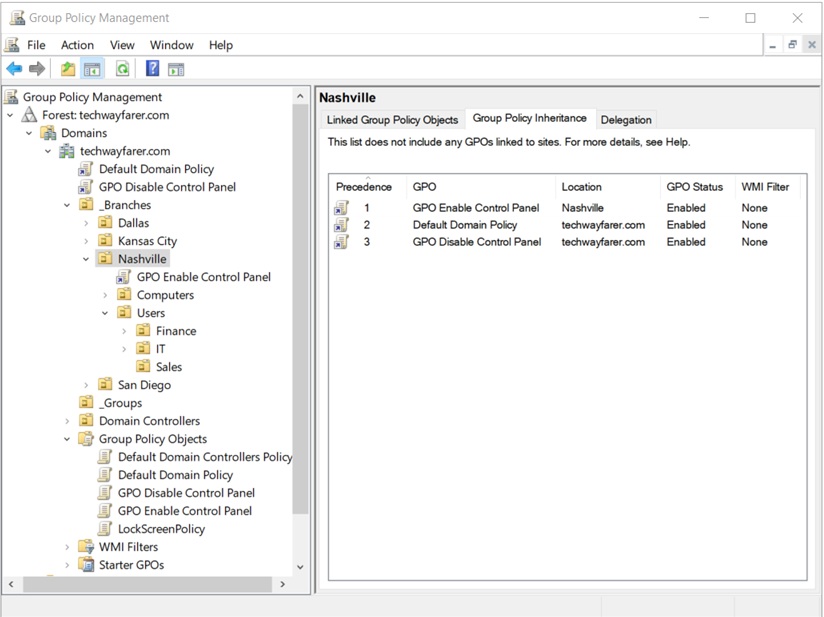
In GPMC we can view inheritance for the Nashville OU by clicking on the “Group Policy Inheritance” tab in the right panel. We see the GPOs affecting the OU and their priority. The lower the Precedence number the greater the priority. “GPO Enable Control Panel” linked to the Nashville OU has the highest priority, because GPOs linked to OUs have precedence over GPOs linked to domains (e.g., techwayfarer.com). Since “GPO Enable Control Panel” has priority, Authenticated Users in the Nashville OU can access Control Panel.
Block Inheritance
If block inheritance is enabled for an OU, then it does not inherit any policies from a parent OU, site, or domain. It may be useful to block inheritance when you want an OU to have its own independent set of policies.
In a prior section “GPO Disable Control Panel” was created and linked to the domain (e.g., techwayfarer.com). We will block inheritance for the Nashville OU. Then policy settings linked to the domain (including “GPO Disable Control Panel”) no longer affect the Nashville OU. And users in the Nashville OU can access Control Panel.
- techwayfarer.com domain (enabled “GPO Disable Control Panel”)
- Branches OU (inherited)
- Dallas OU (inherited)
- Kansas City OU (inherited)
- Nashville OU (block inheritance, Control Panel accessible)
- San Diego OU (inherited)
- Branches OU (inherited)
In GPMC right click on the Nashville OU and choose Block Inheritance. A blue icon appears next to the Nashville OU. The “Group Policy Inheritance” tab shows that the domain level GPOs are no longer affecting the Nashville OU.
In an earlier section we created “GPO Enable Control Panel” and linked it to the Nashville OU. It is the only GPO that applies to the Nashville OU. It allows the Authenticated Users group to access Control Panel.
Note that even if we disabled “GPO Enable Control Panel” for the Nashville OU, the users in Nashville would still have access to Control Panel. The GPO that disables Control Panel access (GPO Disable Control Panel) is linked to the domain. And block inheritance is preventing “GPO Disable Control Panel” from affecting the Nashville OU.
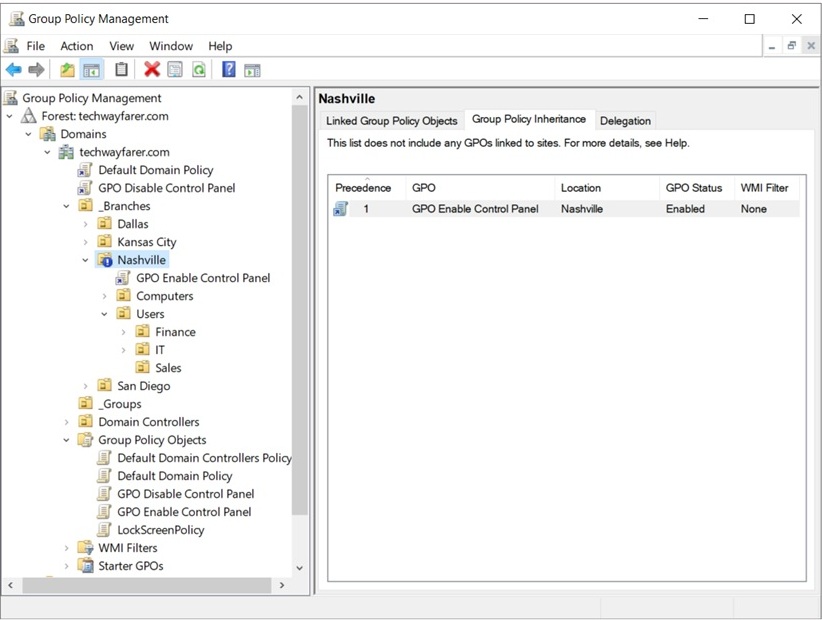
When block inheritance is chosen for an OU (e.g., Nashville) then all GPOs are blocked. You cannot choose a particular GPO to block. If you want some of the blocked GPOs to apply to the OU, you have to right click on the OU and choose “Link an existing OU.” GPOs no longer apply to an OU through inheritance, instead GPOs apply when linked directly to the OU.
Enforced
A domain administrator can enforce a domain level GPO, so no site administrators (branch OUs) can block the policy settings. Then the domain level GPO is inherited by OUs regardless of whether block inheritance is set for an OU.
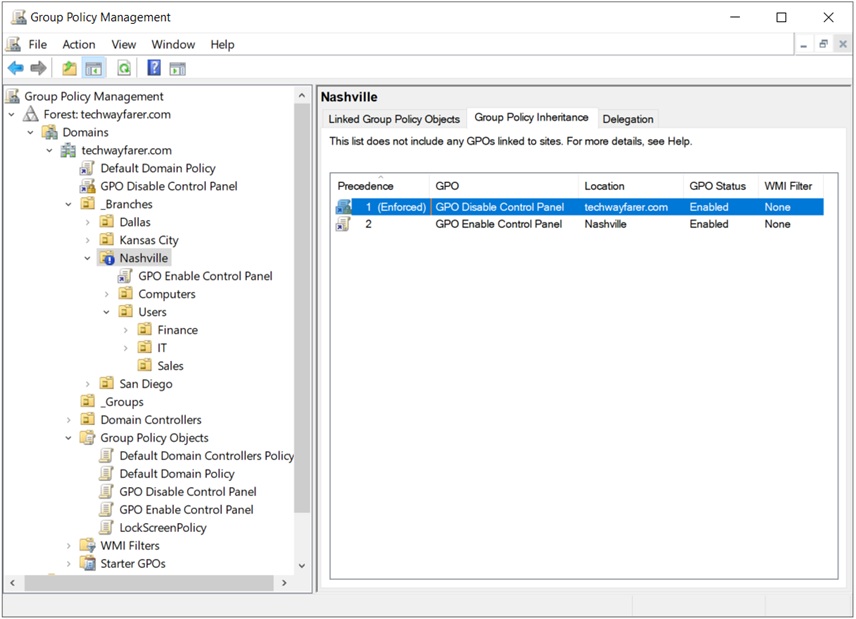
In our lab, block inheritance is still enabled for the Nashville OU. In this section “GPO Disable Control Panel” is enforced at the domain level. The result is that the domain level GPO has precedence, and users in the Nashville OU cannot access Control Panel.
- techwayfarer.com (enforced “GPO Disable Control Panel”)
- Branches (inherited)
- Dallas (inherited)
- Kansas City (inherited)
- Nashville (block inheritance overwritten, domain level GPO inherited, Control Panel not accessible)
- San Diego (inherited)
- Branches (inherited)
To enforce “GPO Disable Control Panel” for the domain, right click on the GPO and choose Enforced. Then click on the Nashville OU. The “Group Policy Inheritance” tab shows that “GPO Disable Control Panel” now has priority for the Nashville OU.
Security Filtering for Groups
For a GPO to apply, a user or computer account has to be both:
- under the scope of the policy and
- be a member of a group to which the policy applies.
In earlier sections we discussed how to modify the scope of a GPO using block inheritance and enforced. In this section we discuss how to apply security filtering to groups, which then changes how GPOs are applied to specific users and computers.
Let us return to the example used earlier in which “GPO Disable Control Panel” is enabled for the domain, and “GPO Enable Control Panel” is enabled for the Nashville OU. In this section the domain level GPO will not be enforced, and the OU level GPO will not be set to block inheritance.
See an earlier post in which we created a Sales Nashville group and added Sales users to the group. We can use security filtering to specify that only the Sales Nashville group receives settings for “GPO Enable Control Panel” linked to the Nashville OU. The result is that only users in the Sales Nashville group can access Control Panel. All other users in the Nashville OU inherit settings from “GPO Disable Control Panel”, which is linked to the domain, and cannot access Control Panel.
- techwayfarer.com domain (enabled “GPO Disable Control Panel”)
- Branches OU (inherited)
- Dallas OU (inherited)
- Kansas City OU (inherited)
- Nashville OU (enabled “GPO Enable Control Panel.” Security filtering specifies the Sales Nashville group receives the Nashville OU GPO settings. Control Panel only accessible by users in the Sales Nashville group.)
- San Diego OU (inherited)
To test our security filtering settings, begin by removing the enforced setting for “GPO Disable Control Panel” that was created in an earlier section. In GPMC, under the domain, right click on “GPO Disable Control Panel” and uncheck Enforced.
Then remove the block inheritance setting for the Nashville OU. In GPMC right click on the Nashville OU and uncheck Block Inheritance.
In GPMC, click on “GPO Enable Control Panel” under the Nashville OU. Under the Scope tab the group Authenticated Users currently receives the GPO settings. Authenticated Users is a misleading name for the group since it includes users that authenticate to the domain at login and computers that authenticate at startup.
Delete Authenticated Users from Security Filtering. Click on Authenticated Users and then Remove.
Then add the Sales Nashville group. Click Add. In the “Select User, Computer, or Group” window enter Sales and then click Check Names. From the list of groups choose Sales Nashville.
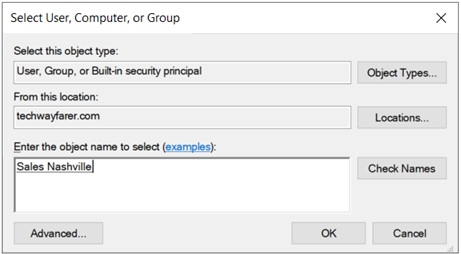
Then click OK.
In GPMC, the Sales Nashville group appears under Security Filtering.
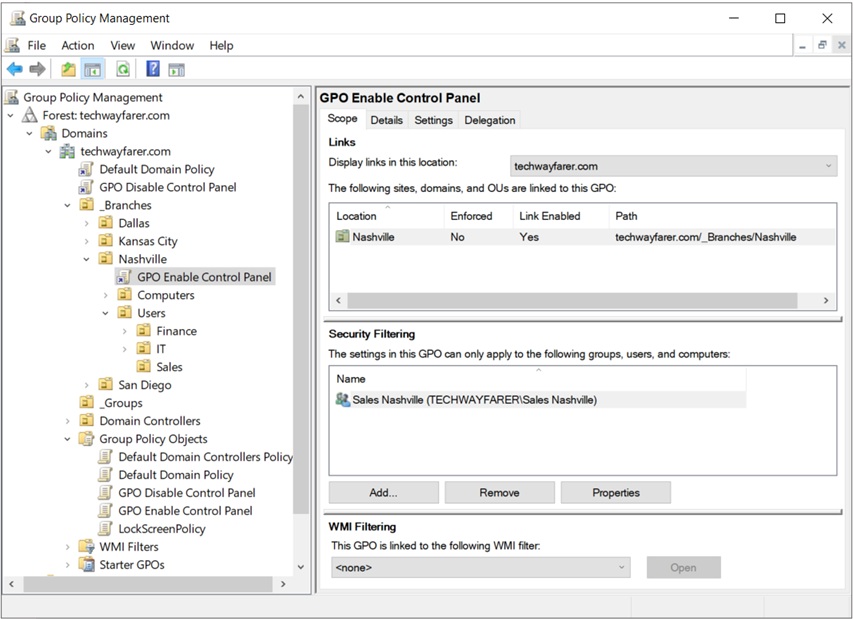
Now only users in the Sales Nashville group receive policy settings from “GPO Enable Control Panel” linked to the Nashville OU. Any other users in the Nashville OU (e.g., Finance and IT) receive policy settings from “GPO Disable Control Panel” linked to the domain.
Security filtering can be difficult to manage and troubleshoot. Using security filtering can make it challenging to discern how GPOs are applied throughout an OU structure.
Prior to implementing security filtering, an administrator can look at the OU structure to determine GPO inheritance. After applying security filtering, the administrator also needs to look at group memberships to determine how security filtering influences the application of GPOs.
It is common practice to apply GPOs at various OU levels and minimize the use of security filtering. Extensive use of security filtering is often a sign of a poorly designed OU structure. It may be better to redesign the OU structure than to rely heavily on security filtering.
WMI Filtering
Windows Management Instrumentation (WMI) filtering uses scripts written in Windows Query Language (WQL) to determine which computers receive policy settings. You can create a new WMI query or download an existing one from a Microsoft repository.
WMI filtering reviews the operating system (OS), hardware, or software on a computer before a policy setting is applied. For example, you want to use a GPO to install software on a computer, but only if the system uses a 64-bit OS, has at least 8 GB of RAM, and runs Windows 11 Enterprise edition.
WMI Filtering is used with computer Group Policies. The GPOs created earlier (“GPO Disable Control Panel” and “GPO Enable Control Panel”) are user Group Policies, so we won’t try to use WMI Filtering to alter their scopes.
More Example GPOs
Below are a few more examples of common GPOs.
1. Password GPO
The purpose of the password GPO is to enforce strong, secure passwords. The GPO settings are found in Group Policy Management Editor under Computer Configuration > Policies > Windows Settings > Security Settings > Account Policies > Password Policy.
Password GPOs are found under Computer Configuration since they apply to a computer regardless of which user logs onto it. And Password GPOs are found under Policies since the settings cannot be modified by individual users.
Common settings for password policies are:
- Enforce password history
- Maximum password age
- Minimum password length
- Password must meet complexity requirements
2. Network Drive Mapping GPO
The purpose of a Network Drive Mapping GPO is to automatically map network drives for specific users or groups. The GPO settings are found in Group Policy Management Editor under User Configuration > Preferences > Windows Settings > Drive Maps.
Network Drive Mapping GPOs are found under User Configuration since they apply to a user regardless of the computer he logs onto. The GPO settings are found in Preferences since the user is allowed to modify the settings.
3. Removable Media Access GPO
The purpose of a Removable Media Access GPO is to block unauthorized external drives from being accessible by domain computers. Then users cannot take large amounts of data outside the office. And the risk of malware moving from a drive to the network system is reduced.
The GPO settings are found in Group Policy Management Editor under Computer Configuration > Policies > Administrative Templates > System > Removable Storage Access.
The are many settings for Removable Media Access GPOs. Enabling the setting “All Removable Storage classes: Deny all access” prevents all types of external devices from being accessed by domain computers.
4. Account Lockout GPO
The purpose of an Account Lockout GPO is to prevent brute-force password attacks from succeeding against the network. After a certain number of login attempts, a specific user account is blocked from more login attempts for a set amount of time (e.g., 60 minutes).
The GPO settings are found in Group Policy Management Editor under Computer Configuration > Policies > Windows Settings > Security Settings > Account Policies > Account Lockout Policy.
Common settings for Account Lockout GPOs are:
- Account lockout duration
- Account lockout threshold
Conclusion
We are done creating GPOs in Active Directory.
The Windows Server 2022 series of blog posts is complete for now. In the future more content may be added on how to administer a Windows Server in the cloud.