In this post, a Windows 11 virtual machine (VM) is created using VMware Workstation Pro. Then the Windows 11 client computer is joined to a Windows domain.
This post is part of a home lab that explains how to use Windows Server and Active Directory. In earlier posts we created and configured a Windows 2022 server.
Home Lab Series of Posts
- Home Lab Introduction: Windows Server and Active Directory
- Install Windows Server 2022 using VMware Workstation
- Configure Windows Server 2022
- DHCP Server Installation and Configuration
- Create Organizational Units in Active Directory
- Create Users in Active Directory using PowerShell
- Create Groups in Active Directory
- Create Group Policy Objects in Active Directory
- Join Windows 11 Computer to a Domain
In this lab, we are using the VMware Workstation Pro hypervisor to create the Windows 11 VM. If you don’t yet have a hypervisor installed on your computer, an earlier post explains the benefits of using VMware Workstation Pro instead of VirtualBox or Hyper-V. A second post explains how to configure a Windows host computer before installing VMware Workstation Pro. And a third post documents how to install the VMware Workstation Pro hypervisor.
We will be using a Windows 11 Enterprise edition in this lab, since it provides a 90-day free trial. Microsoft does not make it easy to use Windows 11 Enterprise. In order to access the operating system, you need a school or business email that is tied to a Microsoft account,
You don’t have to use Windows 11 Enterprise for this lab. Instead, you can create a VM with another Windows operating system. For instance, you can create another Windows Server VM and add it to the Windows domain just like any other client computer.
Table of Contents This Post
Create a Windows 11 Virtual Machine in VMWare Workstation
In an earlier post in this home lab, we documented in detail the process of installing Windows Server 2022 using VMWare Workstation. You can reference the post for assistance in creating the Windows 11 Pro VM in this part of the lab.
Steps for creating a Windows 11 VM:
- Download the Windows 11 Installation File
- Create a Virtual Machine in VMWare Workstation Pro
- Install Windows 11 on the Virtual Machine
Download Windows 11 Installation File
You can download an evaluation version of Windows 11 Enterprise edition at the Azure portal or from the Microsoft website. At the Microsoft site choose the ISO download for your country. You will have 90 days to use the evaluation version of Window 11 for free.
Create Virtual Machine in VMWare Workstation Pro
Open VMware Workstation Pro on your physical host computer.
Click the button “Create a New Virtual Machine” or click on File > New Virtual Machine in the top menu.
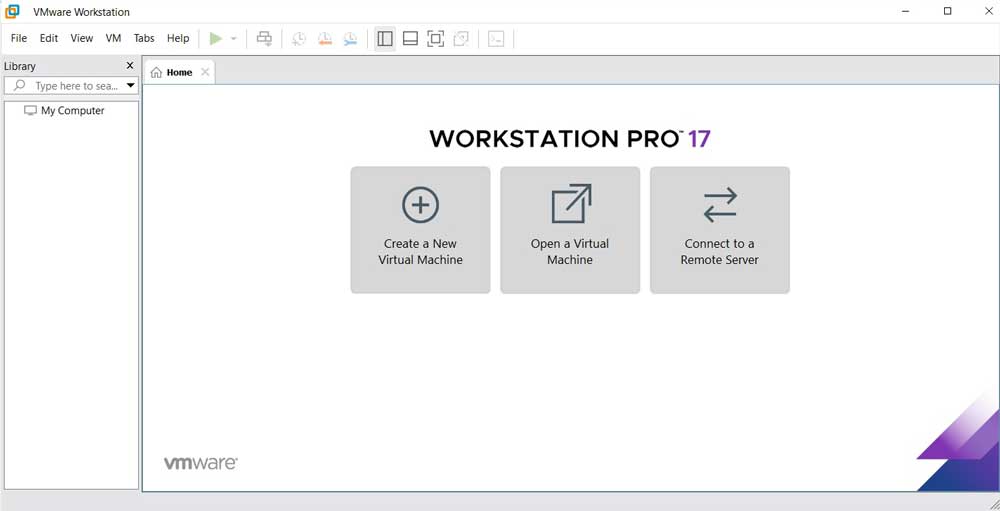
In the “New Virtual Machine Wizard” window choose Typical.
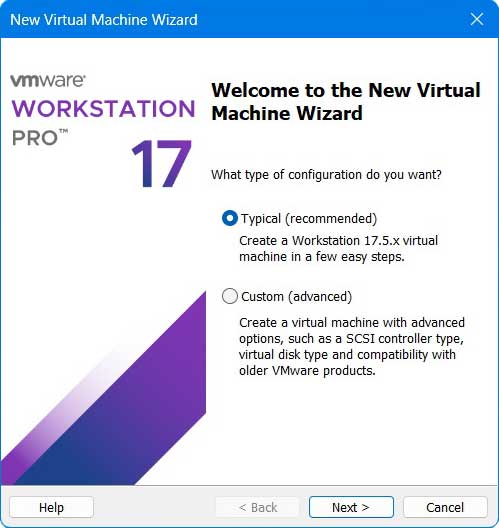
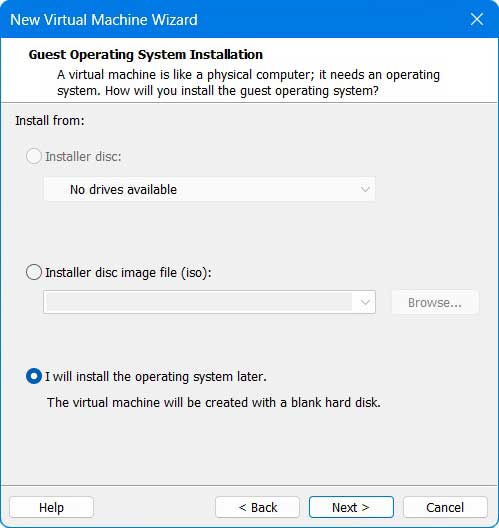
In the “Guest Operating System Installation” window choose “I will install the operating system later” and then Next.
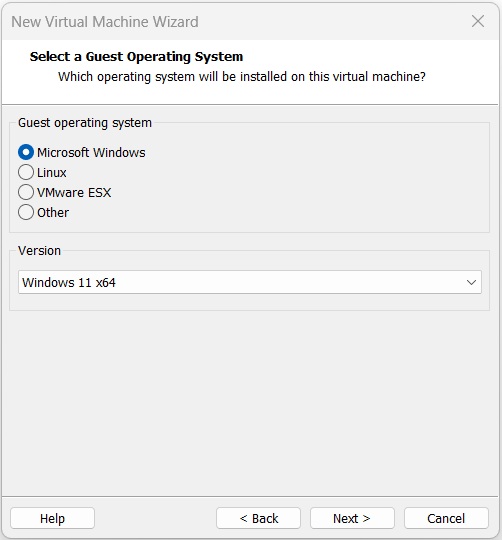
In the “Select a Guest Operating System” window select “Microsoft Windows” and the “Windows 11 x64” version. Then click Next.
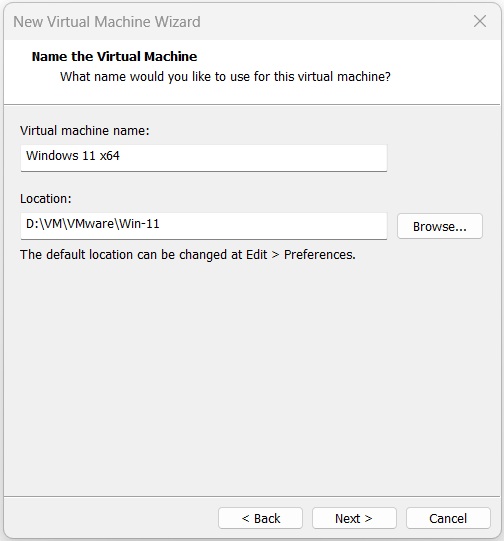
In the “Name the Virtual Machine” window, choose a location to store the VM files on the physical host computer and create a name for the storage folder.
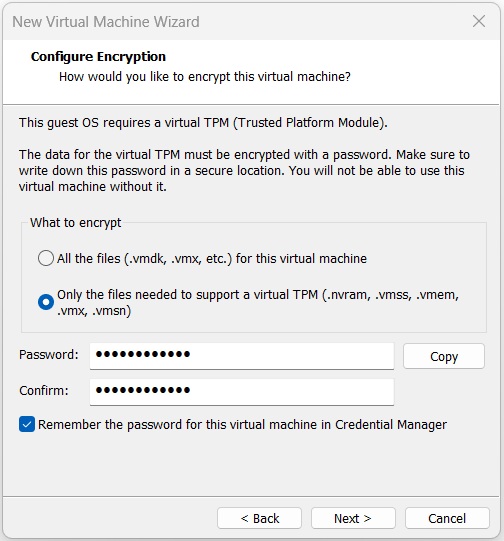
In the Configure Encryption window enter a password and click Next.
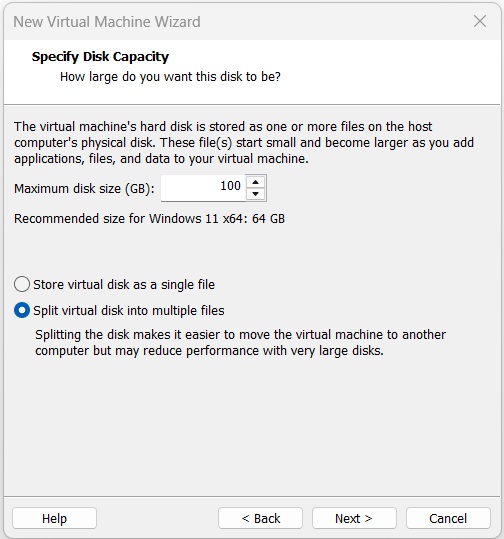
In the “Specify Disk Capacity” window choose a maximum disk size for your VM and the file structure for storing the VM.
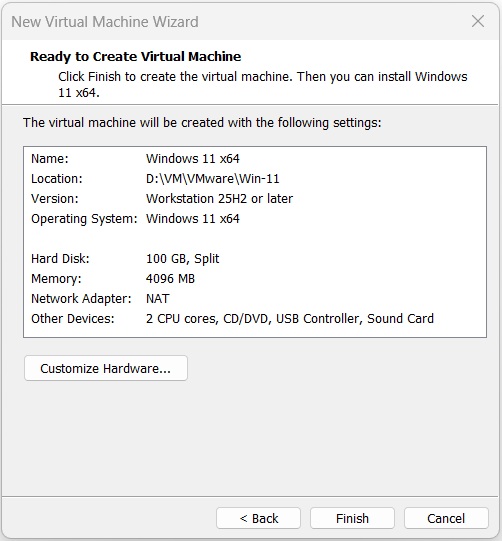
In the “Ready to Create Virtual Machine” window click the “Customize Hardware” button.
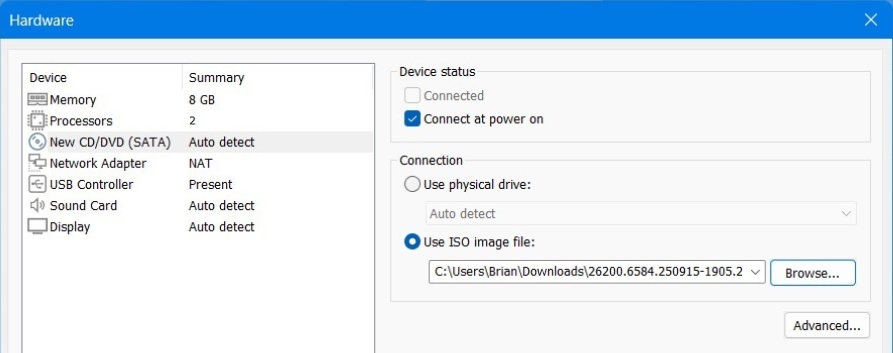
In the Hardware window, Adjust the Memory and Processors based on the resources available on your host computer..
In the “New CD/DVD (SATA)” setting, select “Use ISO image file” and specify the location of the iso file downloaded earlier.
Select Network Adapter and choose the Bridged network connection.
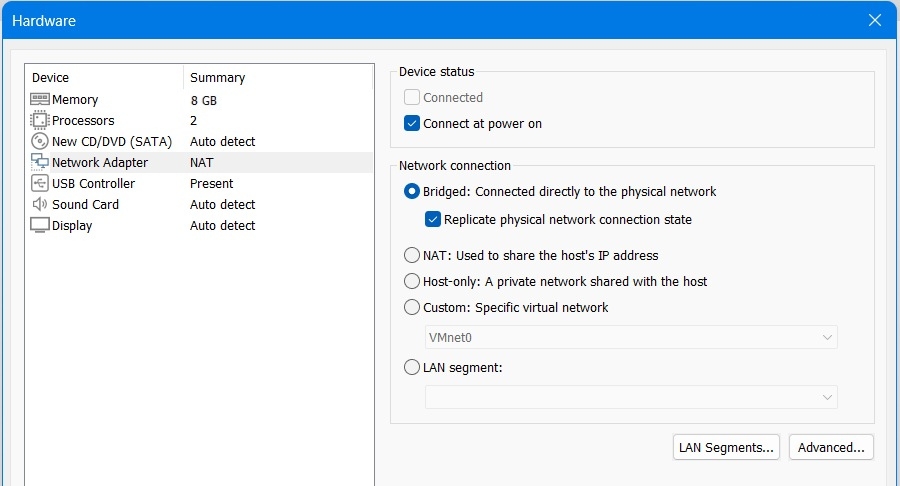
In an earlier post the windows server was assigned to the Bridged network connection, so it has access to the physical home network. We created a domain when the server was promoted to domain controller (DC). In order to join the domain, the Windows 11 computer should also use the physical home network.
When you are finished updating the Hardware settings click on the Close button.
At the “Ready to Create Virtual Machine” window click Finish.
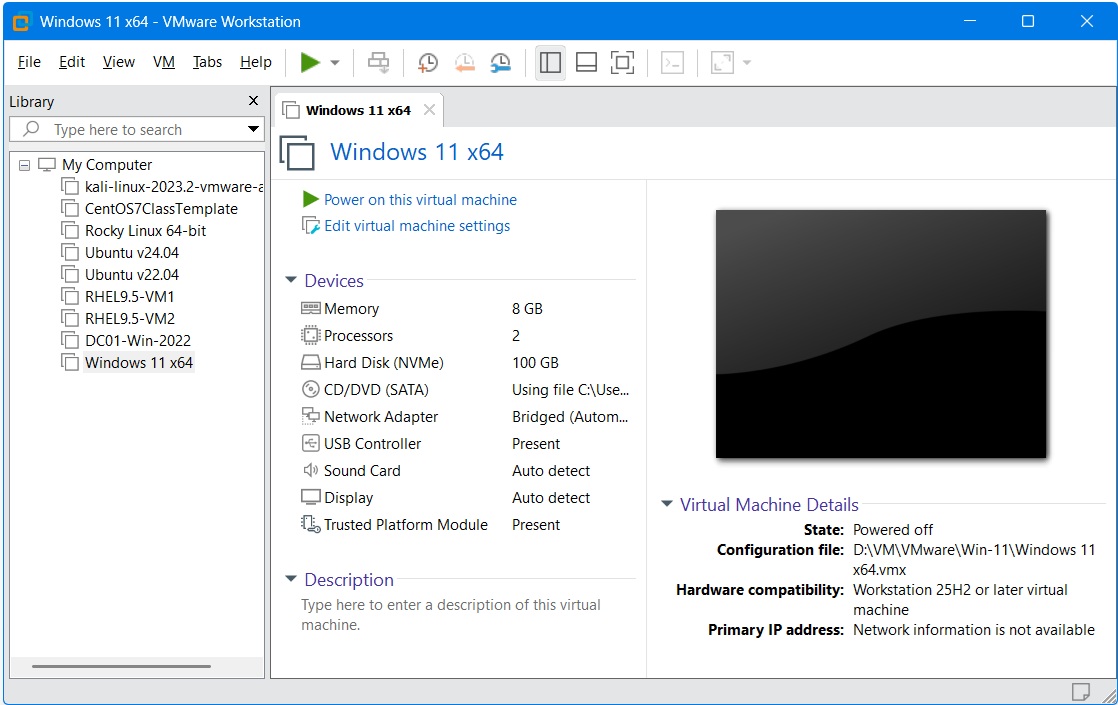
The VM has now been created within VMware Workstation. Next we will install the Windows 11 operating system on the VM.
Install Windows 11 on Virtual Machine
Up to this point, we have created a VM in VMware Workstation. Yet there is no Windows 11 operating system running on the VM.
To install Windows 11 click on the new VM listed in the left pane of VMWare Workstation Pro. Then in the right pane click “Power on this virtual machine.”
A message will briefly appear on the screen “Press any key to boot from CD or DVD.” While the message is displayed, you’ll need to access the VM by pressing Cntrl-G and then press any other key. If you don’t press the keys before the message disappears, restart the VM and try again.
The Windows 11 setup window will open.
In the “Select language settings” window choose your language and click Next. In the “Select keyboard settings” window choose your desired keyboard layout and click Next.
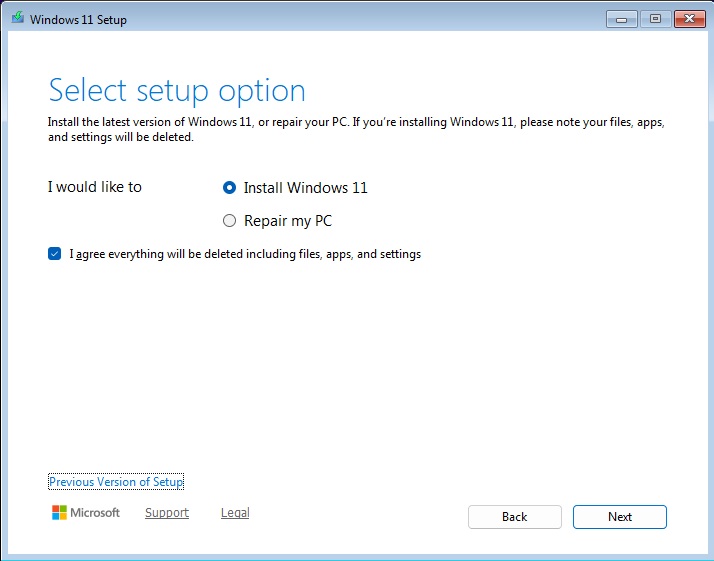
In the “Select setup option” window, choose “Install Windows 11” and click the checkbox “I agree everything will be deleted including files, apps, and settings.” Then click Next.
In the “Applicable notices and license terms” window click Accept.
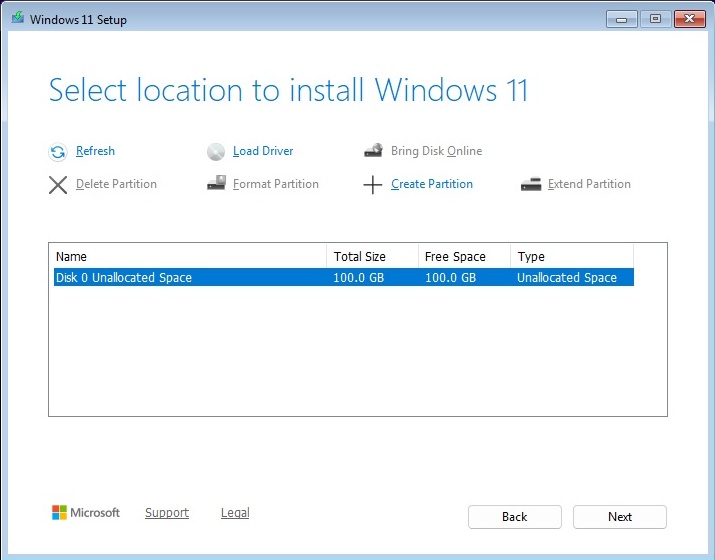
In the “Select location to install Windows 11” window, verify the space for the virtual disk and click Next.
In the “Read to install” window click Install.
It will take a while for the Windows 11 operating system to install. Then you will be prompted to configure the OS.
Choose your country and click Yes. And choose whether to install a second keyboard.
Windows may take a while to perform software updates and finish configuring the OS.
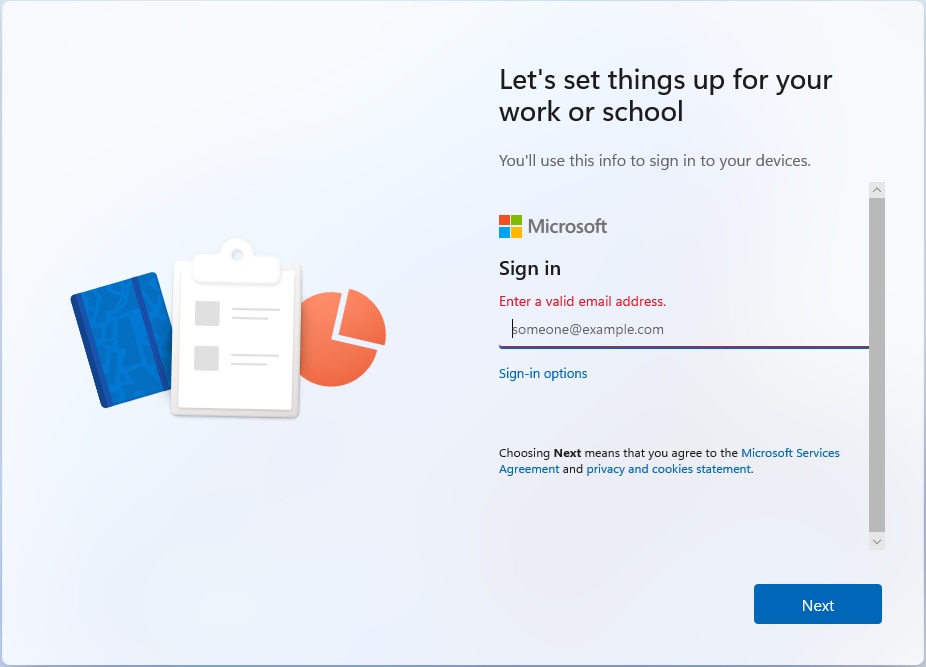
Then Microsoft will force you to enter a business or school email address that is linked to a Microsoft account before you can access the OS.
At the privacy settings window unselect all options and click Accept.
Microsoft may also force you to verify your identity by sending a text to the phone number on your Microsoft account.
When Microsoft has stolen as much of your personal information as it can, you will be allowed to access the desktop.
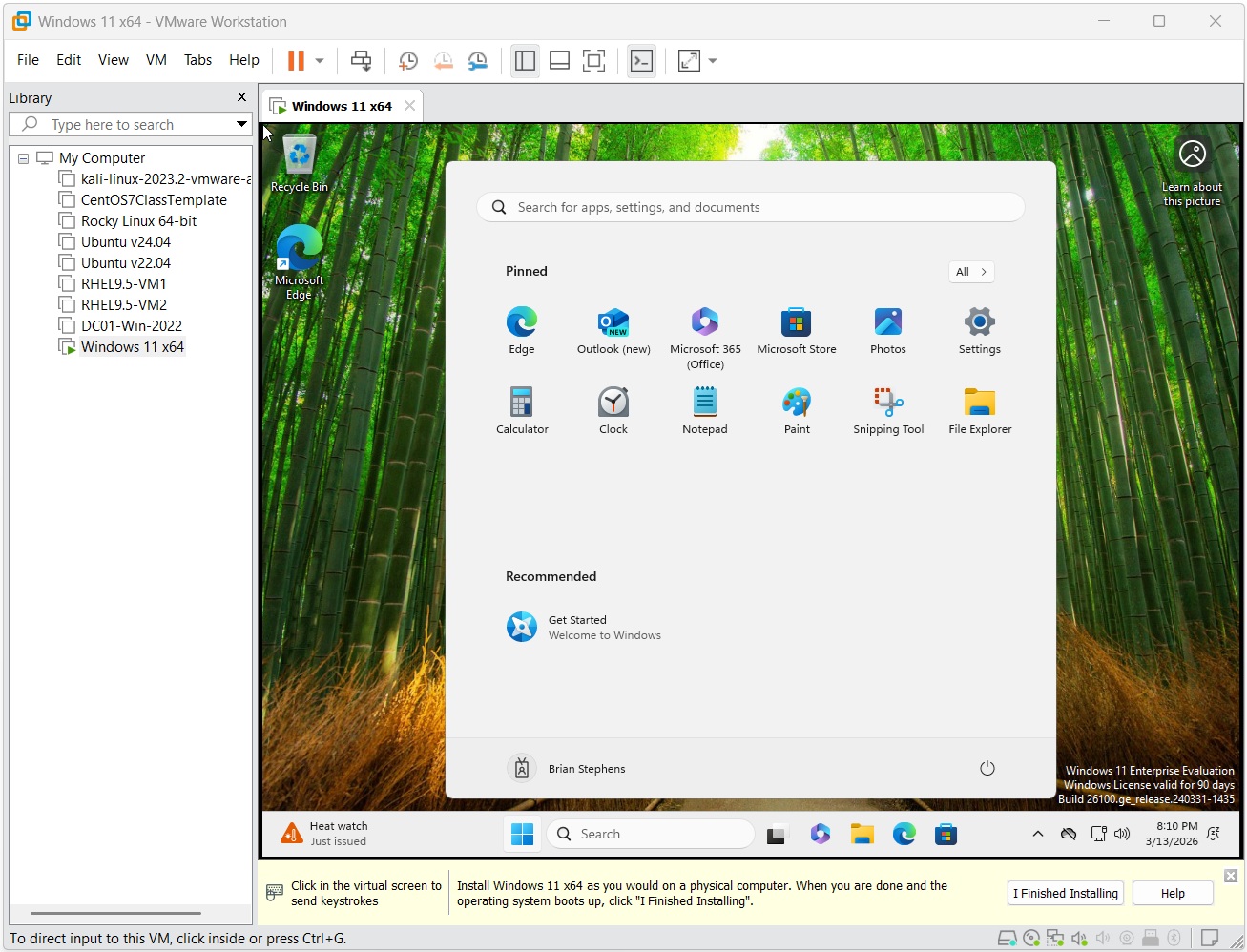
In the bottom yellow bar click “I Finished Installing.”
Create Local Administrator Account
We will create a local administrator account, so we can join the Windows 11 computer to the domain later in this lab.
Right click on the Windows icon in the task bar and choose Settings. In the Settings window, choose Accounts > Other Users.
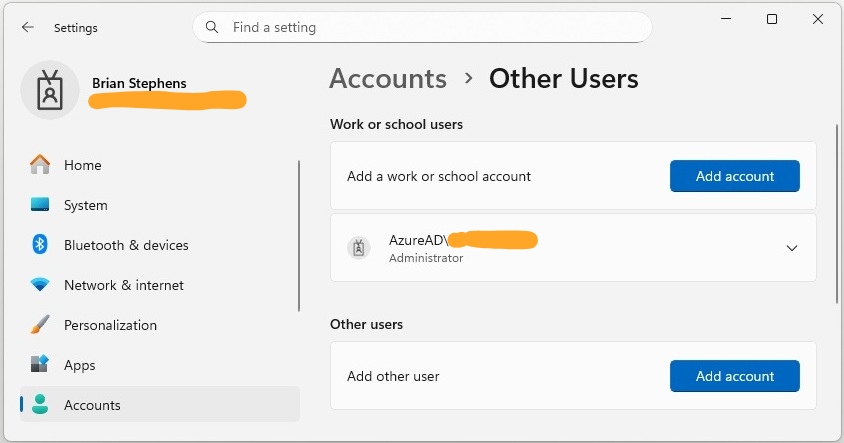
In the “Accounts > Other Users” window you should see the work or school account currently used to access the computer. Click Add account. Microsoft will prompt you with a series of questions.
When asked “How will this person sign in?”, select “I don’t have this person’s sign-in information” and click Next.
When prompted to Create account, select “Add a user without a Microsoft account” and click Next.
In the window “Create a user for this PC” enter a username and password. Create three security answers. Click Next.
In the Accounts > Other Users window you will see the new Local account (e.g., Brian).
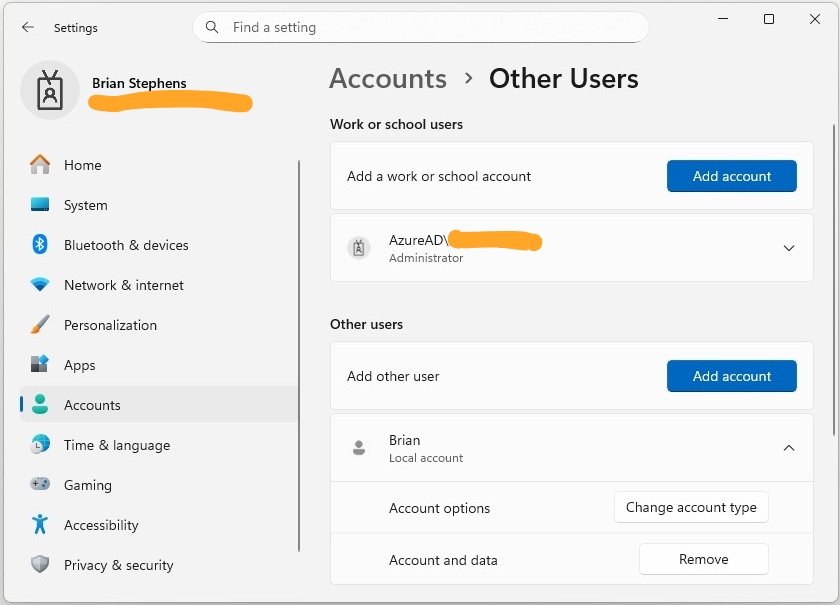
Under the Local account click on the option “Change account type.” In the next window choose the Administrator account type and click OK.
If you are so inclined, you can now remove the work or school account that was created earlier. In Settings go to Accounts > Access work or school. Click on your work or school account and click Disconnect.
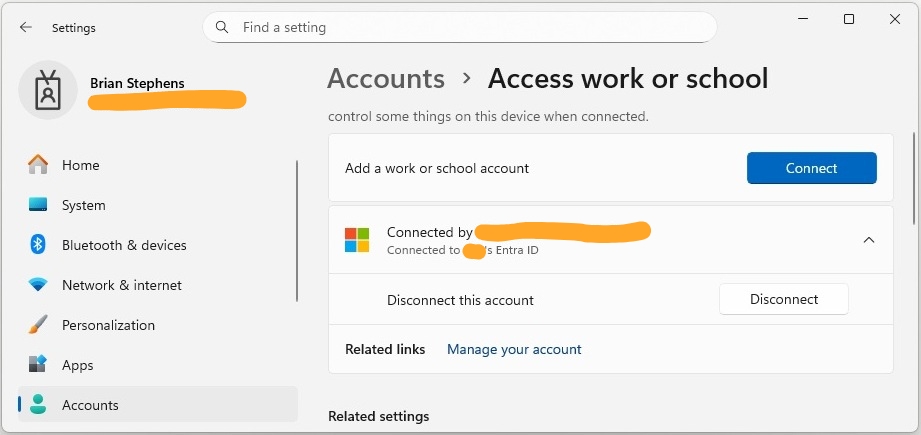
In the window “Disconnect from the organization” click Disconnect.
In the window “Enter alternative account info” enter the local username in the “Email address” field, enter the password, and click OK.
In the “Restart your PC” window click Restart now. When the VM restarts, login with the local administrator account.
Install VMware Tools
An earlier post explains the importance of installing VMWare Tools to add more functionality to a guest OS in VMWare Workstation.
While logged into the Windows 11 VM, choose VM > Install VMware Tools from the VMware menu.
A message will appear in a yellow box below the Windows 11 desktop.

In the Windows 11 OS, open File Explorer. Click on “DVD Drive (D:) VMware Tools” in the left menu. In the right pane double click on setup.exe to install VMware Tools.
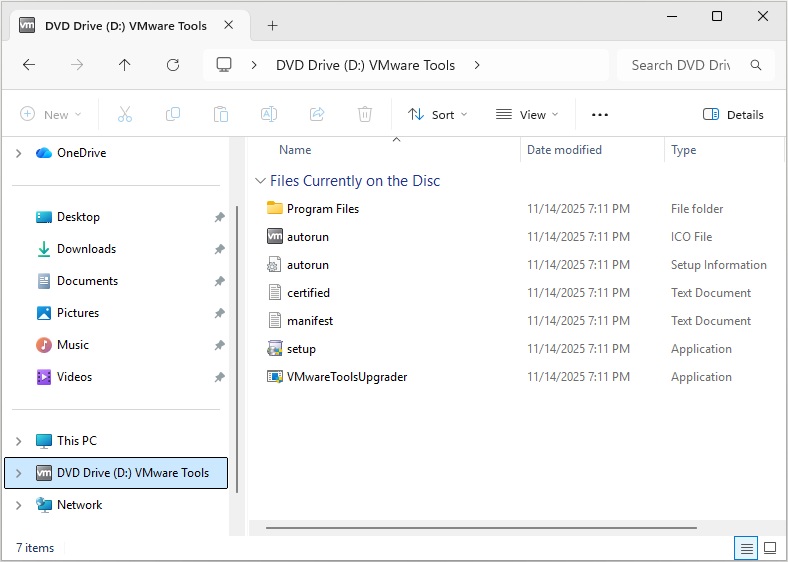
The VMware Tools Setup window will open. Follow the wizard. In the “Choose Setup Type” window choose Typical. When prompted, click Install. When the installation is complete you will be prompted to restart the OS.
Create Backup of VM
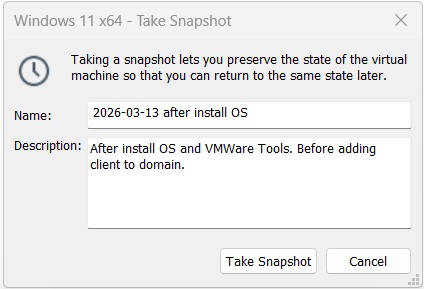
Now is a good time to create a backup of the VM. In VMware Workstation make sure your VM is highlighted in the left pane. In the top menu bar choose VM > Snapshot > Take Snapshot.
In the Take Snapshot window create a name and description for your backup. Then click the Take Snapshot button.
Join Windows 11 Client to Domain
The steps for joining the Windows 11 computer to the domain:
- Add Windows 11 VM to physical home network.
- Change name of Windows 11 Computer.
- Change DNS in Windows 11 to IP address of DC.
- Change network from workgroup to domain.
Step 1: Add Windows 11 VM to Home Network
Step 1 was completed earlier when we created the Windows 11 VM. The Bridged network connection was chosen that placed the Windows 11 device on the same physical home network as the server.
Step 2: Change Name of Windows 11 Computer
Right click on the Windows icon in the task bar and choose System. Scroll down to the place where you can click on the “Rename this PC” button.
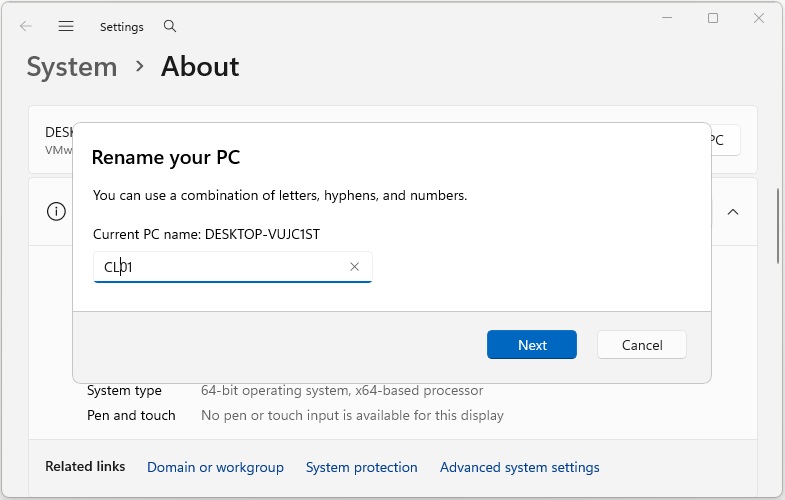
In the pop-up window enter a name for the client device (e.g., CL01). Click Next and when prompted choose to restart the device.
Step 3: Change DNS in Windows 11 to IP Address of DC
In an earlier post, Domain Name Service (DNS) was added to the Windows Server when the Active Directory service was installed.
Before the Windows 11 device can be added to the domain, the DNS settings should point to the server/DC IP address. You can find the server IP address by logging onto the server, opening the command prompt window, and entering ipconfig at the prompt.
On the Windows 11 taskbar, enter “view network connections” in the search window. In the Network Connections window right click on Ethernet0 and choose Properties.
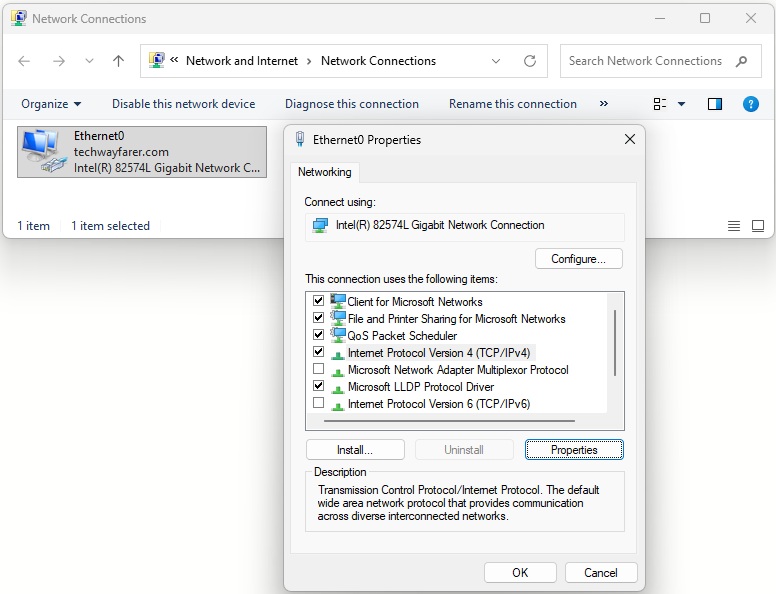
In the “Ethernet0 Properties” window, remove the checkmark next to “Internet Protocol Version 6”, click on “Internet Protocol version 4”, and click the Properties button.
In the “Internet Properties Version 4” window, enter in the Preferred DNS server field the IP address of the server/DC and click OK.
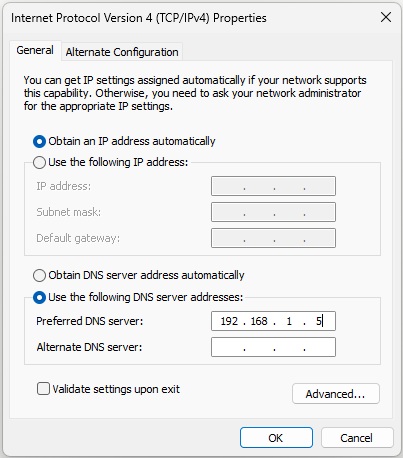
Close the Ethernet0 Properties window.
Step 4: Change Network From Workgroup to Domain
Open the System window again. Scroll down to the Related Links, click on “Domain or Workgroup”, and the System Properties window opens. In the Computer Name tab click Change.
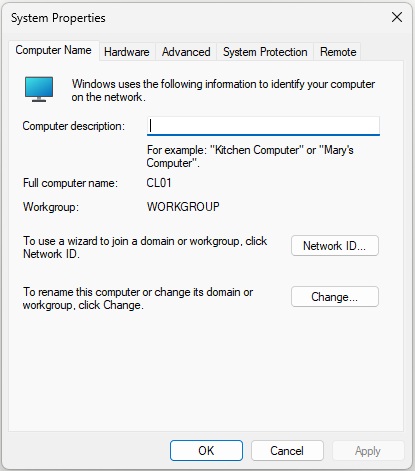
In the “Computer Name/Domain Changes” window, under “Member of” select Domain and enter the name of the windows domain created in an earlier post (e.g., techwayfarer.com). You could also use this window to change the name of the computer, which we have already completed. Click OK.
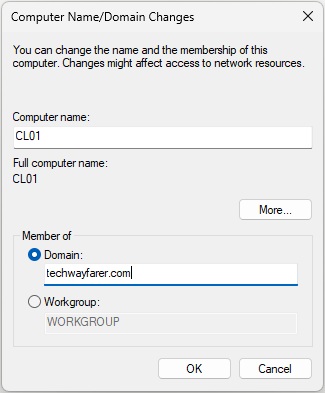
In the “Computer Name/Domain Changes” window, enter the credentials of a user on the Windows Server with permission to join devices to the domain. The Administrator account was formed when the Windows Server VM was created.
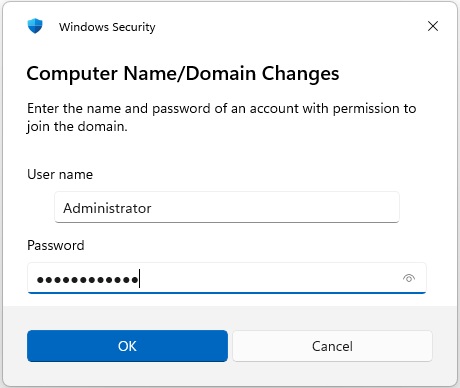
When you see a window welcoming you to the windows domain, click OK. When you are prompted to restart the device, click OK..
Verify Windows 11 Computer Added to Domain
Make sure the Windows Server VM is turned on before attempting to login to the domain from the Windows 11 computer.
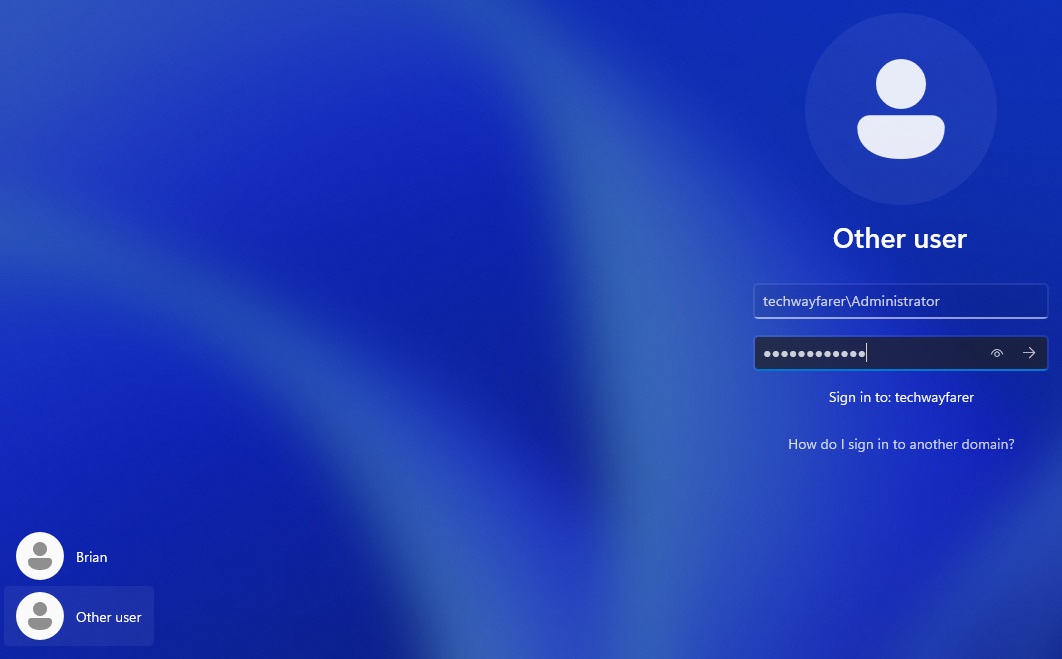
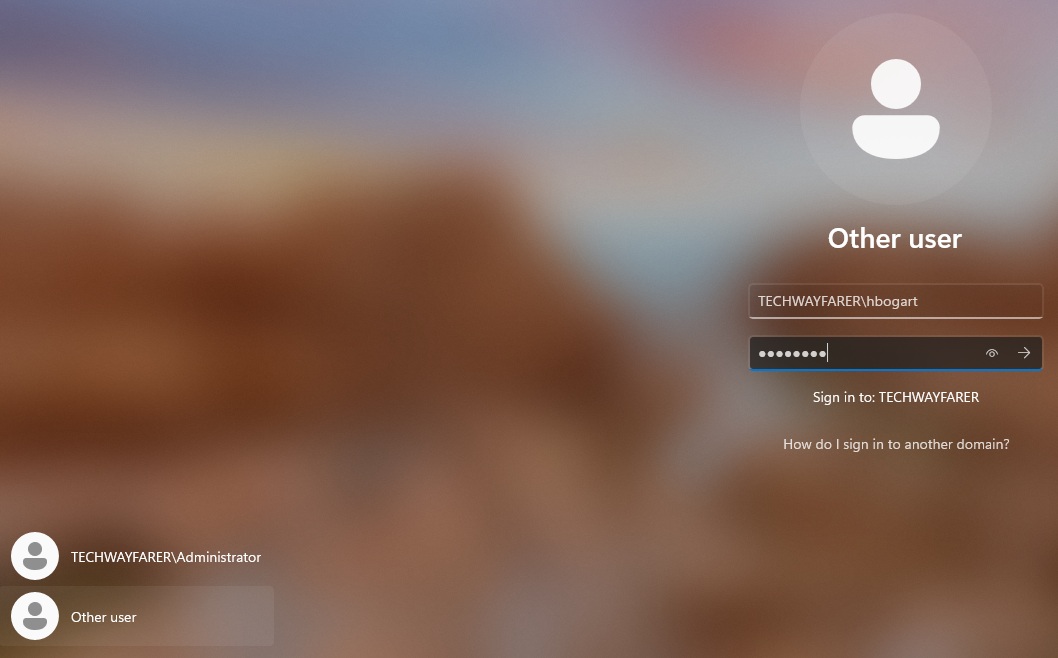
At the Windows 11 login screen choose “Other user.” In the username field enter the domain followed by the username (e.g., techwayfarer\Administrator). Enter the password and press enter.
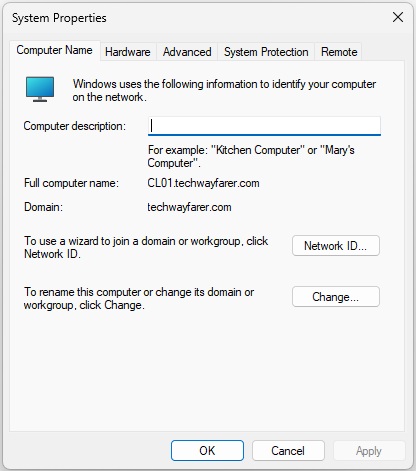
In the System Properties window, the “Full computer name” and Domain fields show that you are logged into the domain.
Open the Command Prompt window and enter ipconfig /all.
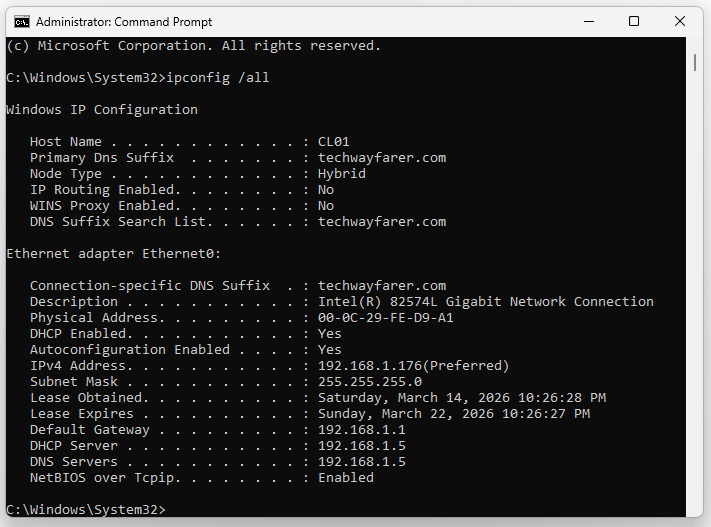
The Windows 11 client has been given an IP address from the DC’s pool of addresses (e.g., 192.168.1.176).
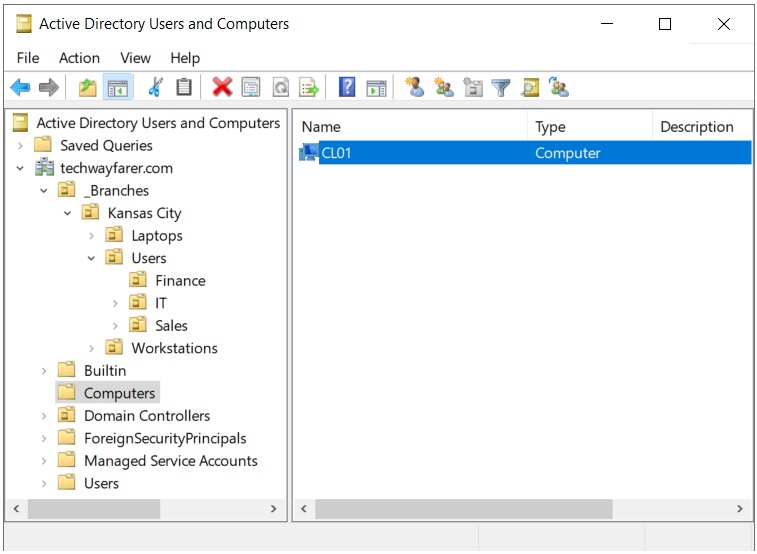
The ADUC tool in the DC shows the Windows 11 computer logged into the network.
Verify Standard Users Can Log Into the Domain
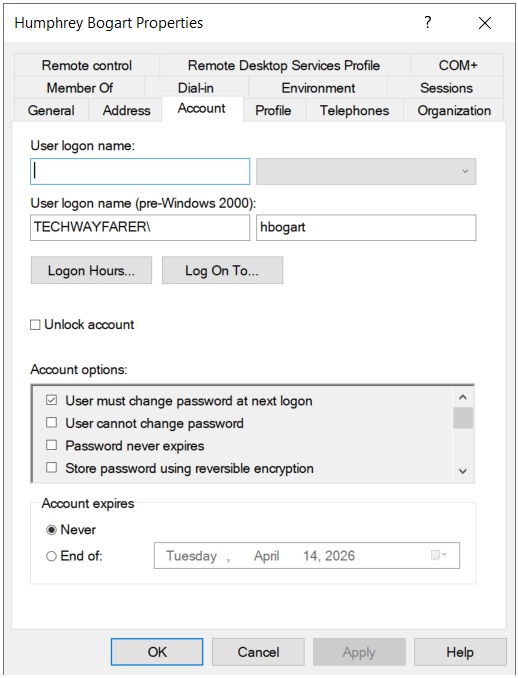
We will now login to the Windows 11 client using one of the user accounts we created in bulk in an earlier post. As you recall we configured the user accounts to force a password change after the initial login.
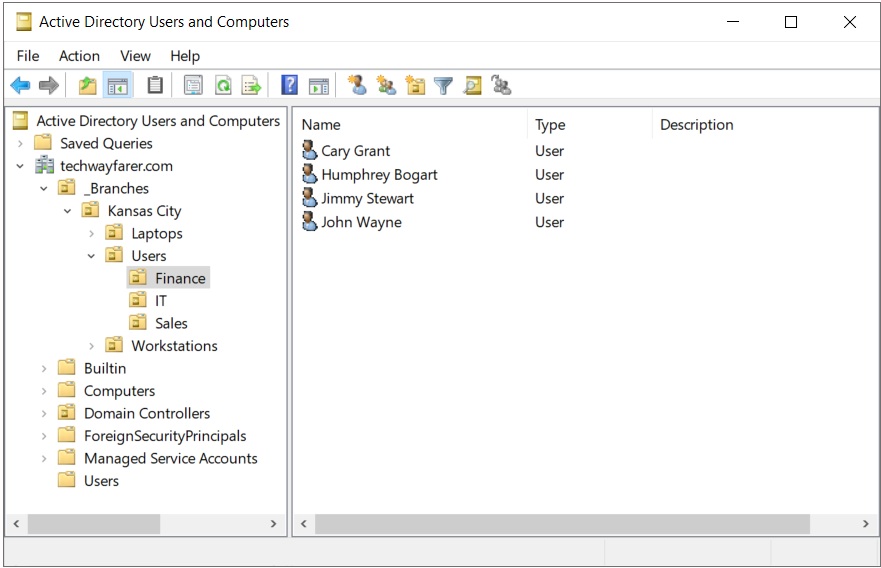
Open the Properties window for one of the users (e.g., Humphrey Bogart). The Account tab shows the logon name.
At the Windows 11 logon screen click “Other user” and enter the logon information for the user.
You will be prompted to enter a new password.
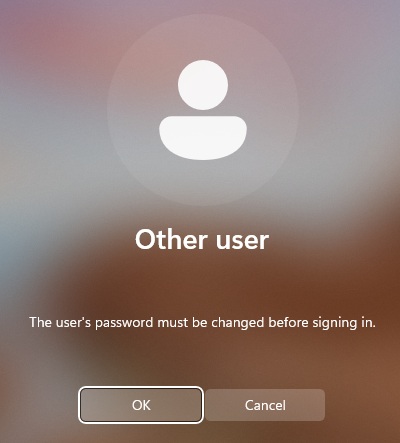
Once the new password is created, you will be logged in using one of the user accounts we created when configuring the DC.
The Windows Server 2022 series of blog posts is complete for now. In the future, we hope to add more content on how to administer a Windows Server.