This is part three of a Microsoft Azure and Entra ID home lab. In this post, we will create a virtual machine (VM) in Microsoft Azure. First a virtual network will be configured. Then the VM will be created. And then the VM will be connected to the network.
Posts in Microsoft Azure and Entra ID Home Lab
Table of Contents This Post
Before discussing how to create a virtual machines in Azure, we will provide an overview of the Azure management hierarchy and global infrastructure.
Azure Management Hierarchy
The Azure management hierarchy is composed of the following elements:
- Management Groups
- Subscriptions
- Resource Groups
- Resources
- Resource Groups
- Subscriptions
Management Groups
Management groups are the top level of the Azure hierarchy. They provide a way to organize and manage multiple Azure subscriptions. They enable organizations to apply policies, role-based access controls (RBAC), and compliance rules across all the child resources within the group.
Subscriptions
An Azure subscription is an agreement between Microsoft and a customer that grants access to Azure services and resources. A subscription is often used as a boundary for security, automation, and billing. A subscription is tied to one billing account and one Entra ID tenant.
Organizations may have multiple subscriptions that are used to designate different geographical areas (e.g., US and India) or different business areas (e.g., production and development). Multiple subscriptions can have the same Entra ID tenant.
Resource Groups
A resource group is a logical container inside a subscription. It contains metadata about the resources it contains and their deployment.
Resource groups are used for management and administrative purposes. For instance, an organization can determine who will be allowed to manage, create, configure the resources in the group. Or a resource group can be used to view the billing for all the resources it contains.
A resource group is often used to organize and manage resources that share a common lifecycle. For instance, a resource group may contain a VM, a virtual network, a VM disk, and backup that are all related to the same VM.
Resources
Resources are the cloud elements that you create and manage. A resource is a single instance of an Azure service such as a virtual network, VM, database, storage account, or web app. A resource must be deployed to only one resource group and one subscription.
Azure Global Infrastructure
The Azure global infrastructure is composed of the following elements:
- Geographies
- Regions
- Availability Zones
- Data Centers
- Availability Zones
- Regions
Geographies
A geography is a global boundary at the top level of the Azure global infrastructure. It provides fault-tolerant, high-capacity networking infrastructure. Each geography is defined to meet specific data residency, sovereignty, and compliance requirements. Examples of geographies include the United States, Canada, Europe, Asia Pacific, Middle East, and Africa.
Regions
A region is a defined physical area located within a geography. A region contains one or more datacenters that are connected by a high-capacity, low-latency network. Azure services are deployed within regions.
Azure currently provides over 70 regions globally. Examples of regions in the United States include East US, Central US, and West US 2.
Availability Zones
An availability zone (AZ) is a group of one or more physically separate data centers. An AZ is located within a specific region. Each AZ has its own independent power, cooling, and networking.
Data Centers
A data center is the physical facility that houses Azure servers, storage, and networking equipment. Datacenters are typically located in large metropolitan areas.
A customer cannot choose a data center in which to place resources. Instead resources are placed in availability zones.
Choose a Region
In the following sections we will create resources in Azure including a virtual network and a VM. The resources will be contained within the same region. Before creating any resources we will first determine the region in which the resources will reside.
In a previous post an Azure account was created that provides a 30-day free trial. The trial version of Azure provides access to a subset of the total Azure regions.
We will see the list of available regions, in an Azure trial version, during the process of creating a VM later in this post. In the US there are three regions available: Central US, East US, and West US 2. We will choose East US as the region to contain our lab resources.
Create a Resource Group
In this section we will create a resource group that will contain the resources for our lab (a virtual network and a VM). A resource group can exist in a different region than the resources it contains. Yet we will choose to create our resource group in the East US region where the virtual network and VM will be deployed.
To create a resource group login to the Azure portal. From the Azure home page the Resource Groups page can be accessed using one of the following methods:
- Enter “resource groups” in the search field and choose it from the list of services.
- Click on the menu icon in the top left corner and choose “Resource groups.”
- In the main window under “Azure services” click on “More services.” At the “All Services” page enter “resource” in the filter field, and choose “Resource groups.”
- In the main window under Navigate click on “Resource groups.”
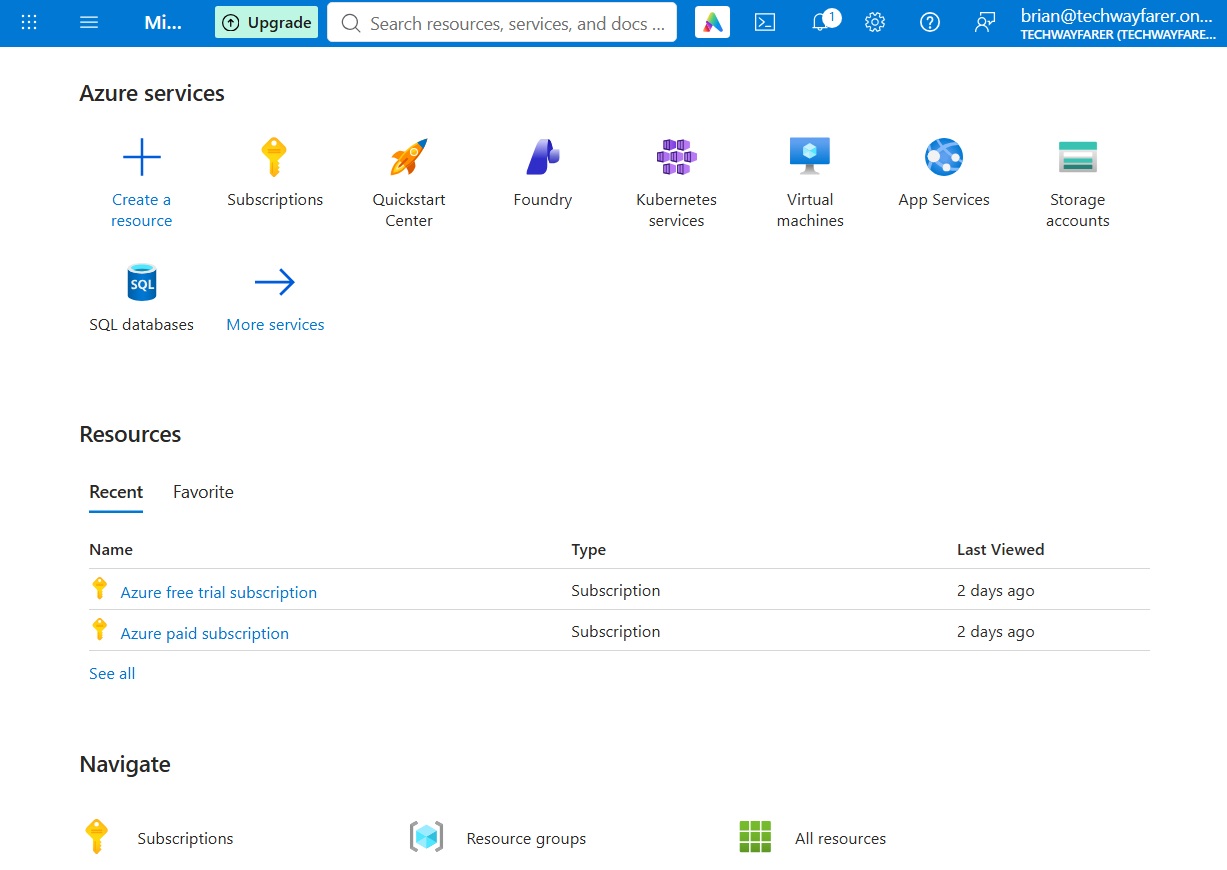
The “Resource Manager | Resource groups” page opens. Click the Create button.
The “Create a resource group” page opens. Under the Basics tab enter the following:
- In the Subscription field select the free trial subscription created in an earlier post (e.g., Azure free trial subscription).
- In the “Resource group name” field enter a name (e.g., vmnet1-rg).
- In the Region field select the region that you decided upon earlier in this post (e.g., East US).
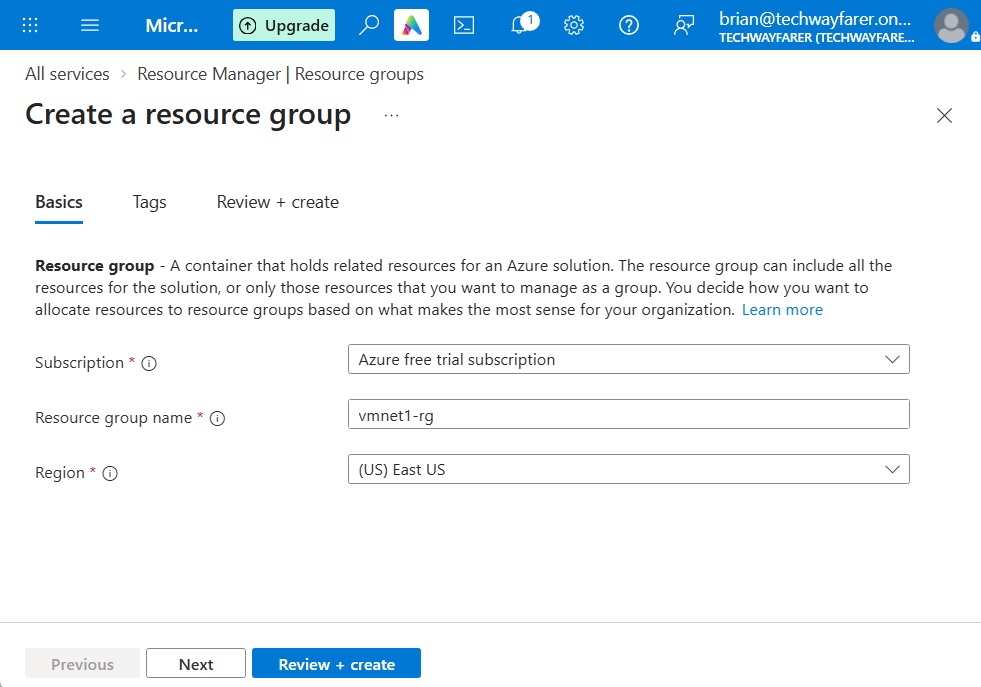
In this lab, we will not enter Tags. So click “Review + create.” Verify the information entered is correct and click Create.
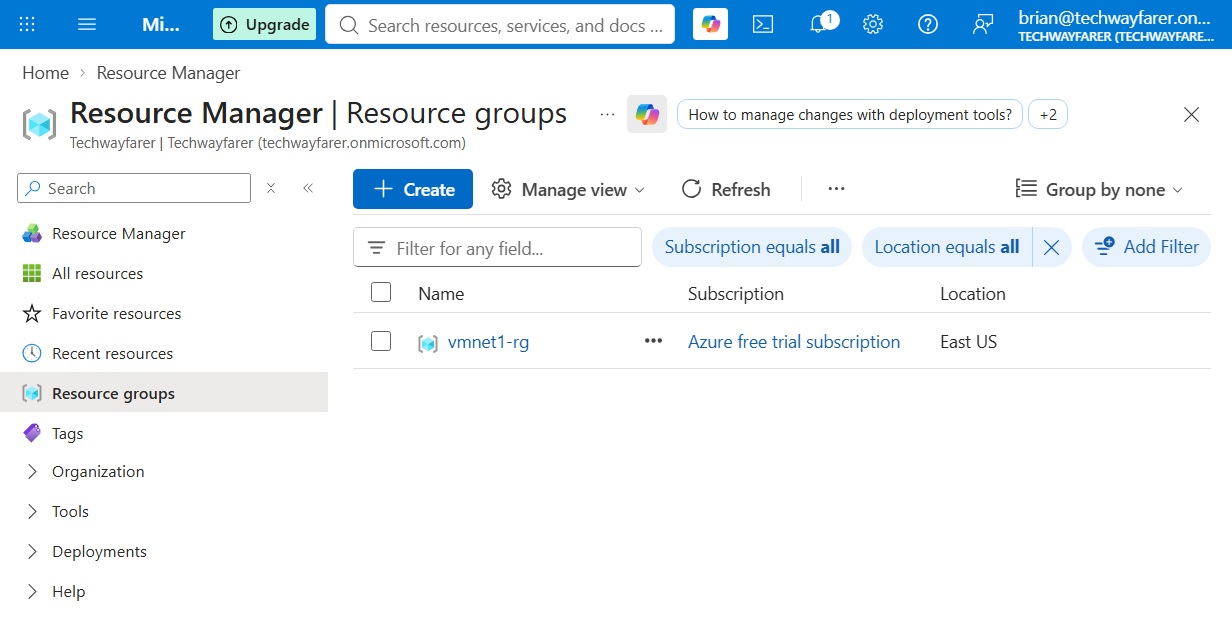
The “Resource Manager | Resource groups” page displays the recently created resource group.
Create a Virtual Network
In this section we will create a virtual network that will be used by a VM later in this post. The network needs to be created in the same region where the VM is deployed.
On the Azure home page enter “virtual networks” in the search bar and choose the “Network foundation | Virtual network” option from the list.
The “Network foundation | Virtual networks” page opens. Click the Create button.
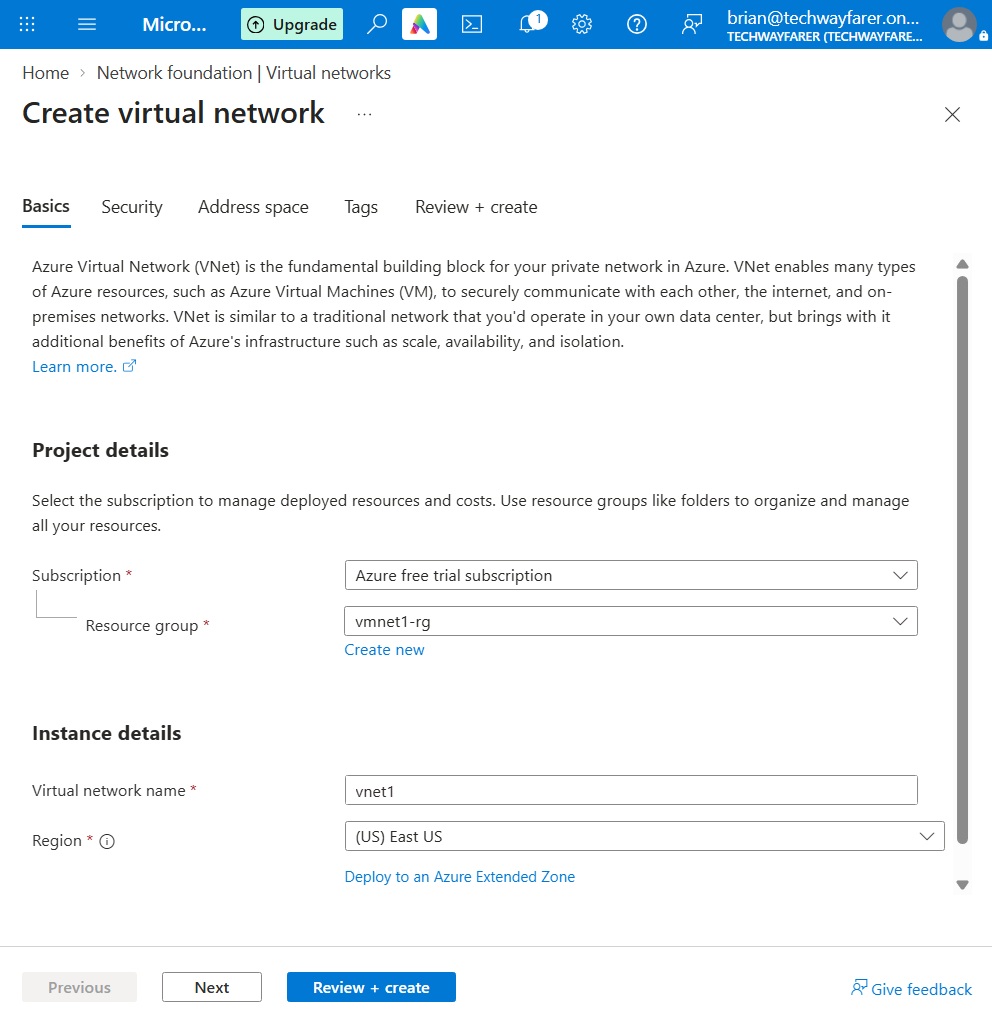
The “Create virtual network” window opens. In the Basics tab:
- In the Subscription field select the free trial subscription created in an earlier post (e.g., Azure free trial subscription).
- In the Resource Group field select the group created earlier in this post (e.g., vmnet1-rg).
- In the “Virtual network name” field enter a name (e.g., vnet1).
- In the Region field select the region that you decided upon earlier in this post (e.g., East US). When you click the down arrow all the regions available under the free trial subscription are listed.
Click Next.
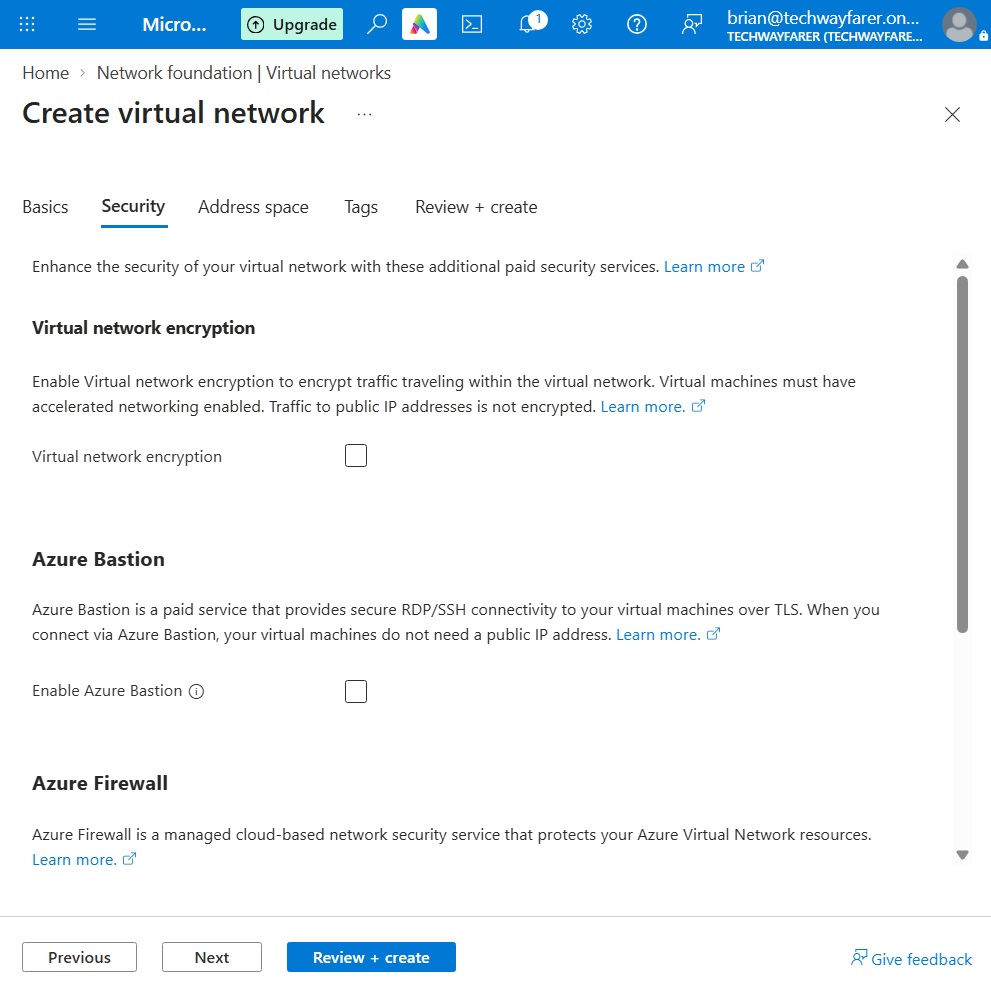
The Security tab opens Do not select any of the security features (Virtual network encryption, Azure Bastion, Azure Firewall, and Azure DDoS Network Protection) since they will not be needed in this lab. Click Next.
The “Address space” tab opens where we will create a virtual network address space and any subnets within the space.
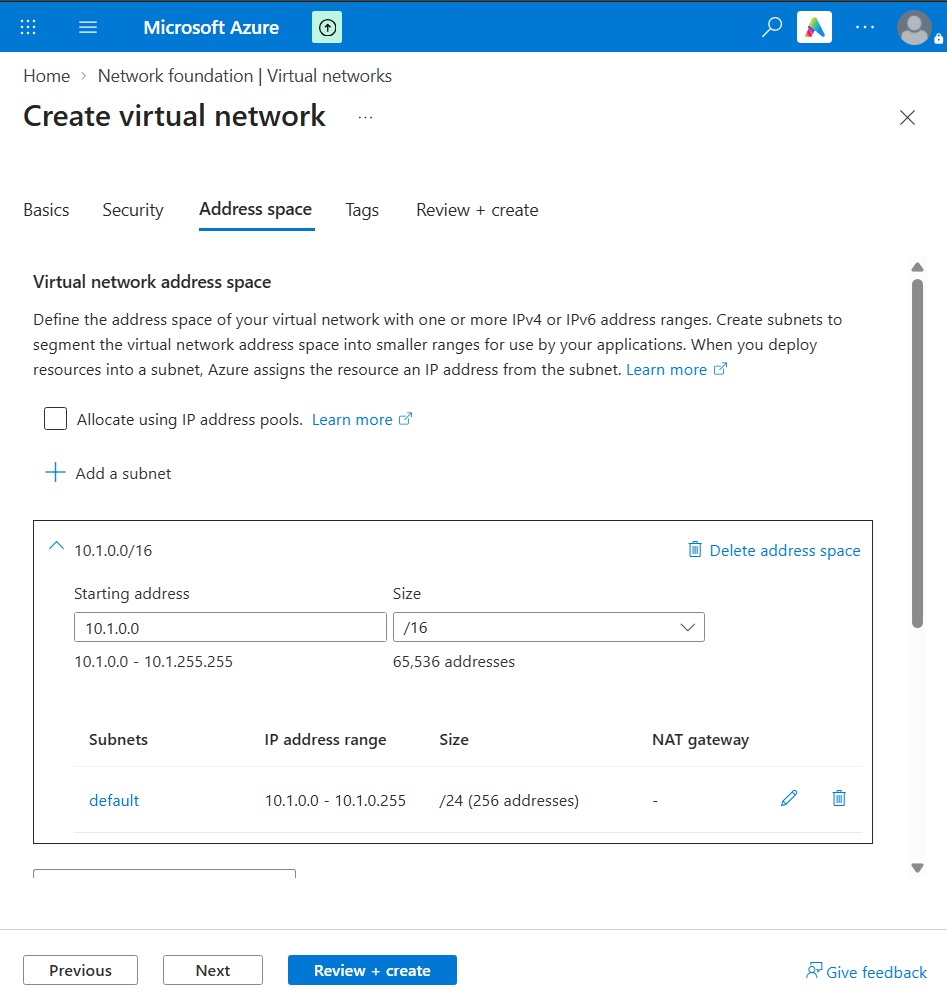
Many companies have a hybrid cloud infrastructure in which on-premises resources are used with cloud resource. Many companies use the 192.168.x.x address space for their on-premises network devices, which we did in an earlier lab on Windows Server and Active Directory. It is common to use 10.x.x.x address spaces in Azure to avoid IP address conflicts between on-premises and cloud resources. And it is common for the Azure address space to use the 10.x.0.0/16 CIDR range and the subnets to use /24.
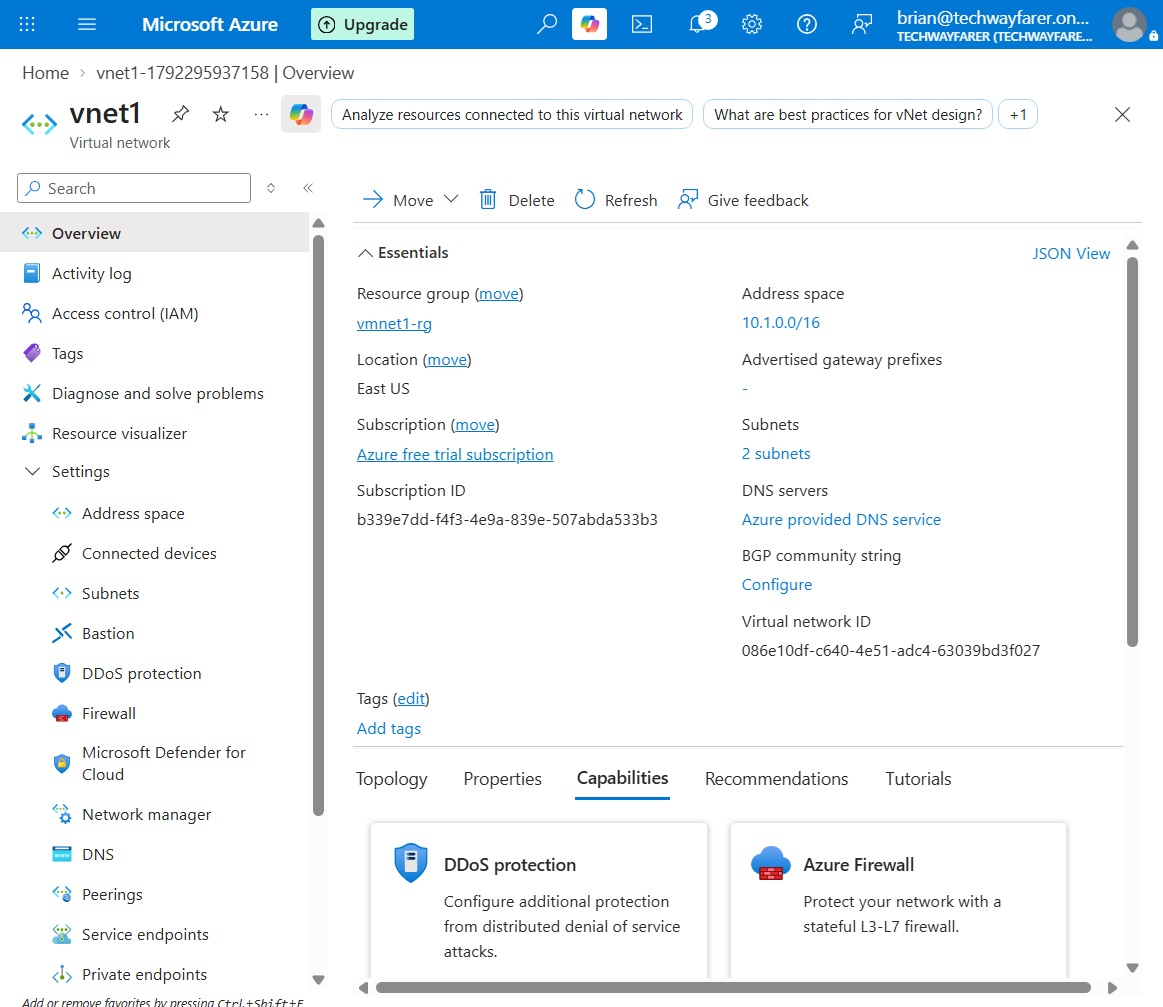
For this lab the address space will be 10.1.0.0/16. And the subnets within the address space will use /24 address ranges.
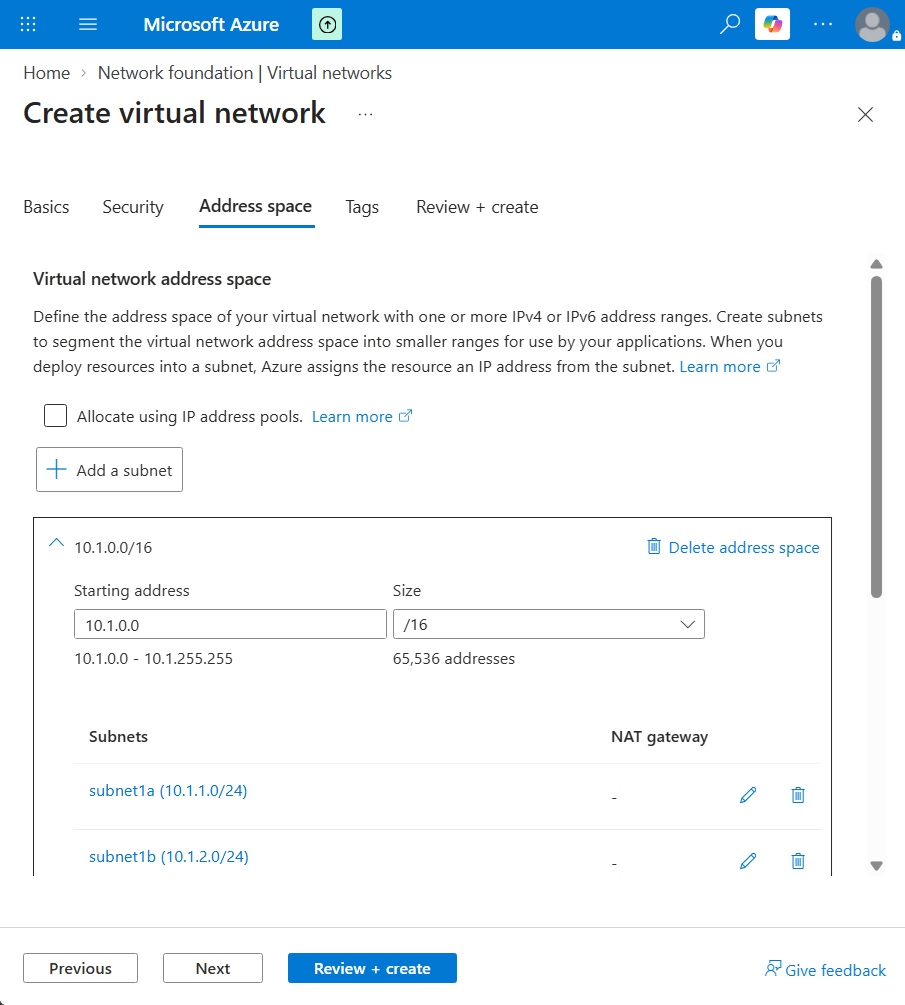
- 10.1.0.0/16 – address space
- 10.1.1.0/24 – subnet1a
- 10.1.2.0/24 – subnet1b
Enter a Starting IPv4 address for the address space (e.g., 10.1.0.0/16).
Then click on the edit button next to the default subnet. The “Edit subnet” window opens.
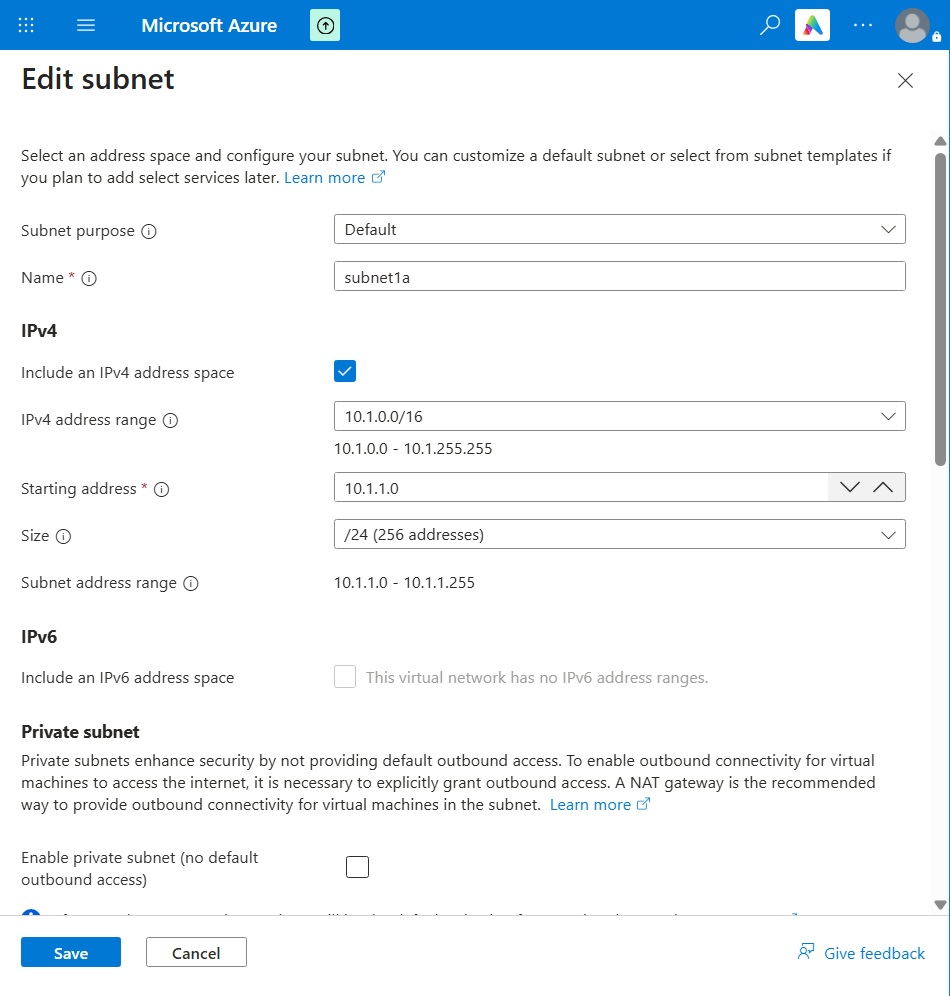
Enter a name for the subnet (e.g., subnet1a).
Under IPv4 verify the correct address range is selected (e.g., 10.1.0.0/16).
Choose a starting address for the subnet (e.g., 10.1.1.0) and size (/24).
Under IPv6 the options are grayed out because we chose not to create an IPv6 address space for our virtual network.
Under Private subnet uncheck the box. Then any virtual machines created using the address space can connect to the internet.
The following is a brief description of the remaining options on the Edit Subnet page. Leave the default settings unchanged since we will not use the services.
Under the Security section we can setup a NAT gateway that allows internal VMs in a subnet to access the internet (send outbound traffic) using network address translation (NAT). With a NAT gateway a static external IP address is visible from the internet while the internal VMs are not exposed to inbound internet traffic. A NAT gateway is useful if VMs need to perform tasks such as downloading OS patches or making API calls.
Also under the Security section, a Network security group (NSG) can be configured to filter IP traffic in and out of the subnet. And a Route table can be configured to route traffic within the virtual network.
In the Service Endpoints section secure and direct access can be created for certain Azure resources, such as a storage account.
Subnet Delegation allows the subnet to be dedicated to a specific Azure resource.
Network Policy for Private Endpoints controls whether network security groups or routing tables apply to private endpoints in the subnet.
We are done reviewing the options on the “Edit subnet” page. Click Save and we are taken back to the Create virtual network > Address space page.
Click “Add a subnet” to create a second subnet with the IP address range of 10.1.2.0/24. Use the same process described above for the first subnet. Below is the finished address space and subnets.
There is no reason to click Next as we will not be creating Tags. Click Review + create.
Under the “Review + create” tab a network validation test will run. When completed “Validation passed” will appear. Click Create.
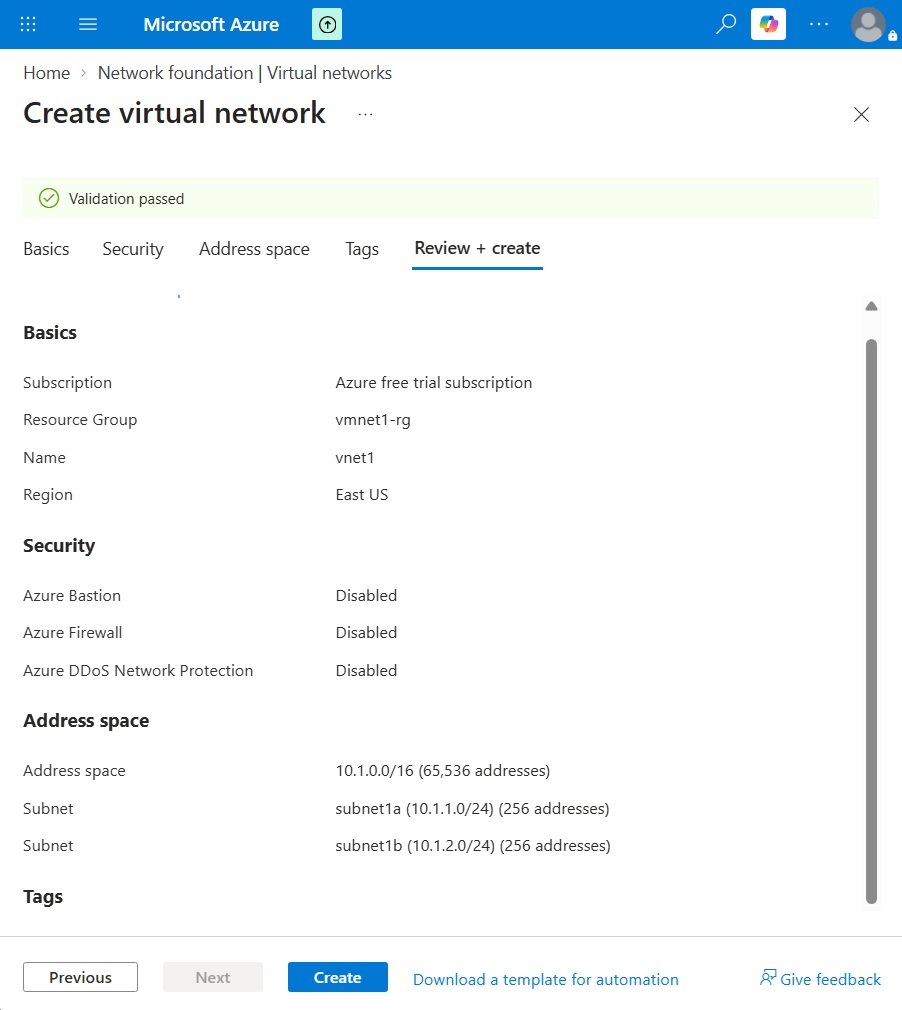
The resource deployment in Azure will take a few minutes to complete.
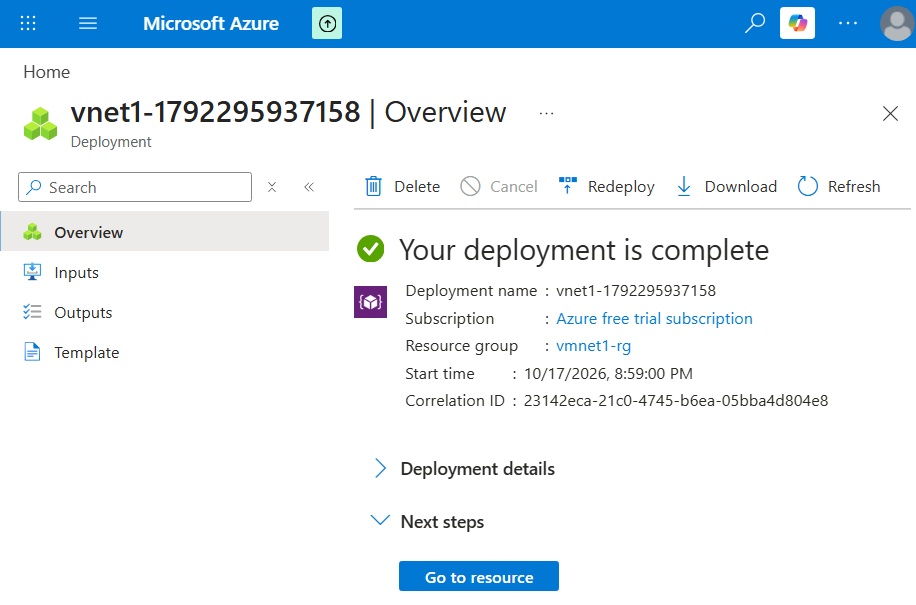
Click on “Go to resource” to see the details of the virtual network.
Create a Virtual Machine
In this section we will create a VM and deploy it to our existing virtual network.
Login to Azure. Search for virtual machines in the search bar, or you can choose “Virtual machines” under “Azure services.”
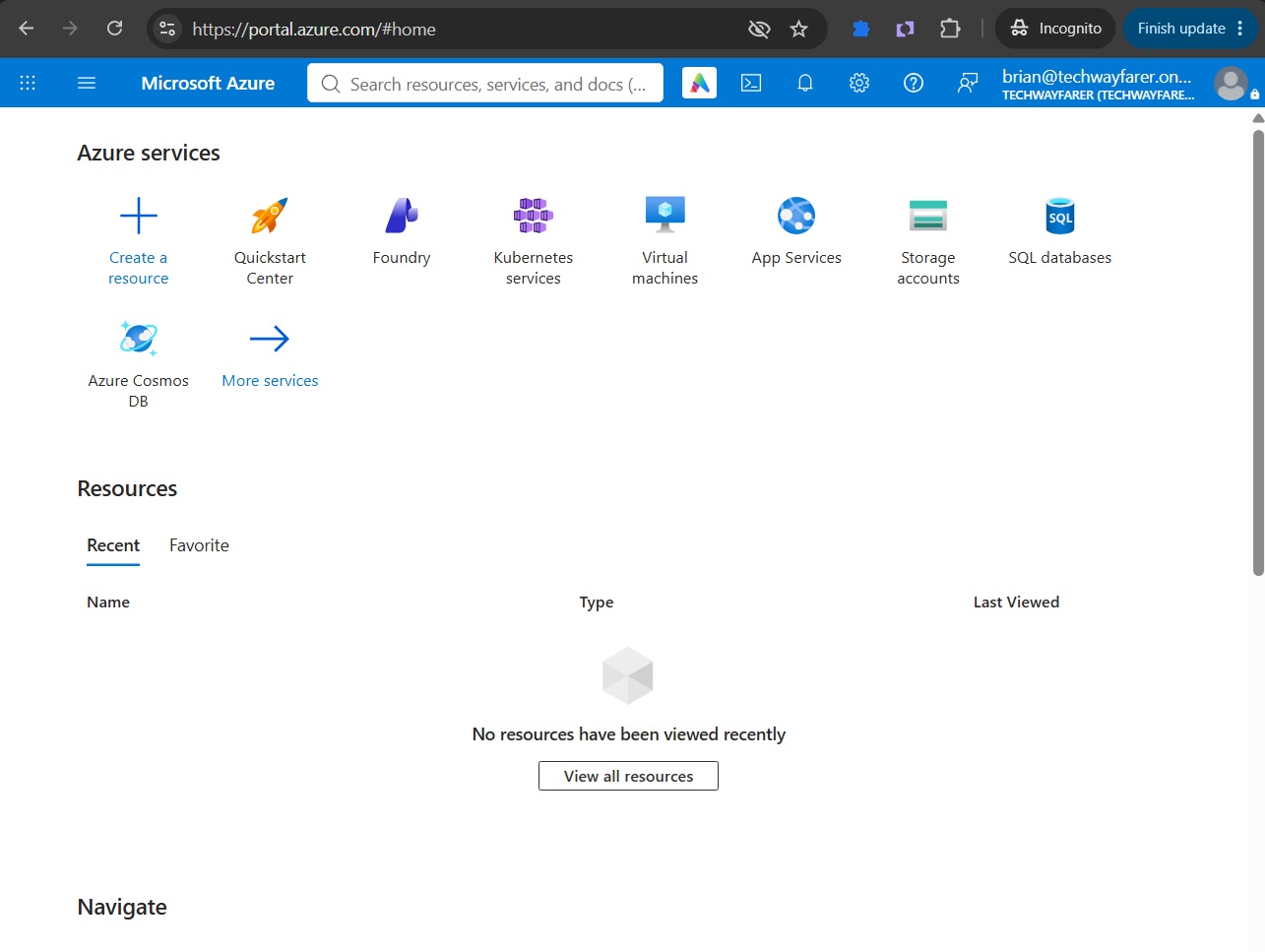
In the “Compute infrastructure | Virtual machines” click Create > Virtual machine to begin the process of creating a new VM.
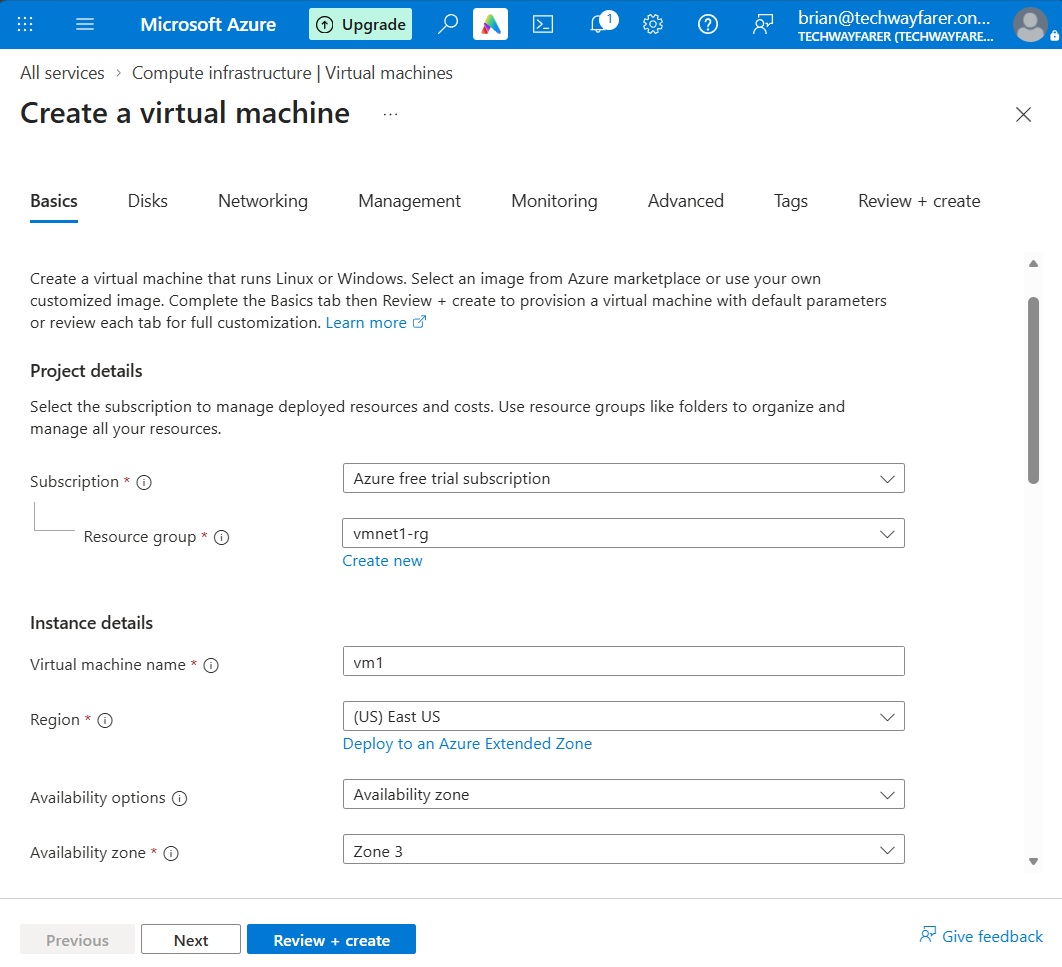
In the “Create a virtual machine” window choose the Basics tab.
In the Subscription field choose the free Azure subscription created in a previous post (e.g., Azure free trial subscription).
In the “Resource group” field select the resource group created in an earlier section (e.g., vmnet1-rg).
Under “Instance details”, in the “virtual machine name” field enter a name (e.g., vm1).
In the Region field select the region chosen in an earlier section (e.g., East US). While using the free trial of Azure there are three regions available in the US: Central US, East US, and West US 2.
In the “Availability options” field we can choose particular zones that exists within the region. Choosing more than one AZ offers redundancy. In this lab, for the “Availability options” field we will choose “Availability zone.” And for “Availability zone” field we will choose “Zone 3.”
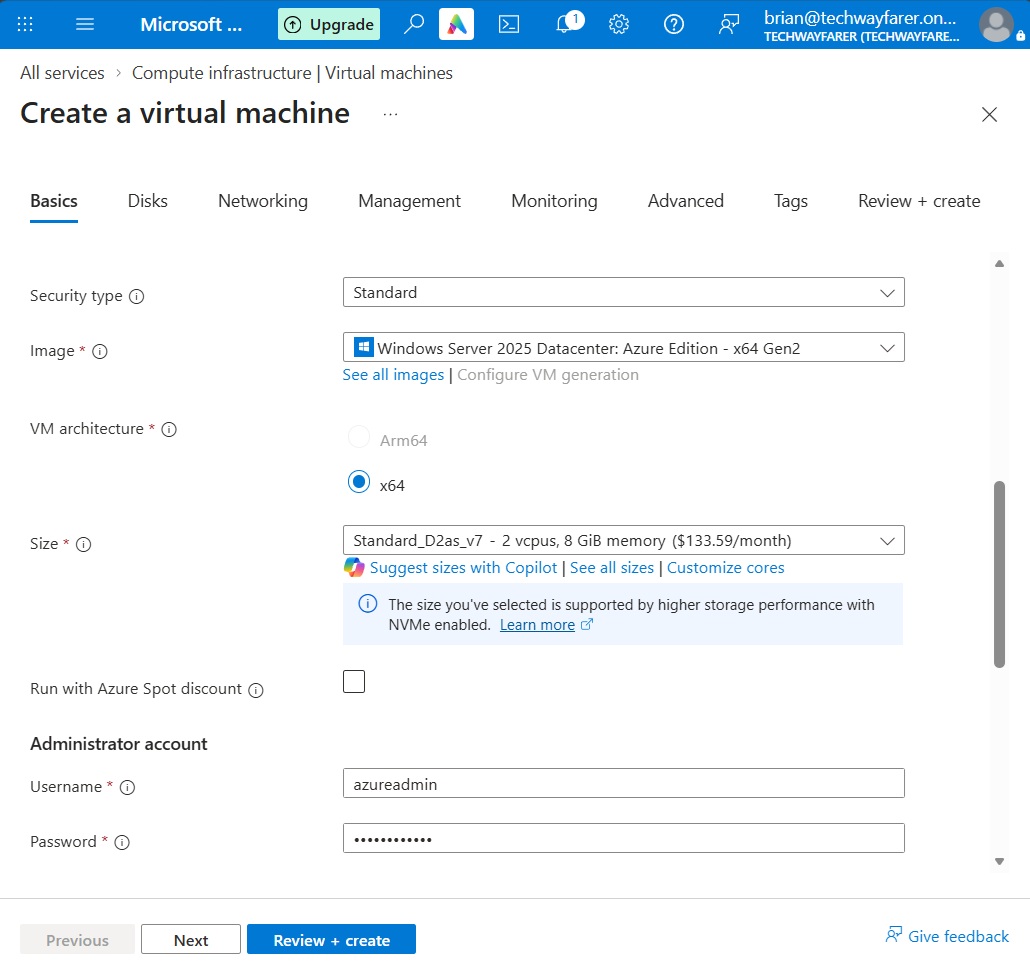
Scroll down. For Security type choose Standard.
For Image we will choose “Windows Server 2025 Datacenter: Azure Edition – x64 Gen2.” And for Size we will choose an option with 2 virtual CPUs and 8 GiB of memory. The monthly cost is not important since the VM will be deleted after it is installed.
Under Administrator account enter a Username and Password.
Scroll down. Under “Inbound port rules” for “Public inbound ports” choose None. We will configure access to the VM in another tab. Click Next.
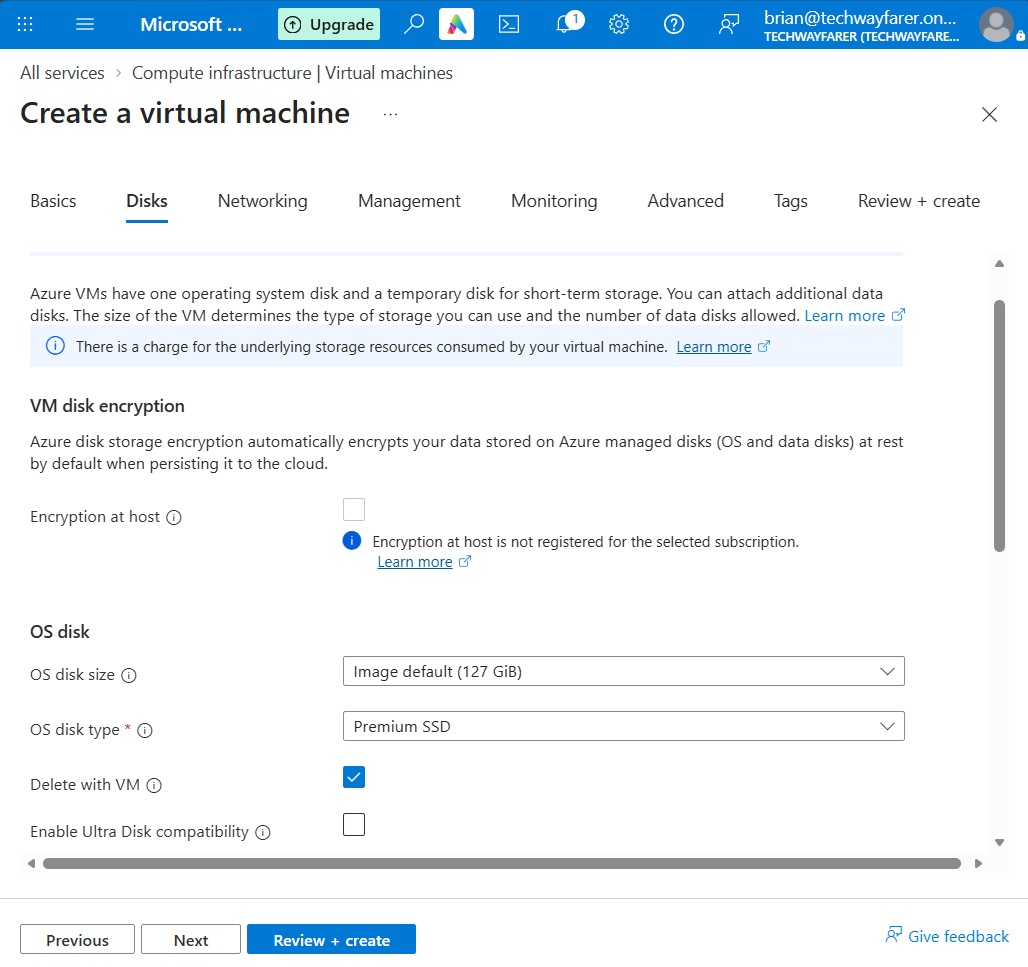
In the Disks tab accept the default settings. It is okay to choose “Premium SSD” for the “OS disk type” since we will delete the VM after the lab is finished.
Click Next.
In the Networking tab, under the “Virtual network” section, choose the “Virtual network” created earlier (e.g., vnet1). And for Subnet choose one of the subnets created earlier (e.g., subnet1a).
Under the “Network interface” section, for “Public IP” allow a new one to be created. We will need a public IP to login to the VM remotely.
For “NIC network security group” choose Basic.
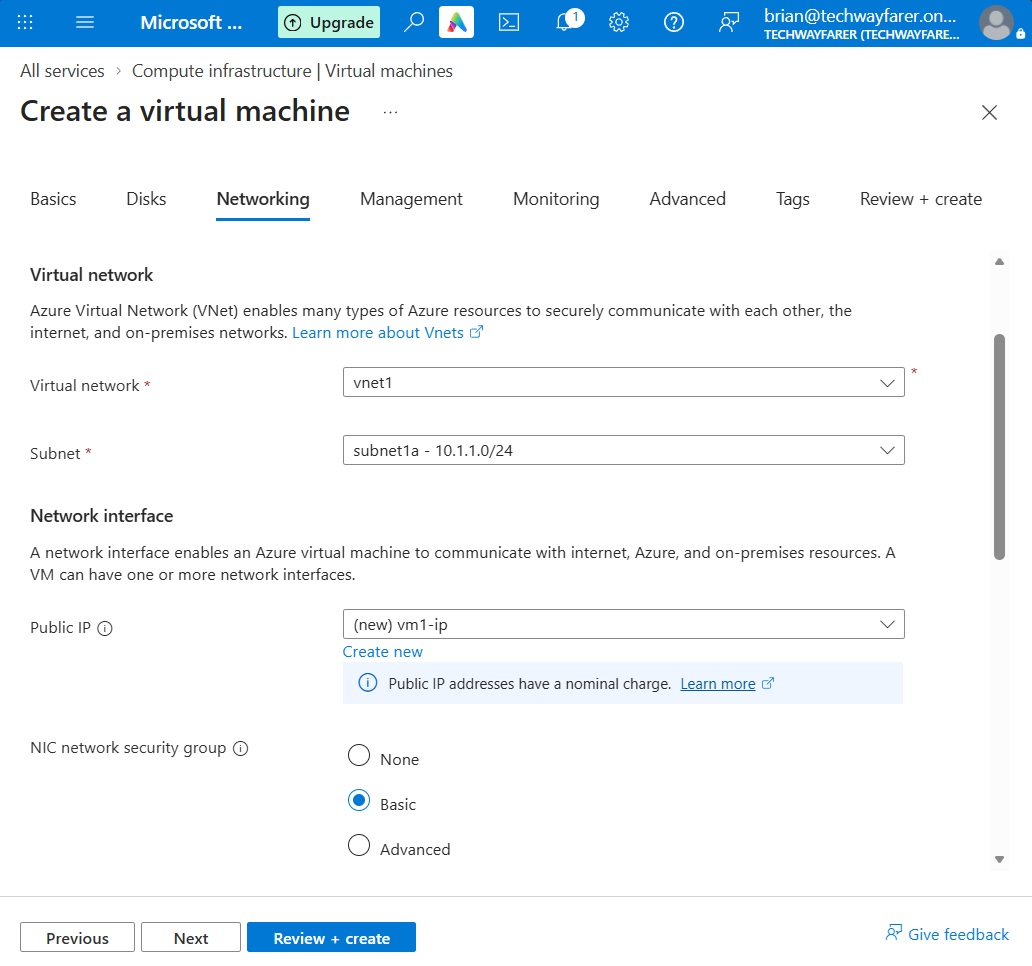
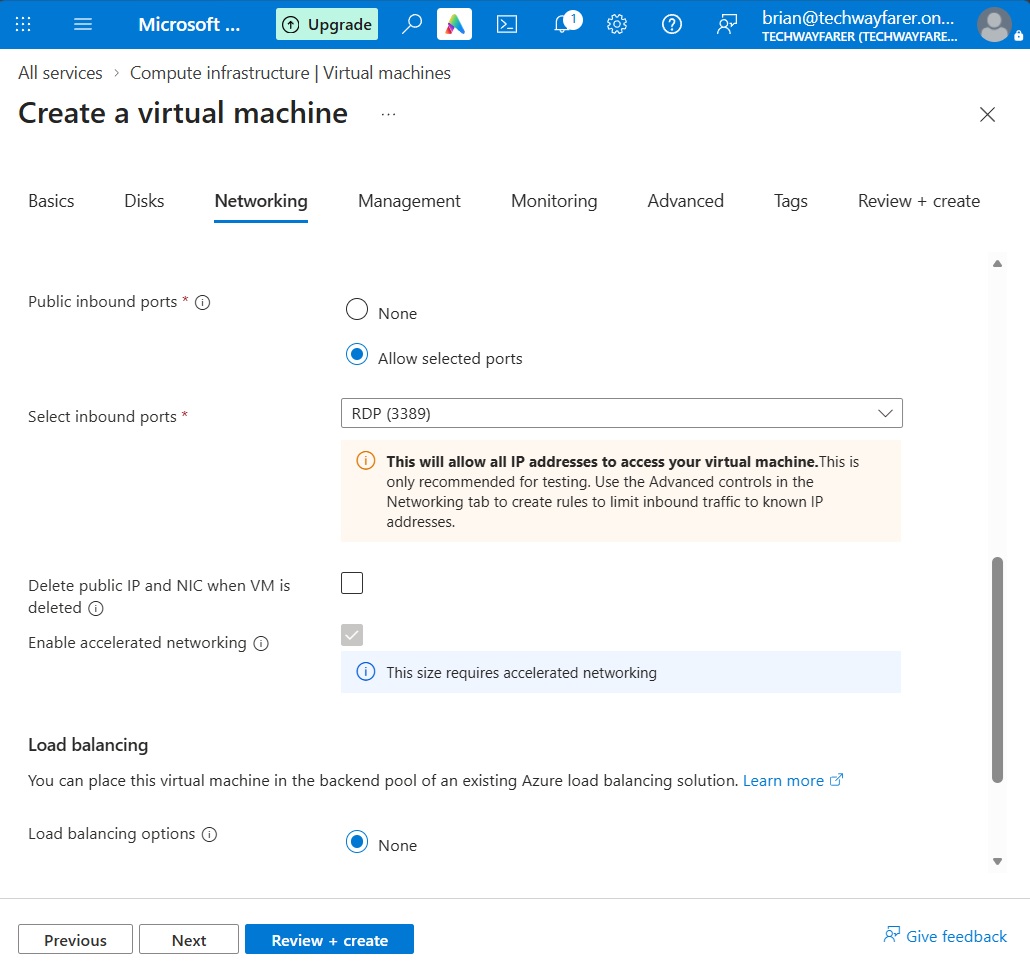
Scroll down. For “Public inbound ports” choose “Allow selected ports.” And for “Selected inbound ports” choose “RDP 3389” since we will log into a Windows VM.
Under “Load balancing”, for “Load balancing options” choose None since it it not needed for this lab.
Click Next.
In the Management tab accept the default options and choose Next.
In the Monitoring tab, under Diagnostics choose to disable “Boog diagnostics.”
In the Advanced tab and the Tags tab accept the default options.
Click the “Review + create” button. In the “Review + create” tab a validation test is run. When it finishes, we are shown a summary of the VM that is about to be created.
A message reminds us that using RDP to remotely connect to the Windows Server will leave a port open on the VM. Since we will delete the VM when the lab is completed, we can disregard the message.
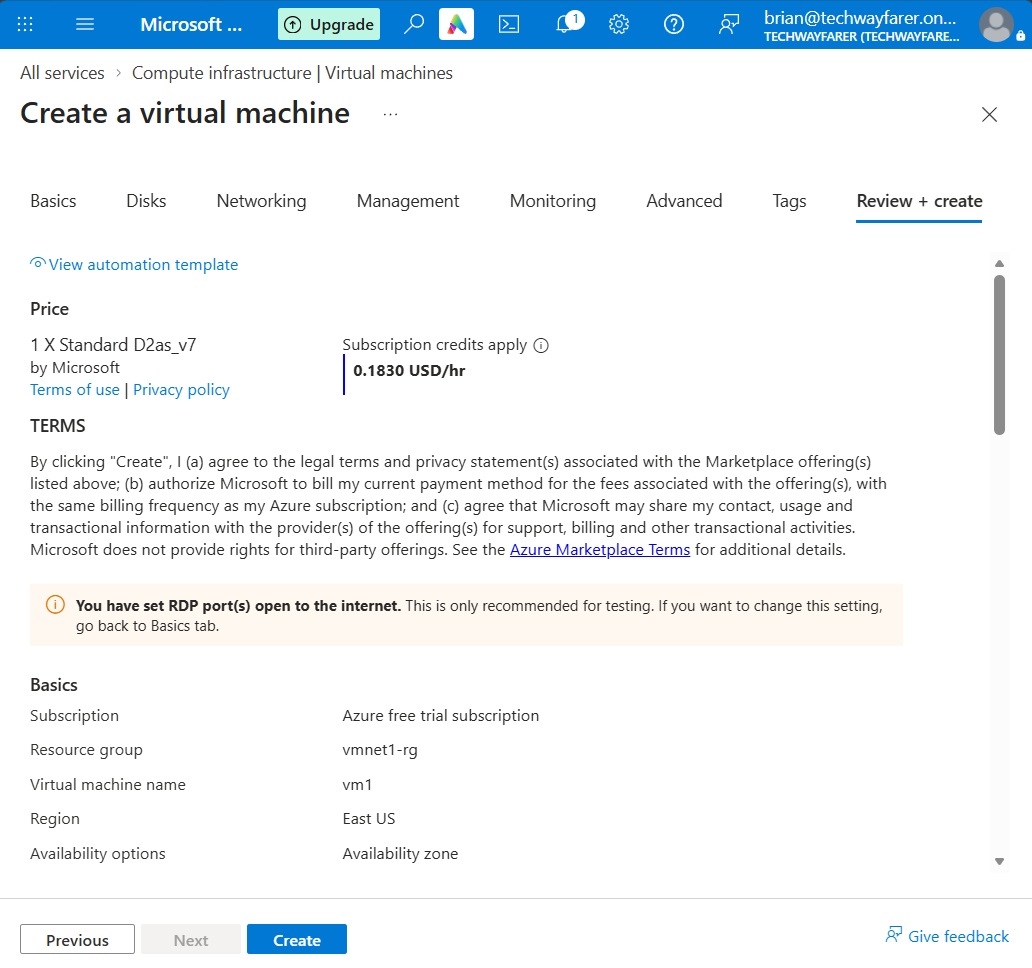
Scroll down and review the settings. Then click Create.
After the VM is created you will see the message “Your deployment is complete.”
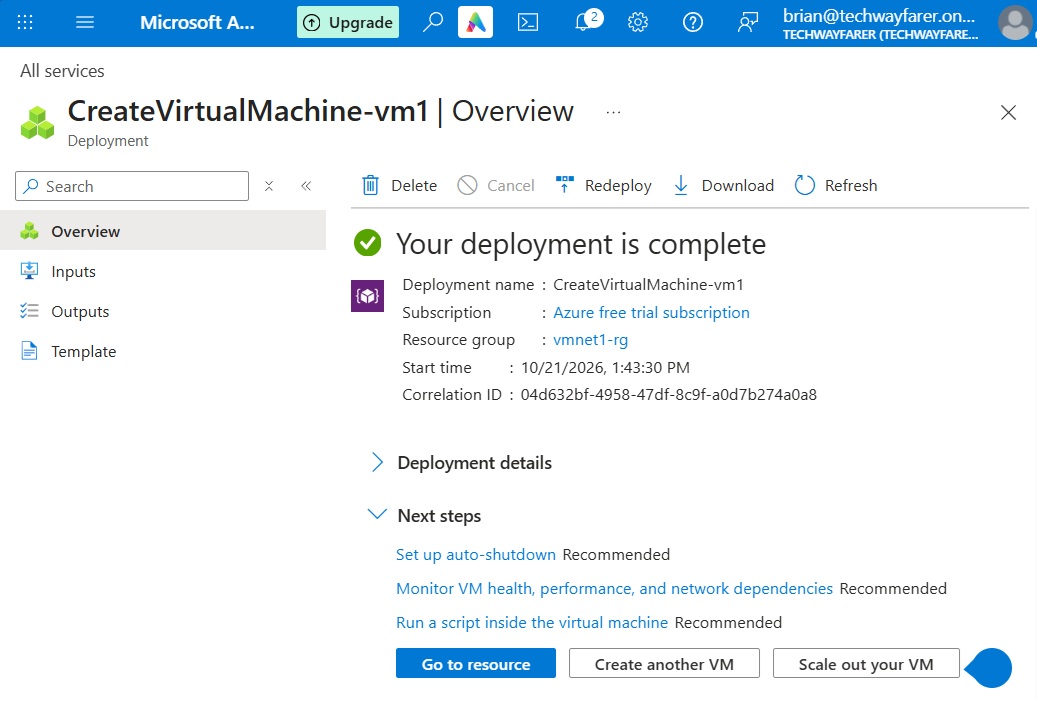
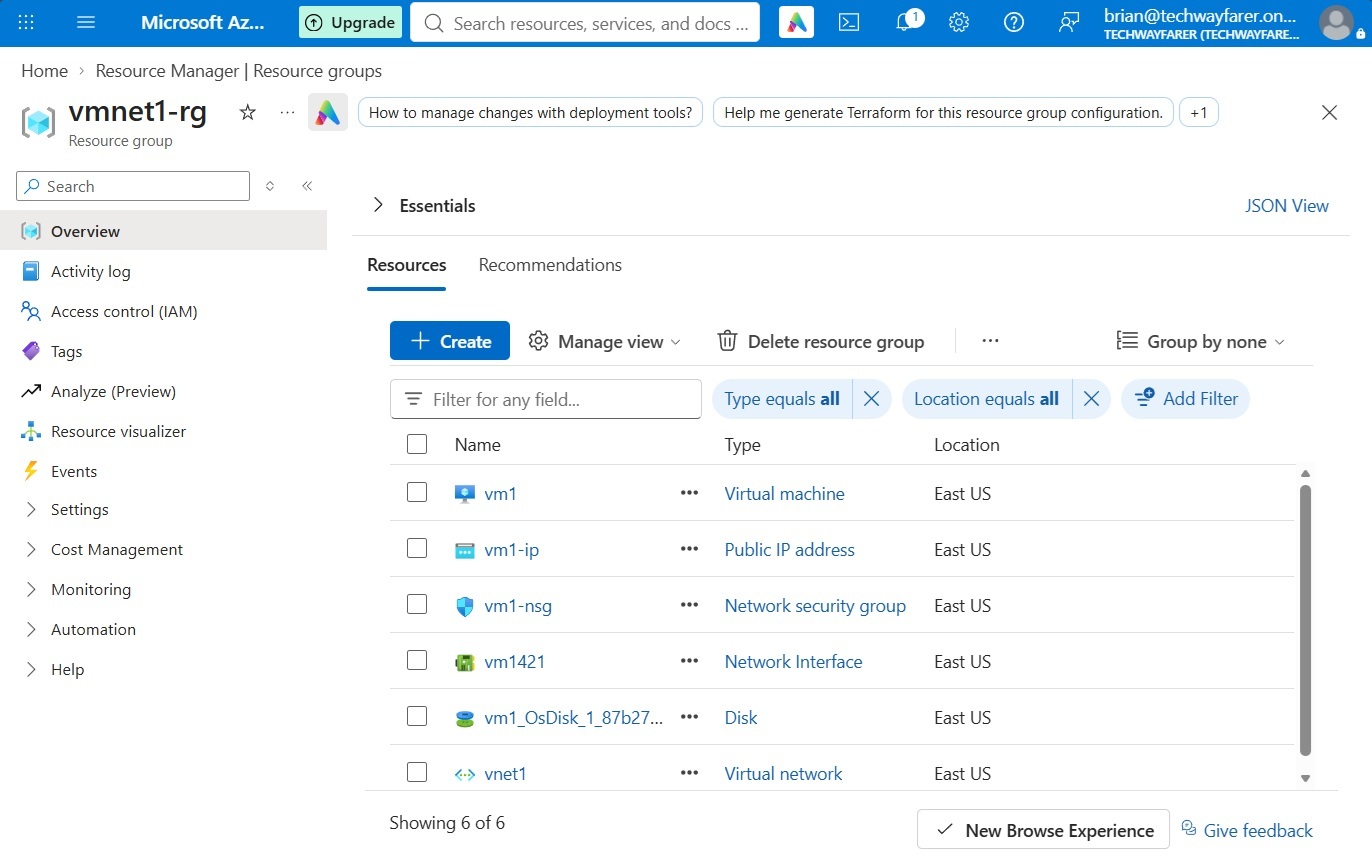
Click on the name of the Resource group (e.g., vmnet1-rg). A page opens with the details of the resource group. Under the Resources tab are displayed all the resources contained within the resource group. The virtual machine (vm1) requires a public IP address, network security group, network interface, disk, and virtual network.
Login to VM Remotely
In the Resources tab click on the name of the virtual machine (e.g., vm1). The home page for the VM opens.
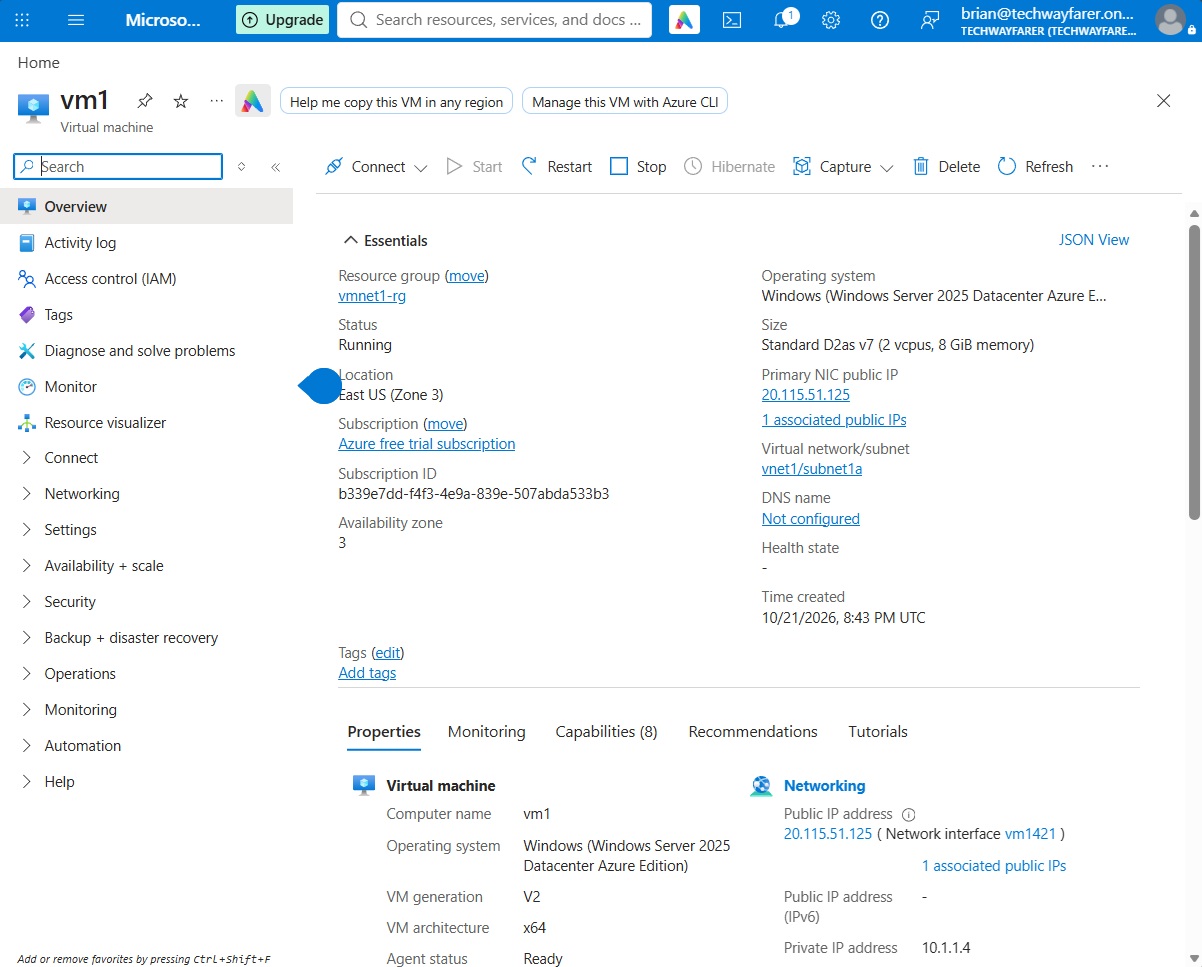
In the top menu click Connect > Connect. The “vm1 | Connect” page opens.
Click the “Check access” button to verify that you can access the VM using RDP. After a minute a message appears letting you know that port 3389 is accessible.
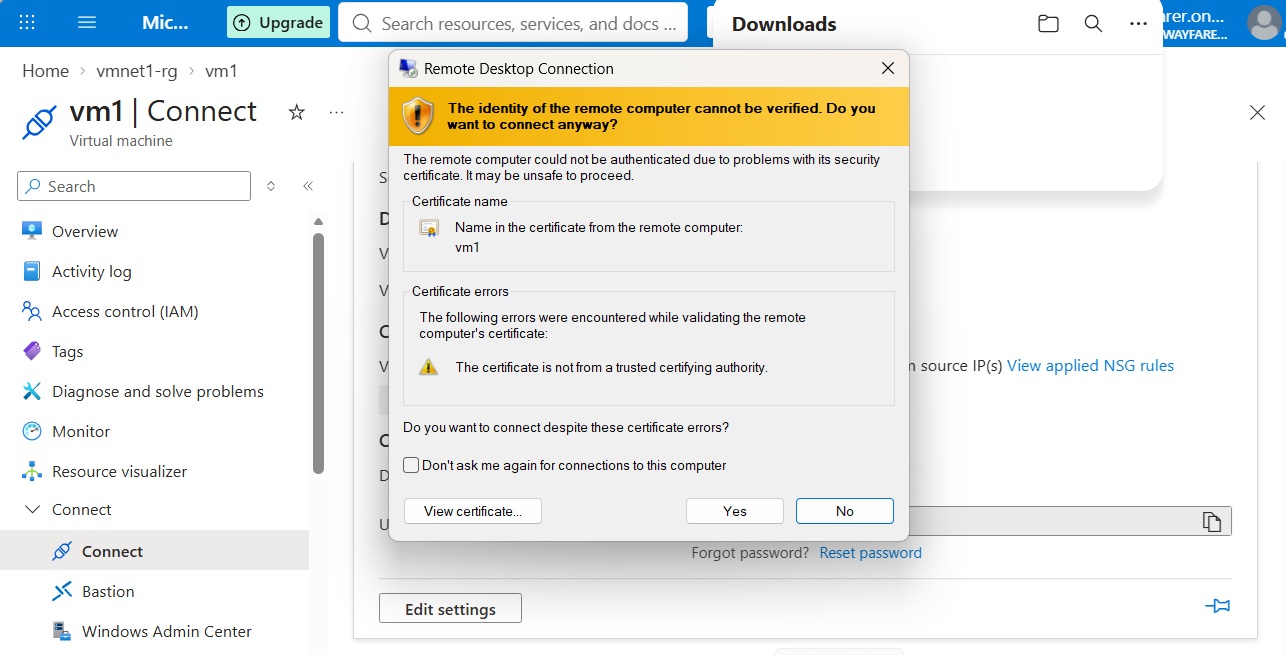
Click the “Download RDP file” button. Download the file onto your computer and open the file. A “Remote Desktop Connection” pop-up window will open.
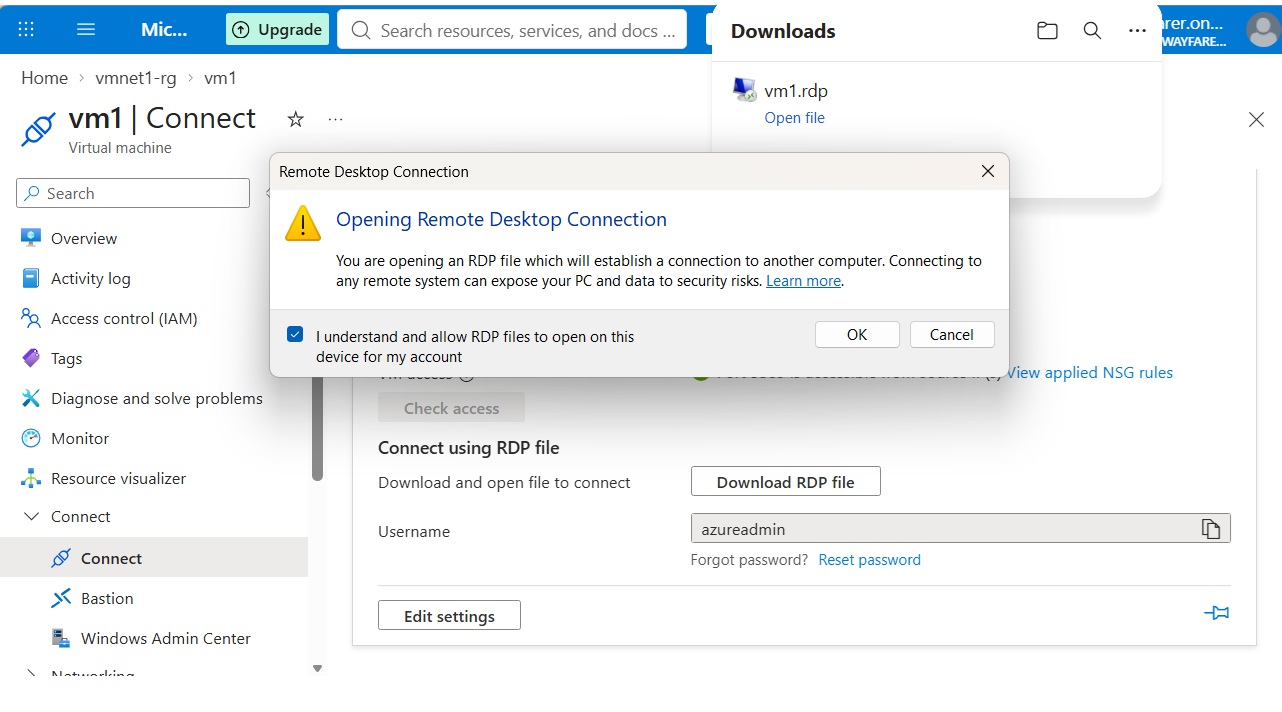
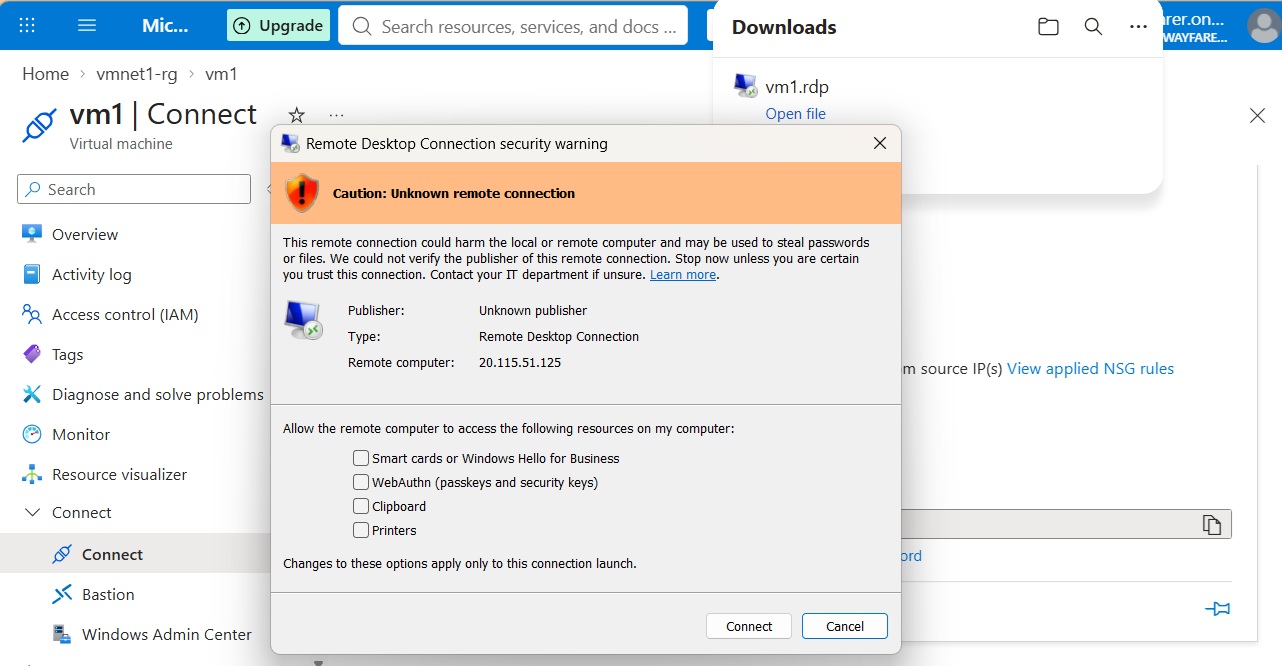
Click OK. At the next Remote Desktop Connection window click Connect.
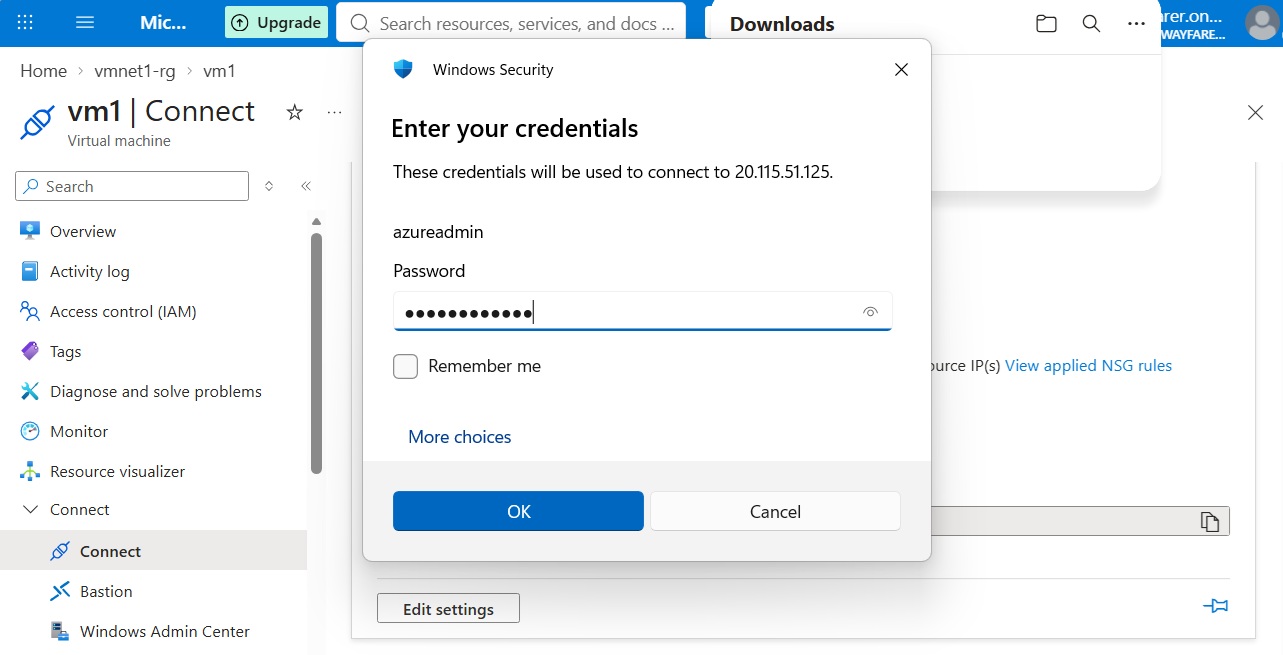
We are prompted to enter a password for the administrator account created earlier. Then click OK.
Another warning pop-up appears. Click Yes.
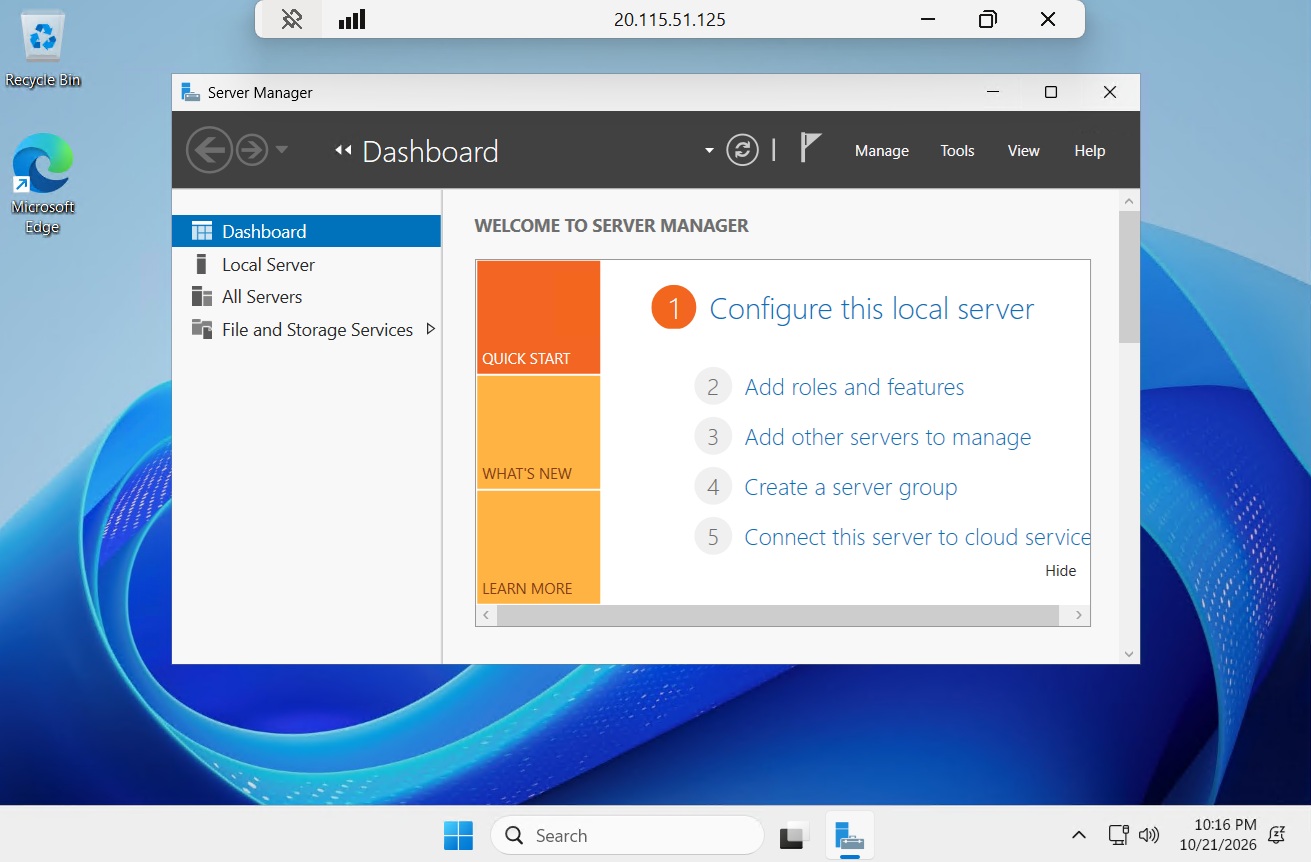
You are logged onto the Windows Server 2025 VM.
Delete Lab Resources
Azure charges for the resource you use on your account. You are being charged for the following lab resources: the VM, disk storage on the VM, and the public IP address used to access the VM.
After completing the lab, delete the Azure resources used in the lab. Otherwise, you could inadvertently accrue charges on your account.
All the resources used in the lab are contained within resource groups. And deleting a resource group also deletes all the resources it contains. So you need only locate the resource groups created in the lab and delete them.
Click on the menu button in the top left corner of Azure and choose “Resource groups,” There are two resource groups listed. We created one of the groups earlier in this post (e.g., vmnet1-rg) that contains all of the resources used in the lab.
The other group is created automatically by Azure and does not accrue charges on your account. Deleting it is optional. You may decide to delete it to keep your account more organized.
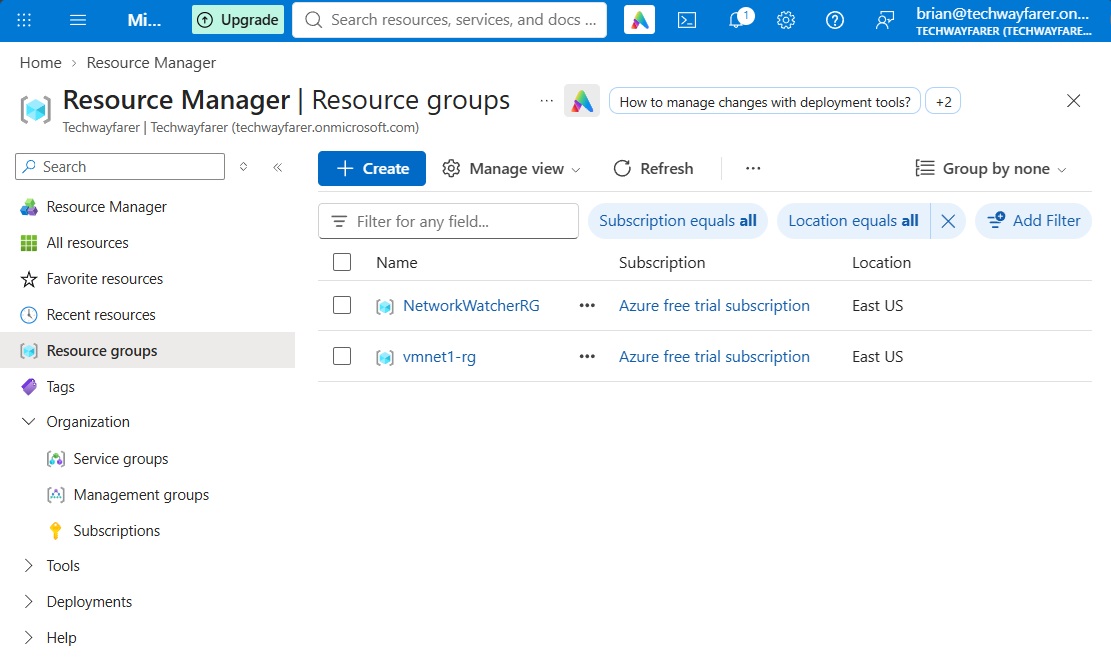
In the “Resource Manager | Resource groups” page, click on the name of a resource group.
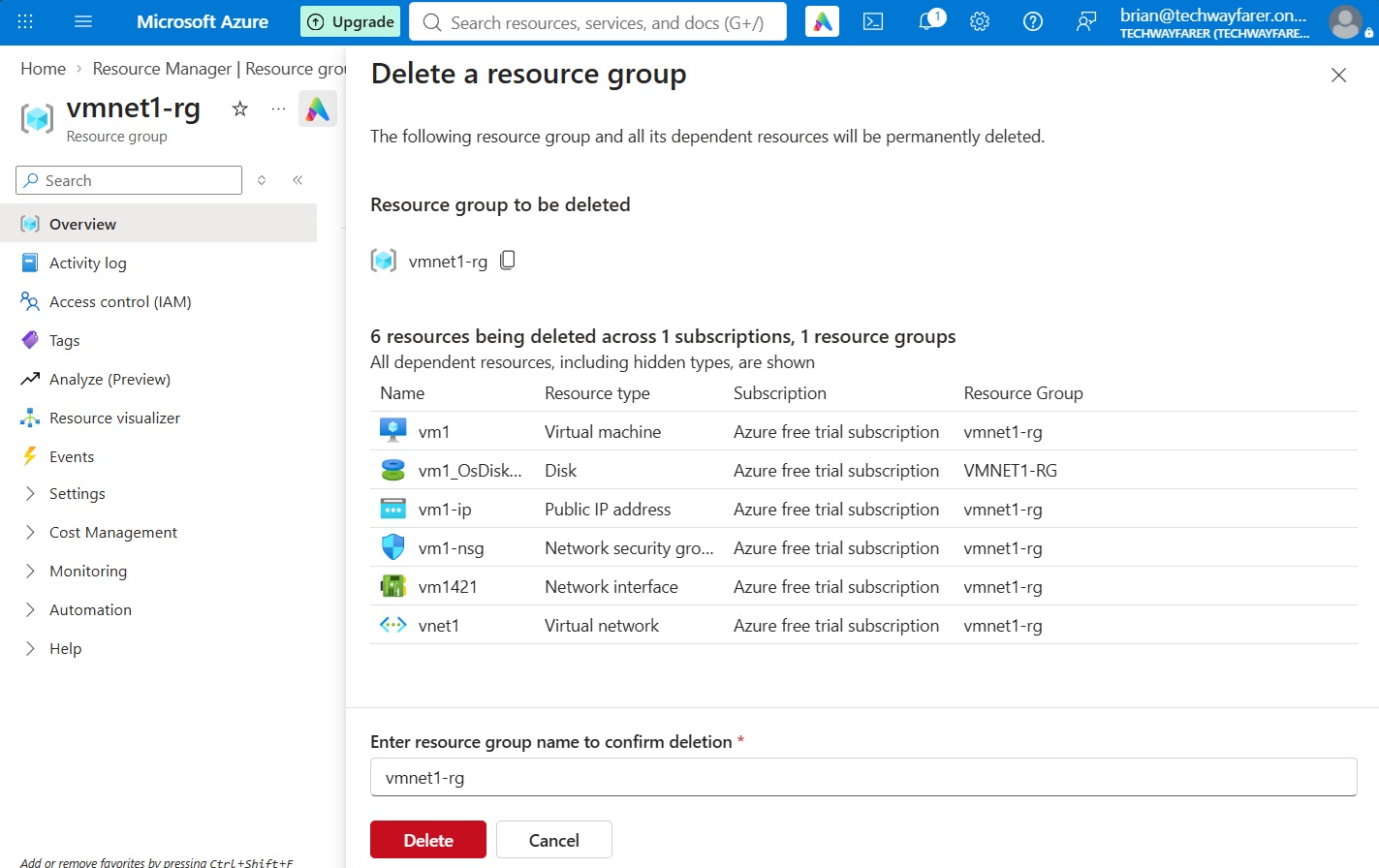
The details page for the resource group opens. Under the Resource tab click “Delete resource group.”
A window titled “Dete a resource group” open. Copy the name of the group into the field and click Delete.
Conclusion
We are done creating a virtual machine in Azure.
Key Takeaways:
- Entra ID is the identity and access management (IAM) system for Microsoft 365 and Azure.
- An Entra ID tenant is created when a new Microsoft 365 or Azure account is created. Creating a MS 365 account provides the opportunity to specify the domain name for the Entra account (e.g., domainname.onmicrosoft.com).
- Free 30-day trials are available for Microsoft 365, Entra ID, and Azure.
In the next post we will synchronize Active Directory with Entra ID using Entra Cloud Sync.
Next Post >> Entra Cloud Sync