In this post, we will create a Windows Server 2022 virtual machine (VM) using VMware Workstation Pro. You could use the steps described in this post to create a Windows Server 2025 VM instead.
The Windows 2022 server will be installed in three major steps:
- Download the Windows Server installation file
- Create the VM
- Install Windows Server on the VM
This post is part two of a home lab that explains how to use Windows Server and Active Directory.
Home Lab Series of Posts
- Home Lab Introduction: Windows Server and Active Directory
- Install Windows Server 2022 using VMware Workstation
- Configure Windows Server 2022
- DHCP Server Installation and Configuration
- Create Organizational Units in Active Directory
- Create Users in Active Directory using PowerShell
- Create Groups in Active Directory
- Create Group Policy Objects in Active Directory
- Join Windows 11 Computer to a Domain
We are using the VMware Workstation Pro hypervisor to create the Windows Server 2022 VM. If you don’t yet have a hypervisor installed on your computer, an earlier post explains the benefits of using VMware Workstation Pro instead of VirtualBox or Hyper-V. A second post explains how to configure a Windows host computer before installing VMware Workstation Pro. And a third post documents how to install the VMware Workstation Pro hypervisor.
Table of Contents This Post
Download the Windows Server 2022 Installation File
You can download an evaluation version of Windows Server 2022 from the Azure portal or from the Microsoft website. At the Microsoft site choose the ISO download for your country. If you are in the United States, click English > ISO downloads > 64-bit edition.
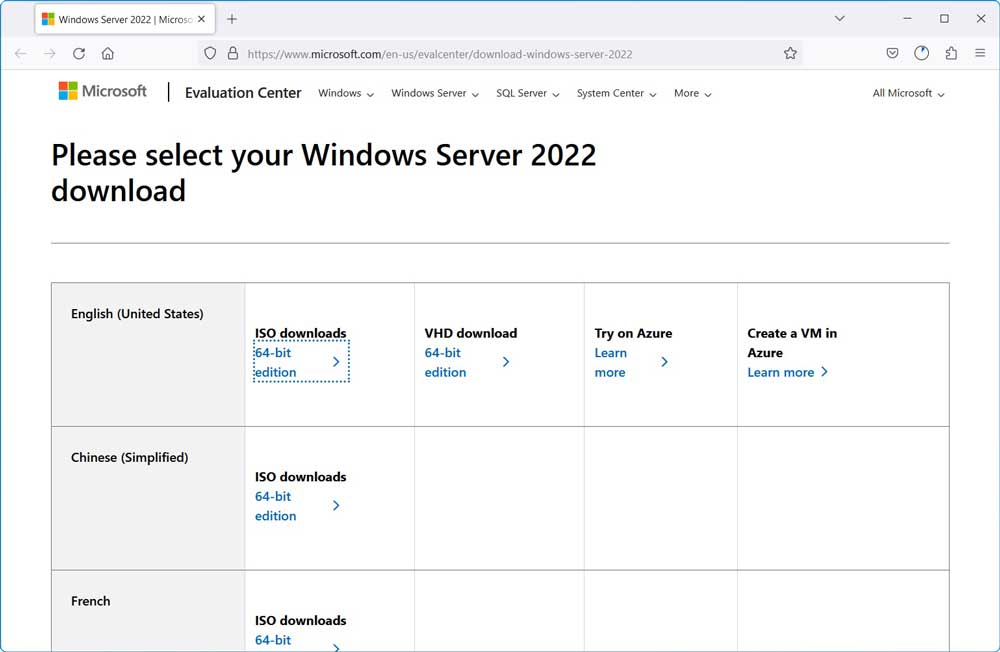
Save the file onto your host computer, such as in the Downloads folder. The iso file is large (over 4.9 GB) and will take a while to completely download.
Create a Virtual Machine for Windows Server 2022
Now that we have the Windows Server installation file, we can create the VM for Windows Server 2022. Begin by opening VMware Workstation Pro on your physical host computer.
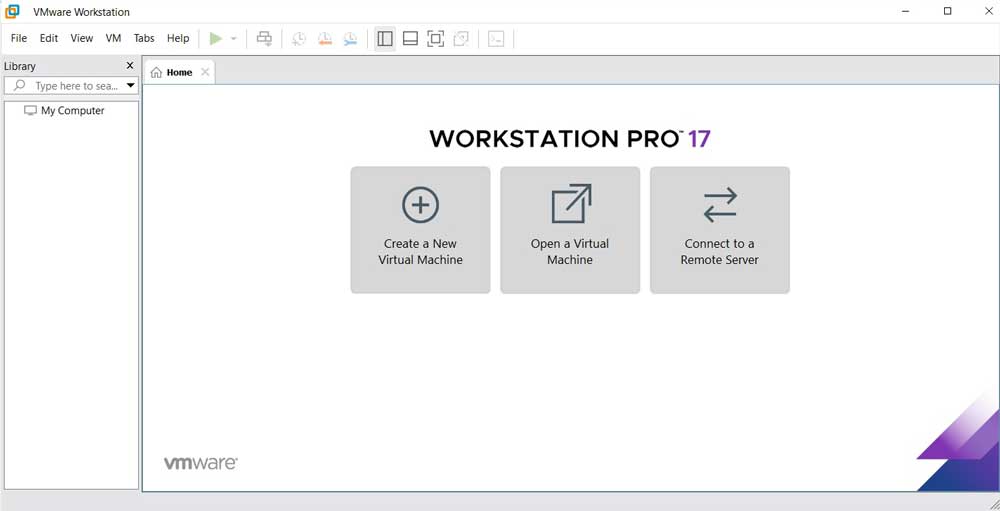
Click the button “Create a New Virtual Machine” or click File > New Virtual Machine in the top menu.
A pop-up window will appear “New Virtual Machine Wizard.”
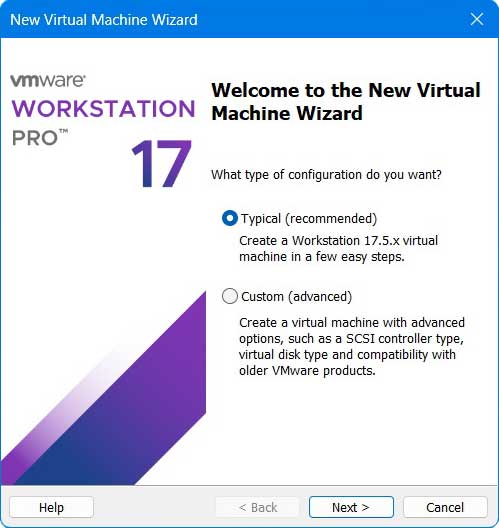
Select Typical and click Next.
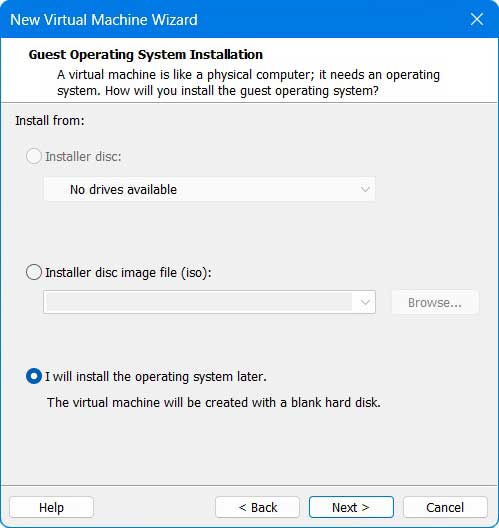
In the “Guest Operating System Installation” window, you can choose which installation file to use for the guest operating system. Choose “I will install the operating system later” and then click Next.
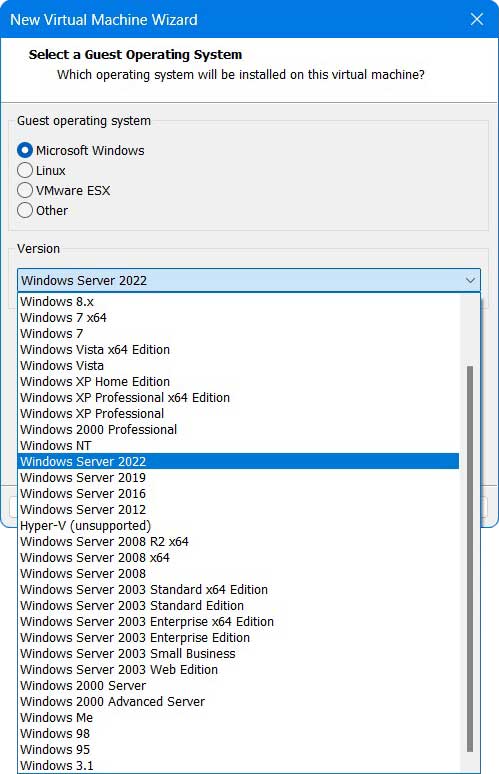
In the “Select a Guest Operating System” window, you can choose which installation file to use for the guest operating system. Under “Guest Operating System” select “Microsoft Windows.” Under Version select “Windows Server 2022” from the drop-down menu and then click Next.
In the “Name the Virtual Machine” window, you will choose a name for the guest operating system and the location on your host computer where the VM files will be stored. Below are the default name and location chosen by VMware.
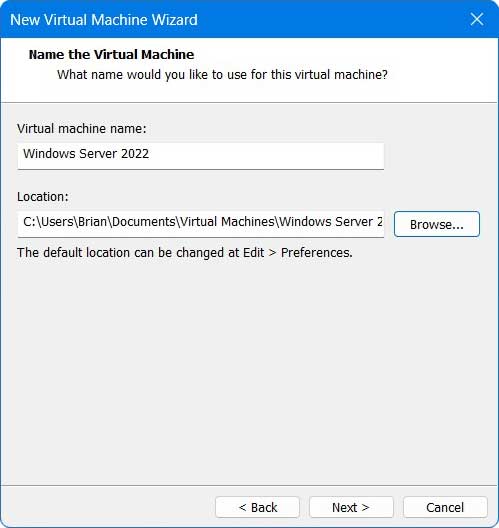
In this lab, the Windows Server 2022 VM will be called DC01. Click Browse to change the location of the VM files.
In the “Browse For Folder” pop-up window choose where you want to install the VM.
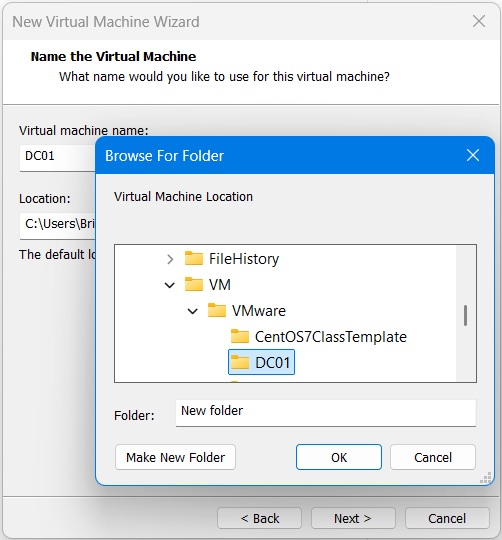
The physical computer used for this lab has two physical hard drives. The Windows 11 Pro host operating system is installed on the C drive. The VM files are stored on a separate D drive to improve system performance. All the VMs are placed under the folder VM\VMware.
To create a folder for your VM, select the parent folder and then the “Make New Folder” button. Our folder name will be titled DC01, the same name used for the VM. When ready click OK.
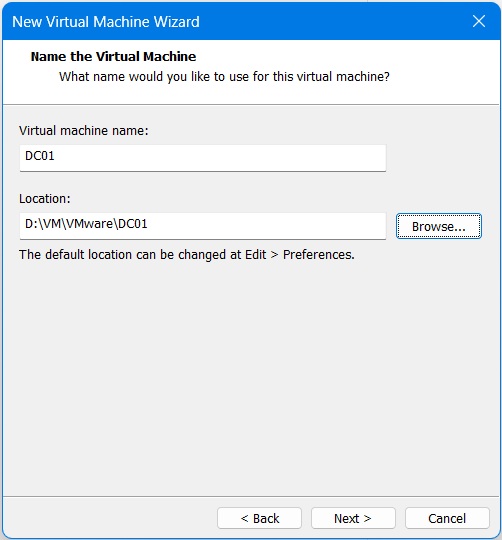
Now the full directory path will appear in the Location field. Click Next.
In the “Specify Disk Capacity” window choose a maximum disk size for your VM and the file structure for storing the VM.
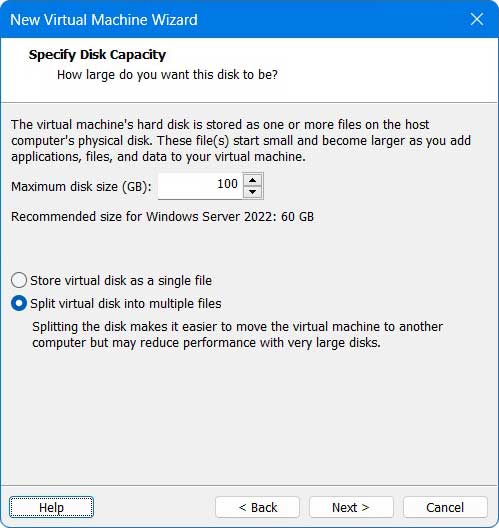
By choosing “Split virtual disk into multiple files” the VM will take up the least amount of room on the physical hard drive, up to the maximum file size. After the initial installation the Windows Server will have few services installed, and the total file size will be relatively small. As services are added (such as Domain Controller, Active Directory, and DHCP) the total file size will increase. In this lab, we have changed the maximum disk size from the default of 60 GB to 100 GB in case we need additional space in the future. Click Next.
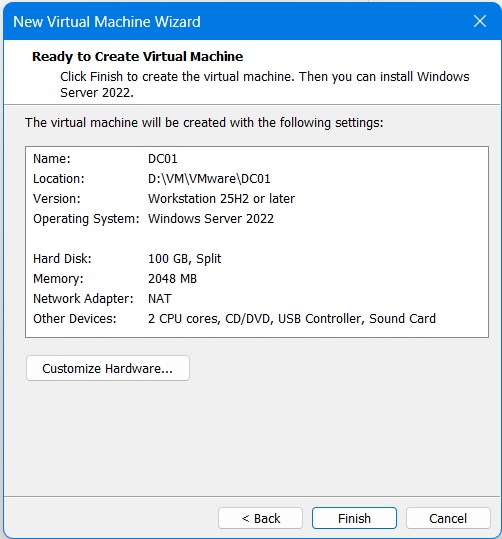
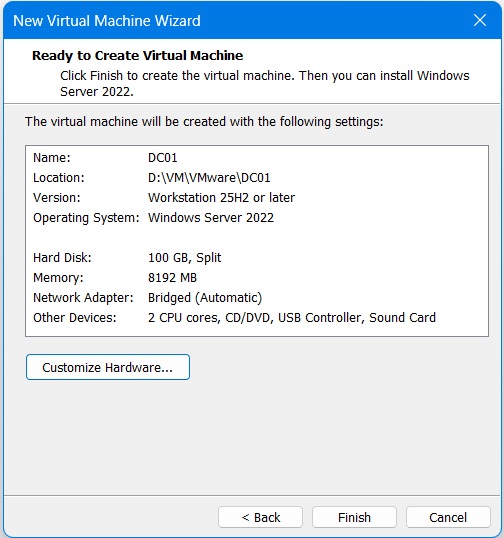
The “Ready to Create Virtual Machine” window provides the settings for the VM we are about to create. Some of the choices were made automatically by VMware such as the memory size, network adapter type, and number of cores allocated to the VM.
Modify Hardware Settings
In the “New Virtual Machine Wizard” window click “Customize Hardware” to modify the settings before the VM is created. The Hardware pop-up window appears.
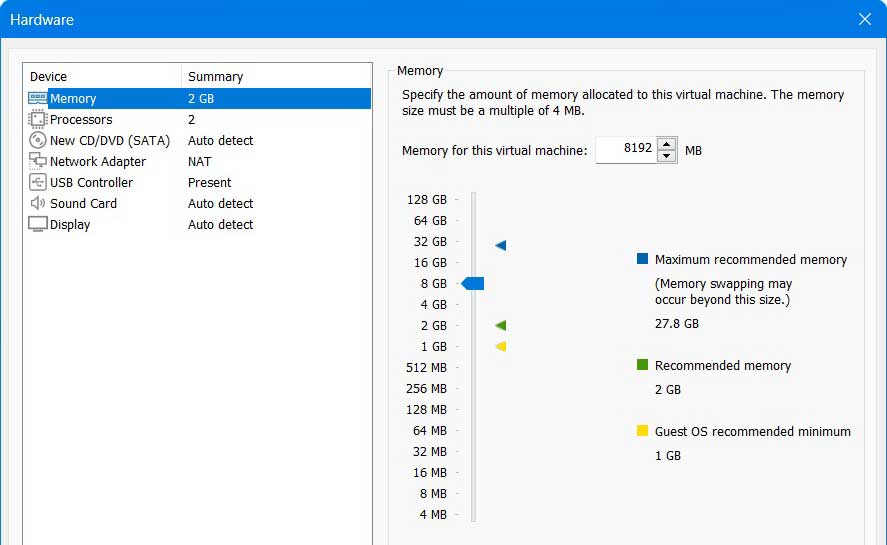
Memory for the VM is set to 2 MB by default. The host computer for this lab has a total of 32 MB. We can afford to allocate 8 GB to the Windows Server. If your host system has less total memory, then allocate what you can to the VM.
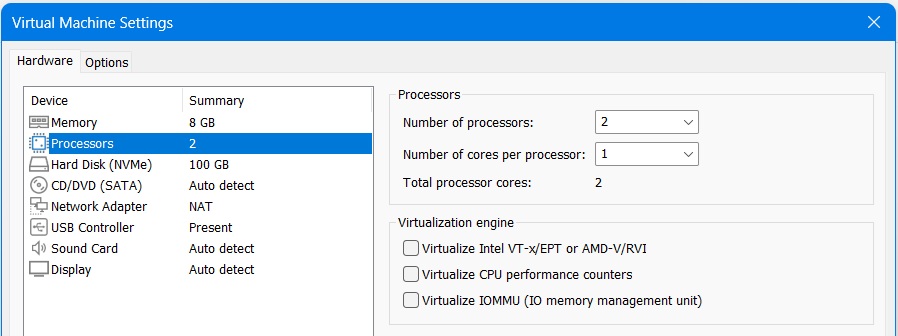
Next you can modify the Processors settings. The “Total processor cores” determines the amount of computing power allocated to the VM. It is set to 2 by default. To add more cores to the VM, increase either the “Number of processors” or “Number of cores per processor.”
The host computer has 6 total cores available. We will keep the default allocation of 2 total cores for the Windows Server.
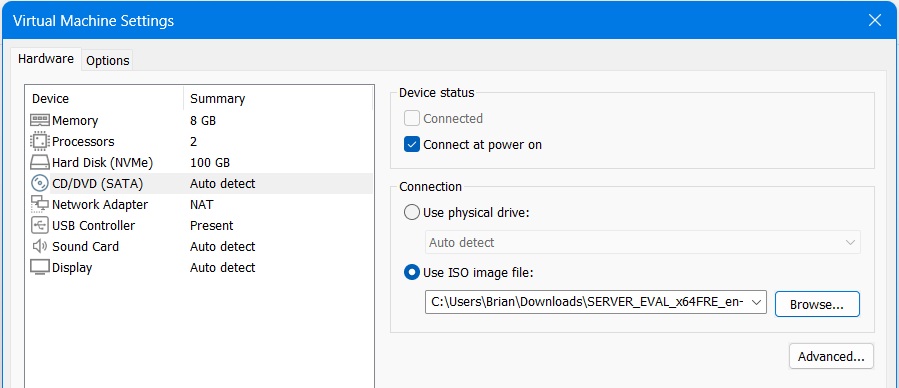
In the “CD/DVD (SATA)” setting, under Connection select “Use ISO image file.” Then click Browse to specify the location of the iso file downloaded earlier.
Network Adapter
The “Network Adapter” setting determines the type of network connection used by the VM.
Many IT professionals have difficulty configuring network connections in a VM. The subject is made even more challenging when installing a Windows Server VM that acts as a domain controller. So let us briefly review how network connections work in VMware.
The three primary network connections in VMware are Bridged, NAT, and Host-only.
The Bridged network adapter setting enables a VM to become part of the physical home network. The VM can automatically receive its internet protocol (IP) settings (such as IP address, subnet mask, default gateway, and DNS server) from the DHCP service on the home router. The VM will have access to the file servers, printers, or other computers on the physical home network. And the VM can use the home router as a gateway to access the internet just like any other computer on the home network.
The NAT network setting places the VM on an internal subnet that is separate from the home network. VMware’s DHCP service will provide the VM with its IP settings. Yet the computer still has internet access through the same physical network card used by the host computer. All computers on the NAT network can communicate with one another. The computers on the NAT network do not communicate with devices on the physical home network.
The host-only network setting also places the VM on an internal subnet separate from the physical home network. VMware’s DHCP service will provide the VM with IP settings. And all VMs using the same host-only virtual network will be part of the same internal subnet, allowing them to communicate with one another. Yet there is no network address translation (NAT) on the host-only network. So devices cannot communicate with another network, including the internet.
The following is a summary of how the Windows Server accesses the internet using the network connection types in VMware.
Bridged Network: Windows Server –> Home Router (Gateway) –> Internet
NAT: Windows Server –> VMware –> Home Router (Gateway) –> Internet
In most IT labs a VM can simply accept the IP settings automatically provided by VMware’s DHCP controller. If the VM needs access to the internet (to update the operating system) and also needs to communicate with other VMs, then you can assign it to the NAT network.
Yet in this lab the Windows Server VM will not simply accept the IP settings provided by VMware’s DHCP controller. The server will be assigned a static IP address and act as a domain controller that distributes IP settings to other client devices/VMs on the same network. It is simpler to use VMware’s Bridged network connection for the Windows Server and the Windows 11 client. Assigning the server VM to the NAT or Host-only network connection creates an additional level of abstraction and complexity that can be a distraction from learning about Windows Server.
Choose the Bridged network connection type.
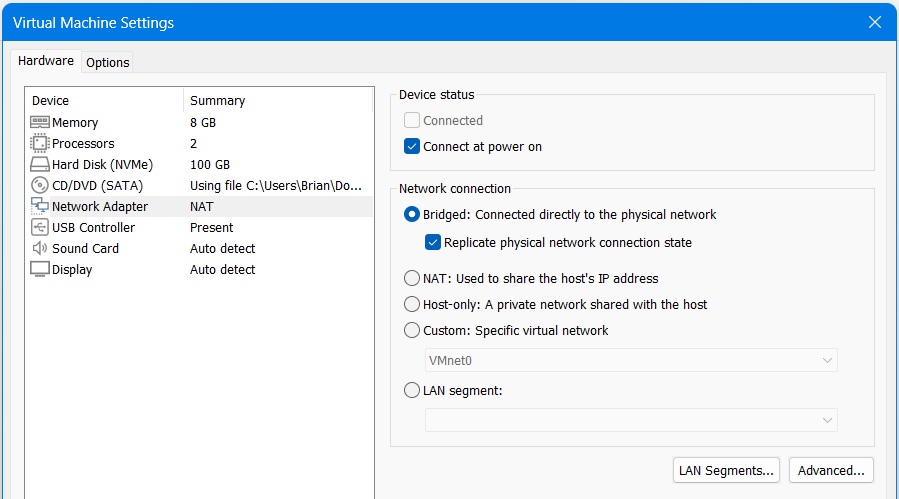
It is often a good idea to avoid the Bridge network connection for your VMs. There are always security concerns when placing a VM on a home network. For instance, you may want to create a VM with security vulnerabilities, so you can perform penetration testing. And you wouldn’t want an insecure device on your home network. So take extra caution when placing any VM on your home network. We won’t be performing penetration testing in this lab, so using the Bridget network connection will be fine.
Later in the lab, we will return to the discussion of network adapters when we configure the Windows Server domain controller. You can read more about the network connections available in VMware in another blog post.
Finish Creating Virtual Machine
We are finished with the Hardware settings. Click Close in the bottom right corner of the Hardware pop-up window.
You will return to the “Ready to Create Virtual Machine” window that shows the updated settings for the VM. Click Finish.
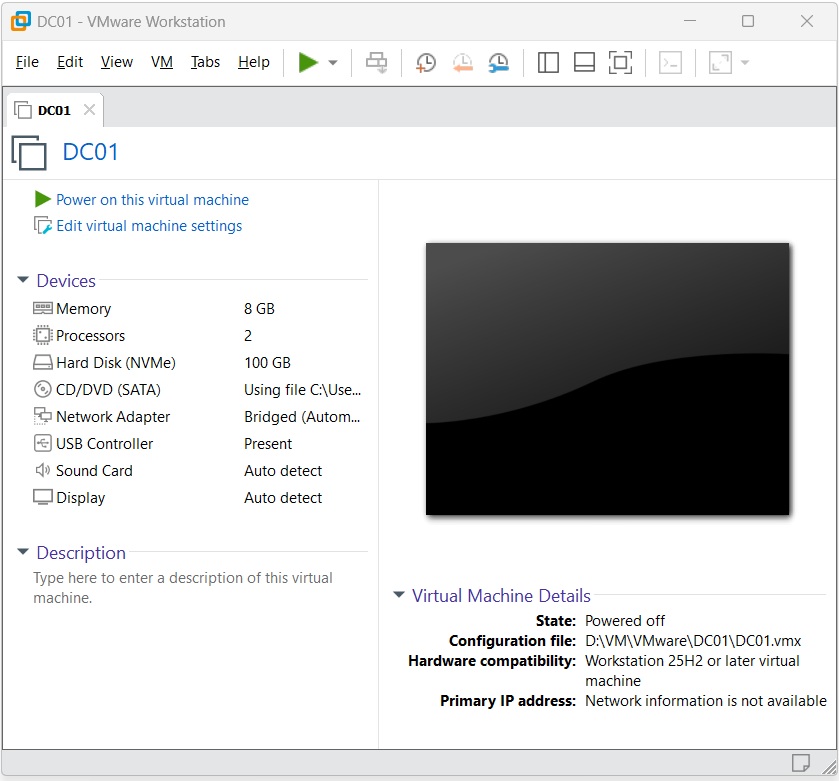
You can now see the new VM created within VMware Workstation.
Install Windows Server 2022 on the VM
At this point we have created a Windows Server VM in VMware Workstation. Yet there is no Windows Server operating system running on the VM.
How to Navigate Between VM and Host OS
Before proceeding with the Windows Server installation, we will briefly discuss how to navigate between the VM and the host OS using key shortcuts. In the bottom left corner of the screen you will see a message that changes depending on whether the VM or host OS is currently active. If the host OS is active, you will see the message “To direct input to this VM, click inside or press Ctrl+G.”

If you press the Ctrl and G keys at the same time you will be able to access the VM window.
Once you have access to the VM, the message in the bottom left corner of the screen will change to read “To return to your computer, press Ctrl+Alt.” If you press the Ctrl and Alt keys at the same time you will be able to access the host OS.
Install Windows Server OS
Now we will power on the VM and install Windows Server on the VM using the iso file. In VMware, under the name of the VM click the link “Power on this virtual machine.”
A message will briefly flash across the screen “Press any key to boot from CD or DVD.” While the message is displayed, press Cntrl-G and then press any other key on the keyboard. If a VMware pop-up window appears in front of the screen click OK to close the pop-up window, then proceed with pressing Cntrl-G and any other key.
If you don’t press the keys before the message disappears, the Boot Manager window will appear.
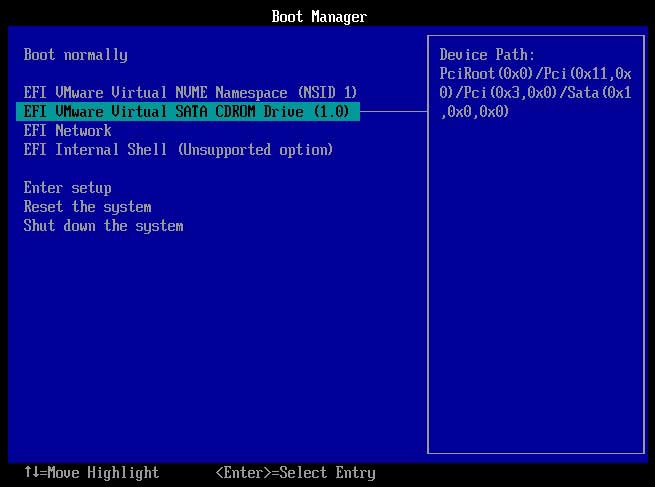
Use the down arrow button to select “Shut down the system” and press Enter. Then restart the VM and try again to start the installation process.
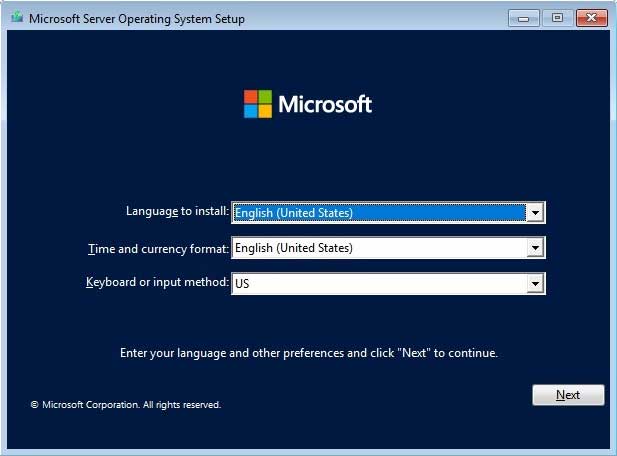
Once the installation process begins the “Microsoft Server Operating System Setup” window appears. Change the settings to match your country and click Next.
Choose “Install now” on the following window.
Then you will be taken to the window “Select the operating system you want to install.”

For this lab, we want access to the desktop version of Windows Server. Choose either “Windows Server 2022 Standard (Desktop Experience)” or “Windows Server 2022 Datacenter (Desktop Experience).” The license keys for the Standard or Datacenter versions are similar in price. So we will choose the Datacenter version that has more features. Click Next.
On the following window choose to accept the license terms and click Next.
In the window “Which type of installation do you want?” choose Custom.

The next window is titled “Where do you want to install the operating system?” The “Drive 0 Unallocated Space” is the room on the physical hard drive space that was designated for the VM in an earlier step. Choose Next to install the OS in the unallocated space.

The Windows OS will begin the installation process that will take around 15 minutes.
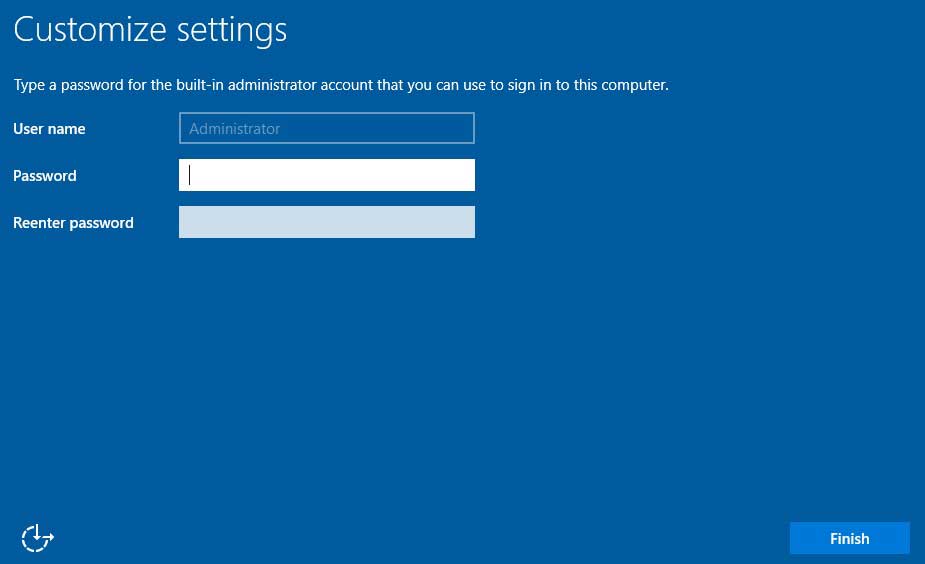
Eventually the “Customize settings” window will appear. Enter a password for the Administrator account and click Finish.
You will be taken to the Windows desktop.
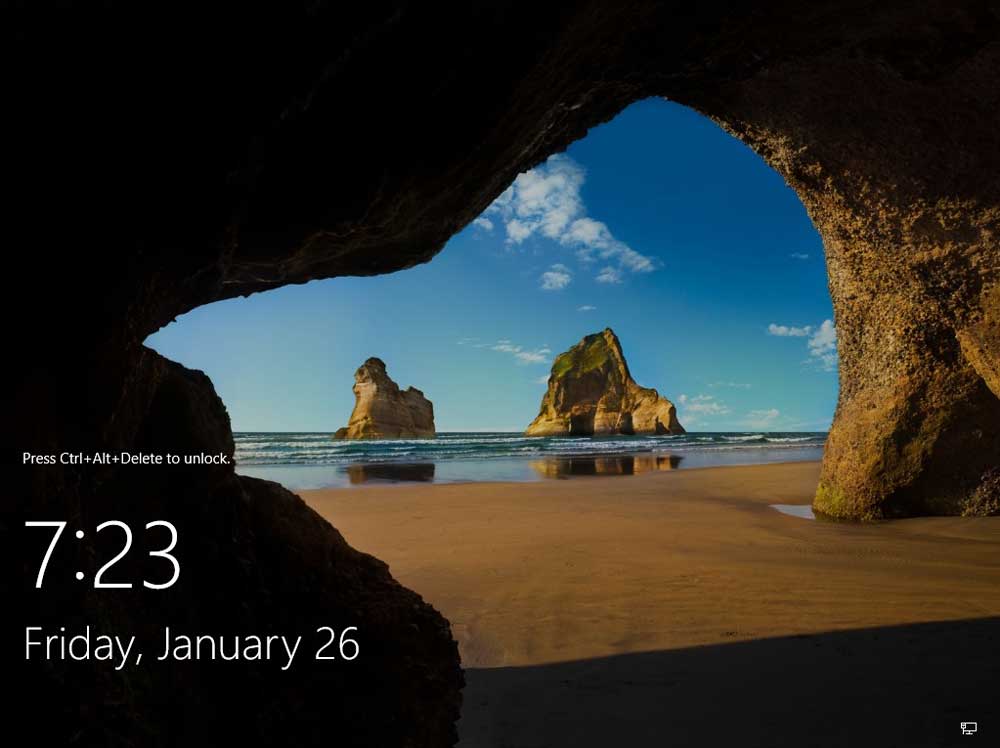
You have to unlock the desktop to enter your username and password and log into the Windows Server OS. There is a tab in VMware for the VM (named DC01 in this lab). Right click on the tab, and a list of possible commands appears. Choose “Send Ctrl+Alt+Del.”
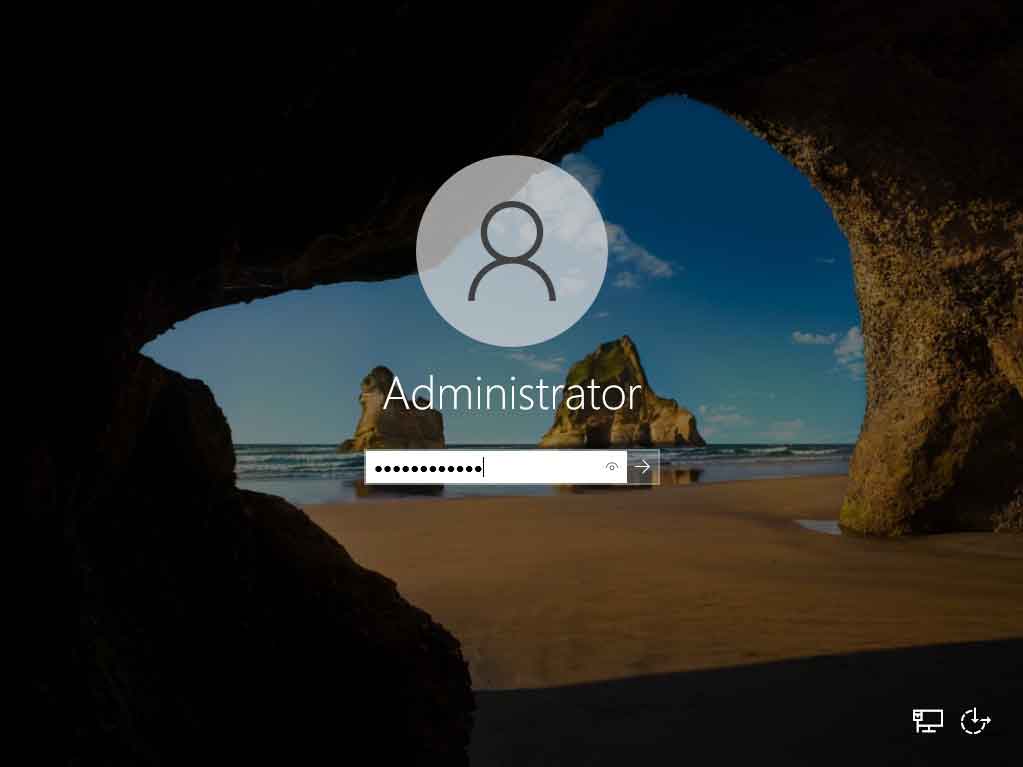
Enter your password for the Administrator account and press the arrow button to login.
When logging into Windows Server, the Server Manager service will open by default.
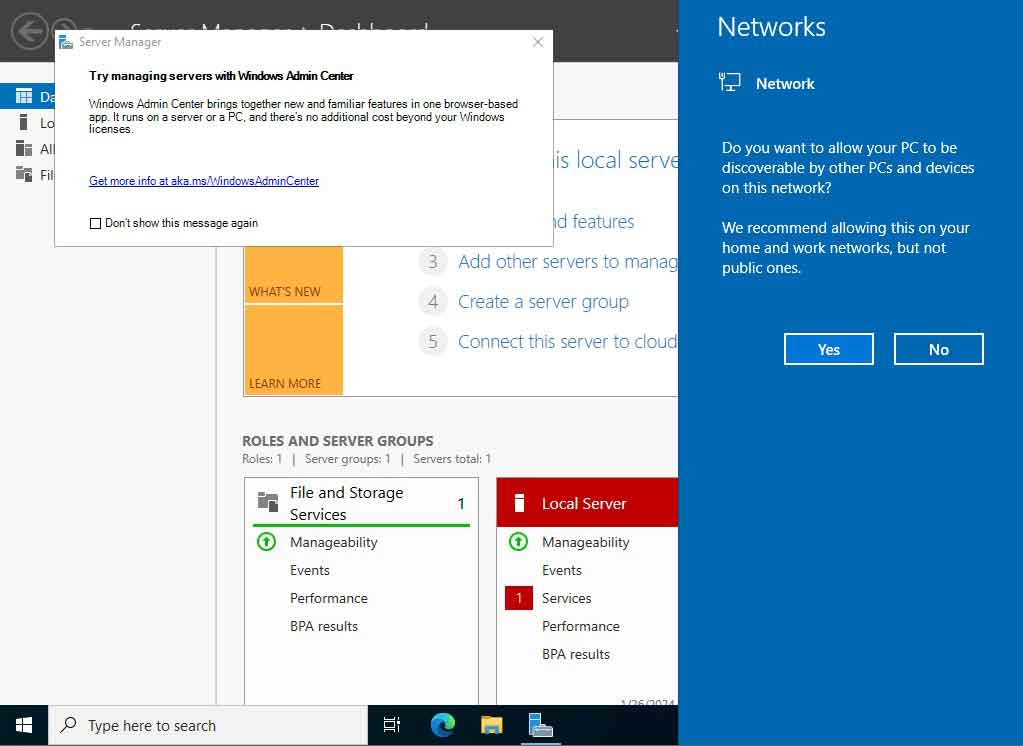
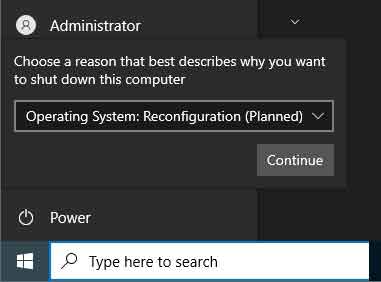
It is always good practice to restart a newly installed OS before proceeding to install applications on the OS. To restart the OS, click on the Windows icon in the bottom left corner, choose Power > Restart.
When prompted for a reason for restarting the OS, choose an explanation that makes sense since you may want to view the system logs in the future. Click Continue and the Windows Server VM will restart.
VMware Tools
VMware Tools is an additional application that increases the functionality of the VM and provides better communication between the VM and the host OS.
VMware Tools provides drivers that allow you to easily move between your host OS and your VM. It allows your VM display to expand or contract to fit the size of the VMware Workstation window. And it allows you to share files between the guest and host operating systems.
Power on the Windows Server VM and login. In VMware, beneath the window for the VM, is a prompt that allows you to install VMware Tools. Click “Install Tools.”

In the Windows server desktop click Start > Documents. In File Explorer click on the virtual DVD drive titled “VMware Tools.” Double click on the setup application.
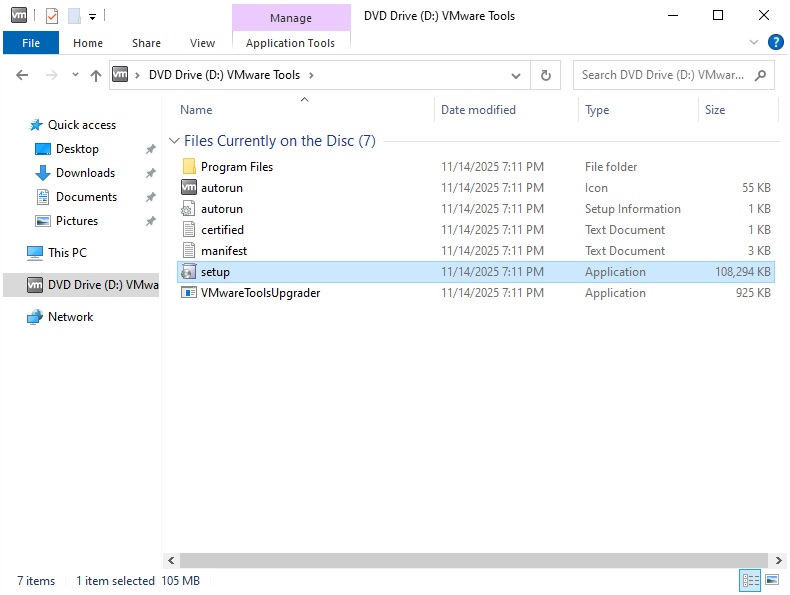
Minimize the Windows Documents window to see the “VMware Tools Setup” window.
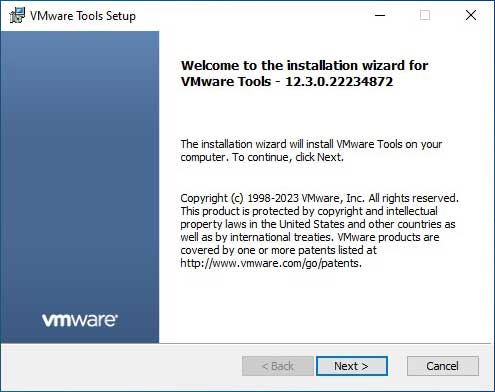
Click Next. Accept the default installation settings. And click Install.
When the installation is complete click Finish to close out the “VMware Tools Setup” window. Then restart Windows Server.
Take a snapshot of the VM to backup the work done so far. In the top menu of VMware choose VM > Snapshot > Take Snapshot. Enter a title and description for the snapshot and then click “Take Snapshot.”
We are done installing Windows Server 2022.
In the next post we will configure the Windows Server.
Next Post >> Configure Windows Server