In this post, we will create organizational units within Active Directory. This post is part five of a home lab that explains how to use Windows Server and Active Directory.
Home Lab Series of Posts
- Home Lab Introduction: Windows Server and Active Directory
- Install Windows Server 2022 using VMware Workstation
- Configure Windows Server 2022
- DHCP Server Installation and Configuration
- Create Organizational Units in Active Directory
- Create Users in Active Directory using PowerShell
- Create Groups in Active Directory
- Create Group Policy Objects in Active Directory
- Join Windows 11 Computer to a Domain
Table of Contents This Post
What are Organizational Units?
In Active Directory (AD) an organization unit (OU) is a container object used to logically group and manage other objects in a Windows domain such as users, groups, and computers.
Organization units are part of the AD hierarchy. OUs reside within a domain that resides within a forest. An OU can be placed inside another OU, much like the folder structure within Windows.
Organizational units provide administrative boundaries. They enable the delegation of administrator rights to specific users or groups without giving them full domain administrator access
In AD the resources for a business can be stored in OUs and containers. Containers do not offer the same features as OUs and are used primarily for administrative convenience. For instance, it is not possible to assign security policies or access rights to a container.
In production environments, OUs are usually organized around policy boundaries like the branch locations or departments in a business. Using OUs administrators can delegate permissions and apply Group Policy Objects (GPOs) to associated users or computers without affecting the entire domain.
The primary purposes of OUs are as follows:
- Logically organize related objects (users, computers, groups) for easier management.
- Delegate administration rights of an OU to specific users or groups without granting full domain administrator rights to the entire domain.
- Apply GPOs to the specific users or computers within an OU.
- Place users, servers, and service accounts in separate OUs for easier management of AD.
Creating Organizational Units
OUs are created in AD using a Microsoft Management Console tool called “Active Directory Users and Computers” (ADUC). You can access ADUC by clicking on the Windows icon on the task bar and opening the “Windows Administrative Tools” submenu. You can also access ADUC in Server Manager by clicking on Tools in the top menu bar.
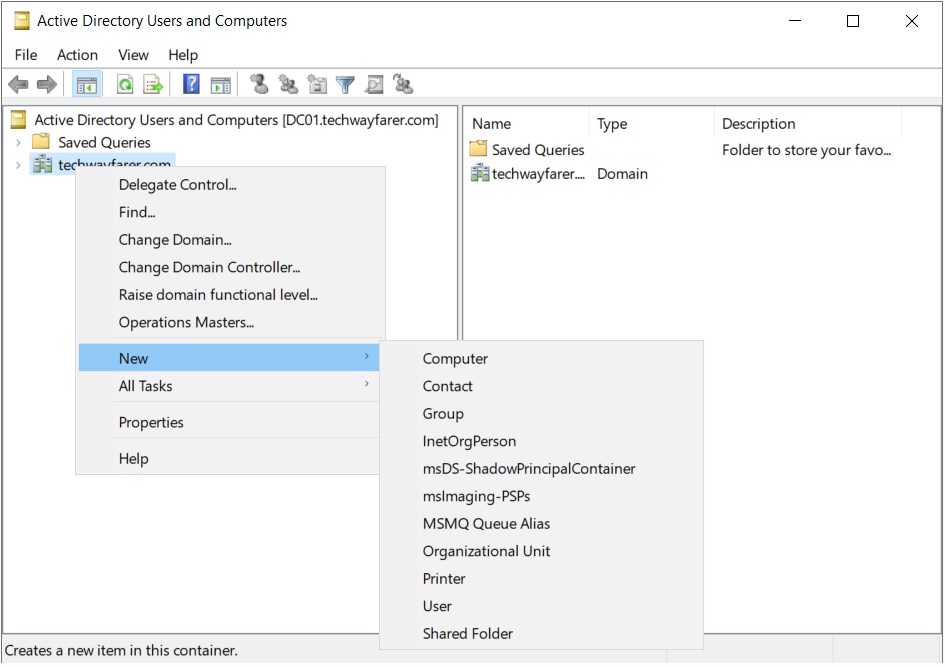
To create an OU structure In ADUC right click on the root domain (e.g., techwayfarer.com) and choose New > Organizational Unit.
We will first create a parent OU (_Branches) that will contain the organizational structure for the business, rather than placing OUs directly under the root domain.
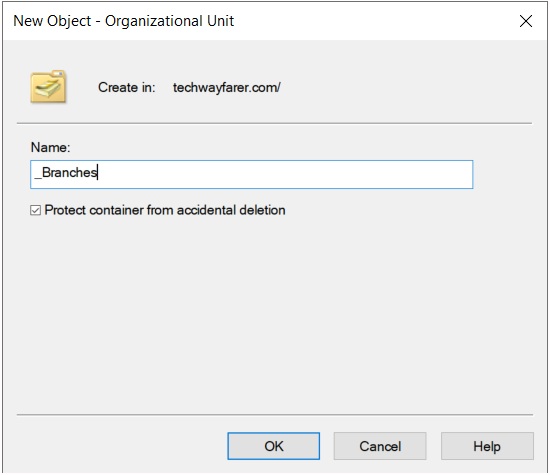
Note that the option “Protect container from accidental deletion” is selected. If an OU is accidentally deleted, all the objects within the OU will be deleted as well.
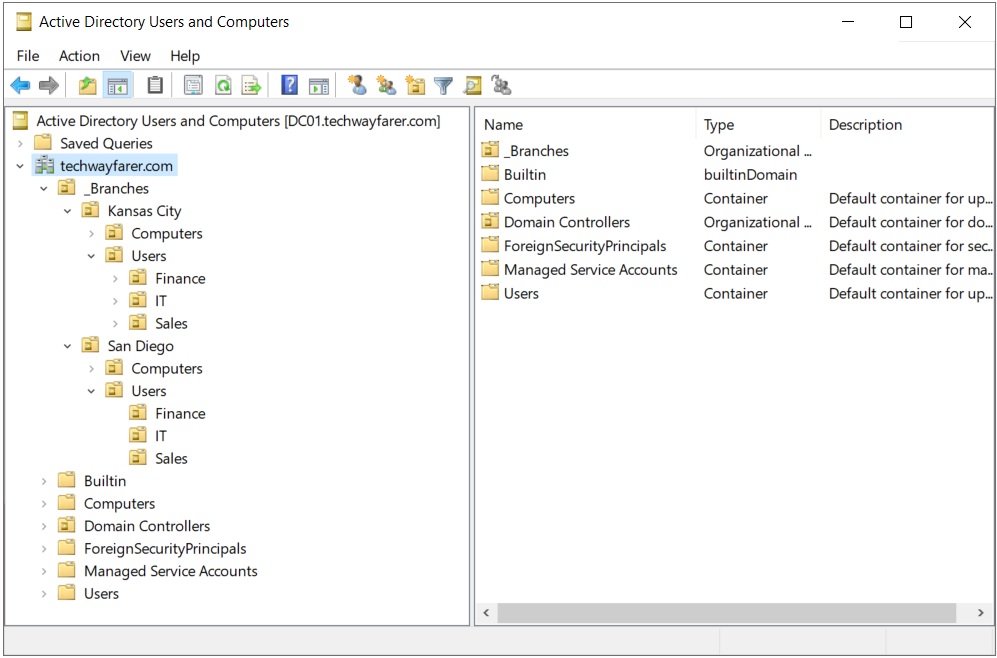
Now we can create a branch OU for the business. In the ADUC window click on the root domain to view the current OUs and containers. Right click on the _Branches OU and choose New > Organizational Unit. In the “New Object – Organizational Unit” window enter a branch name (e.g., Kansas City).
Right click on the new branch name and add the following OUs under the branch: Users, Computers.
Right click on the Users OU and add departments (e.g., IT, Finance, Sales).
Repeat the above steps for a second branch location (e.g., San Diego).
Below is an example of a completed OU structure for our lab.
Conclusion
For now, we are done configuring the organizational units for the lab.
In the next post we will create users in Active Directory using PowerShell.
Next Post >> Create Users in Active Directory using PowerShell